Chapter 30 · Part 4
Delete a WhatsApp Template
Remove templates you no longer need directly from the Template List. Deletion is permanent — the template is removed from your WhatsApp Business account, not just from the portal.
Deleting a template
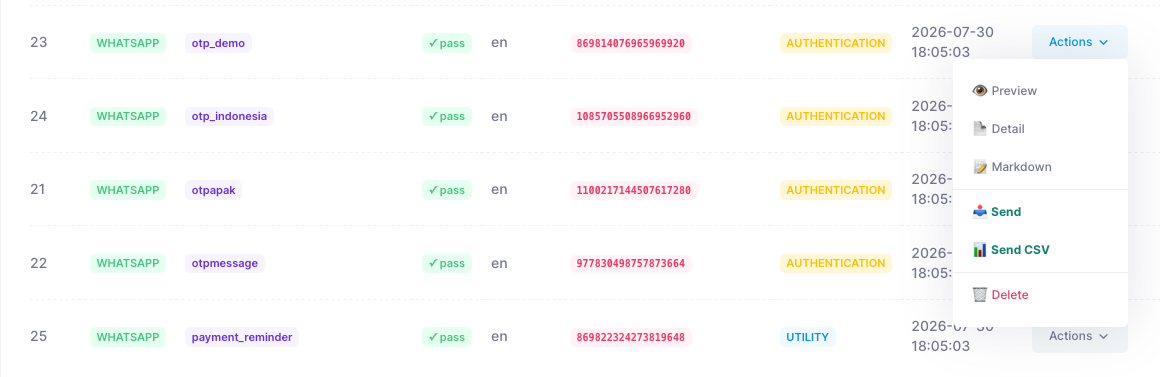
Open Template List, find the template (use the search box if you have many), then click Actions → Delete.
- 1
Open the Actions menu
On the template’s row, click Actions and choose Delete at the bottom of the menu.
- 2
Review the confirmation
A confirmation dialog shows the template’s name, code, and language together with a warning that deletion is permanent. Double-check you have the right template.
- 3
Confirm
Click Yes, delete it. The template is removed from your WhatsApp Business account and disappears from the Template List.
Deletion is permanent and cannot be undone. Any system or API integration still sending with the deleted template will fail immediately. Only the main account can delete templates — sub-accounts cannot.
Deleting via API. Templates can also be deleted programmatically with the Delete Template API — see the WhatsApp Business API Documentation for the endpoint and parameters.
Need to replace what you removed? Create a new template and submit it for approval.
Need help?
Our team is happy to assist with anything in this guide. Contact us →