Chapter 39 · Part 5
WhatsApp Auto Reply
Send one fixed message back to every customer who writes to your WhatsApp business number — once per customer within the reply window you choose. Ideal for a “please do not reply” notice or an out-of-hours acknowledgement, with no AI or knowledge base to set up.
What Auto Reply does
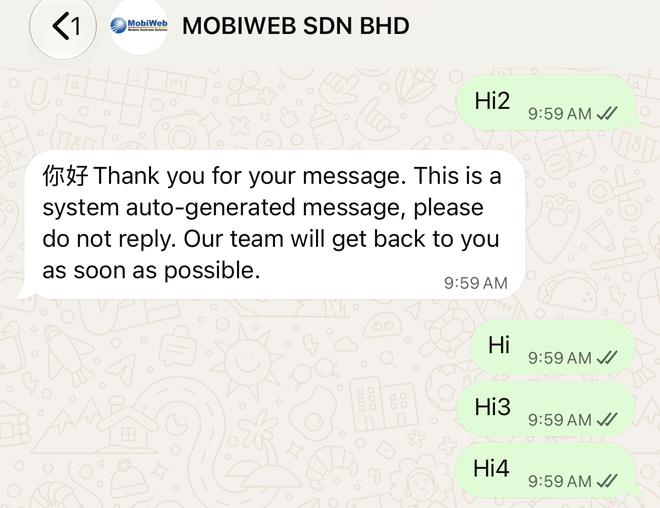
When a customer sends a WhatsApp message to your business number, Auto Reply sends back one fixed message that you write — for example “This is a system auto-generated message, please do not reply. Our team will get back to you soon.” Each customer gets it only once inside the reply window you choose (1, 2, 4, 6, 12 or 24 hours), so a customer who sends ten messages in a row receives one reply, not ten.
Your own fixed message
Up to 1,000 characters, with WhatsApp formatting such as bold and italic. No AI and no knowledge base needed.
Once per customer per window
Choose 1, 2, 4, 6, 12 or 24 hours. Repeat messages inside the window get no reply — and no auto reply charge.
Instant, 24/7
Sent within seconds of the customer’s message, day or night, and shown in your Conversations inbox.
Charged per reply
Every auto reply is an outbound WhatsApp service message, charged at your usual per-message rate.
Opening the Auto Reply page
Go to WhatsApp Business API → Auto Reply. Only the main account can change Auto Reply settings; sub-accounts cannot. If you have more than one WhatsApp business number, pick it from the Business Number list at the top — each number has its own setting (🟢 = Auto Reply on, ⚪ = off).
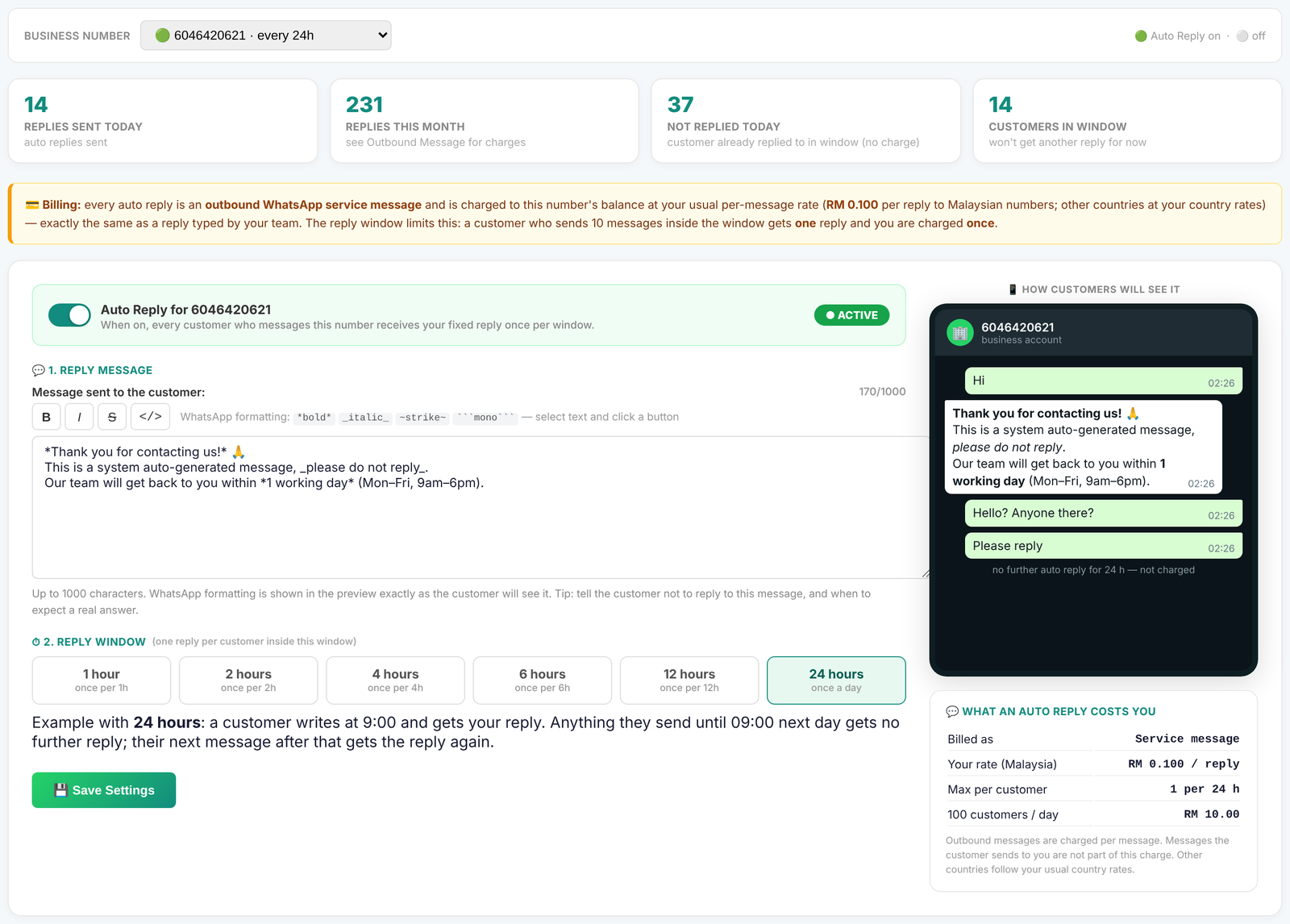
Set up Auto Reply
- 1
Choose the business number
Select the WhatsApp number from the Business Number list. The settings below apply to that number only.
- 2
Switch Auto Reply on
Turn on the Auto Reply for <your number> switch. The badge changes to ACTIVE.
- 3
Write your reply message
Type the message customers should receive (up to 1,000 characters). Use the B, I,
Sand</>buttons to format selected text. The phone on the right shows exactly how it will look in WhatsApp. - 4
Choose the reply window
Click 1, 2, 4, 6, 12 or 24 hours. Each customer gets at most one auto reply inside this window. The example under the buttons updates to show what your choice means.
- 5
Save
Click Save Settings. Auto Reply starts with the next message a customer sends. To stop it, switch it off and save — it stops immediately.
Formatting your message
Auto Reply supports the same text formatting as WhatsApp itself. Select the text and click a button, or type the symbols yourself:
*Thank you*Thank you_please do not reply_please do not reply~old price~```REF-1234```REF-1234How Auto Reply decides
Every incoming message
Customer messages
Text, photo, voice, file…
Auto Reply on?
For this business number
Replied in window?
Same customer, last N hours
Reply or stay quiet
See the two outcomes below
Not replied yet in the window
Your message is sent and the window starts for this customer. Charged once.
Already replied in the window
Nothing is sent. No auto reply charge. Your team still sees the message in Conversations.
The window is counted from the last auto reply sent to that customer — not from their latest message.
Example: a 12-hour reply window
Auto Reply is on with a 12-hour window. One customer messages you six times in a day:
One customer · one day · 12-hour window
| # | Time | Customer sends | What happens |
|---|---|---|---|
| 1 | 09:00 | “Hi” | Auto reply sent — charged. Window runs until 21:00. |
| 2 | 09:20 | “Hello? Anyone there?” | Inside the window — no reply, no charge. |
| 3 | 11:30 | A photo | Inside the window — no reply, no charge. |
| 4 | 20:45 | “Please reply” | Inside the window — no reply, no charge. |
| 5 | 21:15 | “Hi again” | Window ended at 21:00 — auto reply sent again, charged. New window until 09:15 next day. |
| 6 | 21:40 | “Thanks” | Inside the new window — no reply, no charge. |
Swipe sideways to see all columns →
Result: six messages from the customer, two auto replies, two charges. Your team can still read and answer all six in Conversations.
Choosing the reply window
| Window | Max auto replies per customer per day | Good for |
|---|---|---|
| 1 hour | Up to 24 | Customers who come back often during the day and should be reminded each time |
| 2 hours | Up to 12 | Busy chat lines during office hours |
| 4 hours | Up to 6 | A morning and an afternoon acknowledgement |
| 6 hours | Up to 4 | Roughly once per working session |
| 12 hours | Up to 2 | Once by day and once by night |
| 24 hours | 1 | A simple daily “please do not reply” notice — lowest cost |
Swipe sideways to see all columns →
What it costs
Auto Reply or AI Reply?
| Auto Reply | AI Reply | |
|---|---|---|
| What is sent | The same fixed message every time | An answer to the customer’s question, from your knowledge base |
| How often | Once per customer per window | Every message that needs an answer |
| Set-up | One message and a window — minutes | Knowledge bases, entries and testing |
| When your team replies | Keeps running on its window | Pauses for that customer |
| Charge | One service message per auto reply | One service message per AI reply |
Swipe sideways to see all columns →
Recent activity
The bottom of the page lists the latest 50 incoming messages for the selected number and what Auto Reply did with each.
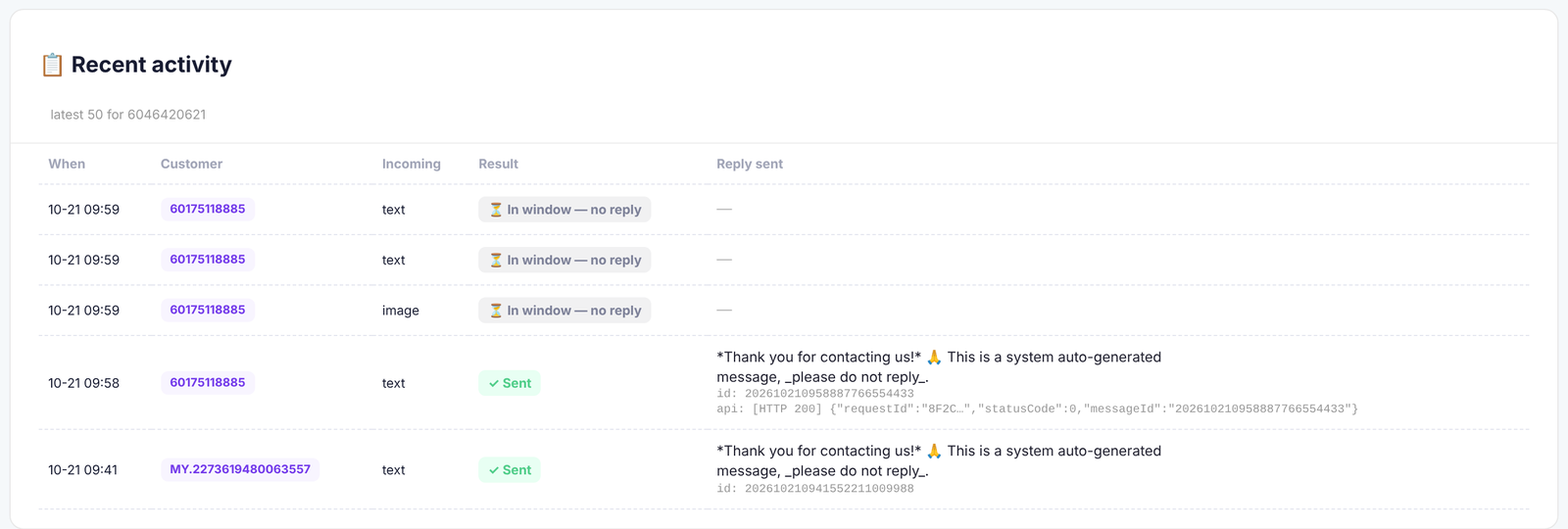
✓ Sent
The auto reply was sent to the customer and charged.
⏳ In window — no reply
The customer was already replied to inside the window. Nothing sent, no auto reply charge.
🤖 AI Reply handled
AI Reply is on for this number, so it answered instead.
✗ Failed
The reply could not be sent — for example the number’s WABA credit ran out. The customer’s next message tries again.
Good to know
- Any incoming message starts it — text, photo, voice note, document or location. Emoji reactions do not.
- The window is counted per customer, per business number, from the last auto reply sent to that customer.
- Auto replies appear in WhatsApp Conversations under Main Account, so your team can see what the customer received.
- Your team’s own replies do not pause Auto Reply — choose a longer window if your team usually answers quickly.
- No template is needed: the reply is sent straight after the customer’s message, inside WhatsApp’s 24-hour service window.
- Changes to the message or window apply from the next incoming message. Keep your WABA credit topped up — set a credit reminder per number so replies never fail.