Guide index

iSMS · Bulk SMS & WhatsApp

Bulk SMS End User Guide

Everything from sign-up to your first campaign — composing SMS, uploading contacts from CSV, scheduling sends, reading delivery reports, managing your account, and sending via the WhatsApp Business API.

35 Chapters 4 Parts SMS + WhatsApp Coverage
Getting started & sending SMSReports & schedulerAccount administrationWhatsApp Business API (WABA)
iSMS by MobiWeb Sdn Bhd
Part 1

Getting started & sending SMS

Create your account, sign in securely, then compose and send your first SMS — including building recipient lists from CSV, Excel, OpenOffice, and Gmail.

  1. 01New User Registration
  2. 02Log In to iSMS
  3. 03iSMS Main Member Page
  4. 04Compose SMS
  5. 05CSV Compose SMS
  6. 06How to Compose a CSV File
  7. 07Create CSV File in Excel
  8. 08Export Excel to CSV (Windows)
  9. 09Export Excel to CSV (Mac OS)
  10. 10Create CSV File in OpenOffice
  11. 11Export Gmail Contacts to CSV
  12. 12Convert E+11 to Number in Excel

Chapter 01 · Part 1

New User Registration

Creating an iSMS account is free and takes a few minutes. You’ll set up your login details, add your contact and company information, then activate the account by emailing your business documents to our team.

How to register

Follow the steps below to fill in the registration form. Register here to get started. Fields marked with an orange asterisk (*) are required.

From sign-up to sending

Fill the form

Login, personal & company details

Send company docs

For eKYC verification

eKYC approval

We review & approve

Account activated

Unlocked after approval

Log in & send

Start your first campaign

Before you start: have your company documents ready (registration certificate, a recent utility bill, and so on). You’ll email these for eKYC approval, which is required before the account is activated.
  1. 1

    Open the registration page

    Click Register here to open the registration page in your web browser. You’ll see the Register iSMS Membership form shown below.

  2. 2

    Enter your account credentials

    Under Account Credentials, set the username and password you’ll use to log in:

    • Username*Choose a username with no spaces. This is your iSMS login name.
    • Password*At least 8 characters, mixing upper- and lower-case letters, a number, and a symbol.
    • Confirm Password*Re-enter the same password to make sure it matches.
  3. 3

    Fill in your personal information

    This is how iSMS reaches you and activates your account:

    • Date of Birth*Select your Year, Month, and Day from the dropdowns.
    • Mobile Number*Country code + number, e.g. 601XXXXXXXX for Malaysia. Used for account activation.
    • Email Address*A valid email — account notices and your login security code are sent here.
  4. 4

    Add your company information

    Under Company Information, enter your organisation’s details:

    • Corporate Name*Your registered company or organisation name.
    • Corp Registration No*Your company registration number, e.g. 1234567-K.
    • Country*The country your business is based in, e.g. Malaysia.
  5. 5

    Pass the security check

    Solve the short maths question shown (for example, 5 + 10 = ?) and type the number into the Answer box. This anti-spam check keeps automated sign-ups out.

  6. 6

    Agree and create your account

    Tick the box to confirm you agree to the Terms & Conditions and Privacy Policy of MobiWeb Sdn Bhd / iSMS, then click Create My Free Account.

  7. 7

    Submit your documents for eKYC approval

    As part of eKYC (electronic Know-Your-Customer) checks, every new account must be verified before it can send. Email your company documents to sales@mobiweb.com.my — our team reviews them and, once approved, activates your account. Please include:

    • Company Registration Certificate
    • Company Website
    • Company Address
    • Company Utility Bill (issued within the last 3 months)
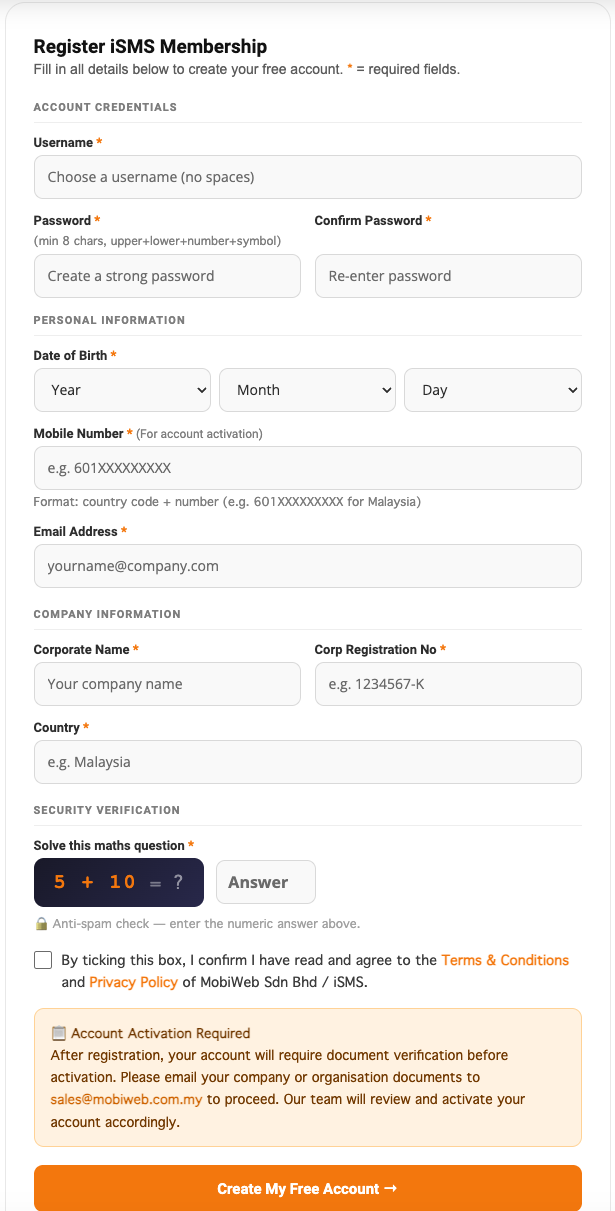
The iSMS membership registration form, showing account credentials, personal information, company information, and the security verification check.
Fig. 1The Register iSMS Membership form. Required fields are marked with an orange asterisk.
Approval needed before activation. Because of eKYC compliance, your account is created immediately but stays inactive until your company documents are reviewed and approved. Only after approval can you log in and send — verification is usually quick once everything has been received.

Once your account is activated, you’re ready to log in to iSMS and send your first message.
Chapter 02 · Part 1

Log In to iSMS

Logging in takes two quick steps: sign in with your username and password, then confirm the 6-digit security code sent to your email. Two-step verification keeps your account secure.

How to log in

You’ll need your iSMS username and password, plus access to your registered email for the verification code. Don’t have an account yet? Start with New User Registration.

Two steps to sign in

Username & password

Sign in as usual

Code emailed

A 6-digit code is sent

Enter the code

Type it on the next screen

You’re in

Land on your dashboard

The emailed code is a second layer of security — even if someone has your password, they can’t sign in without your inbox.

  1. 1

    Open the iSMS portal

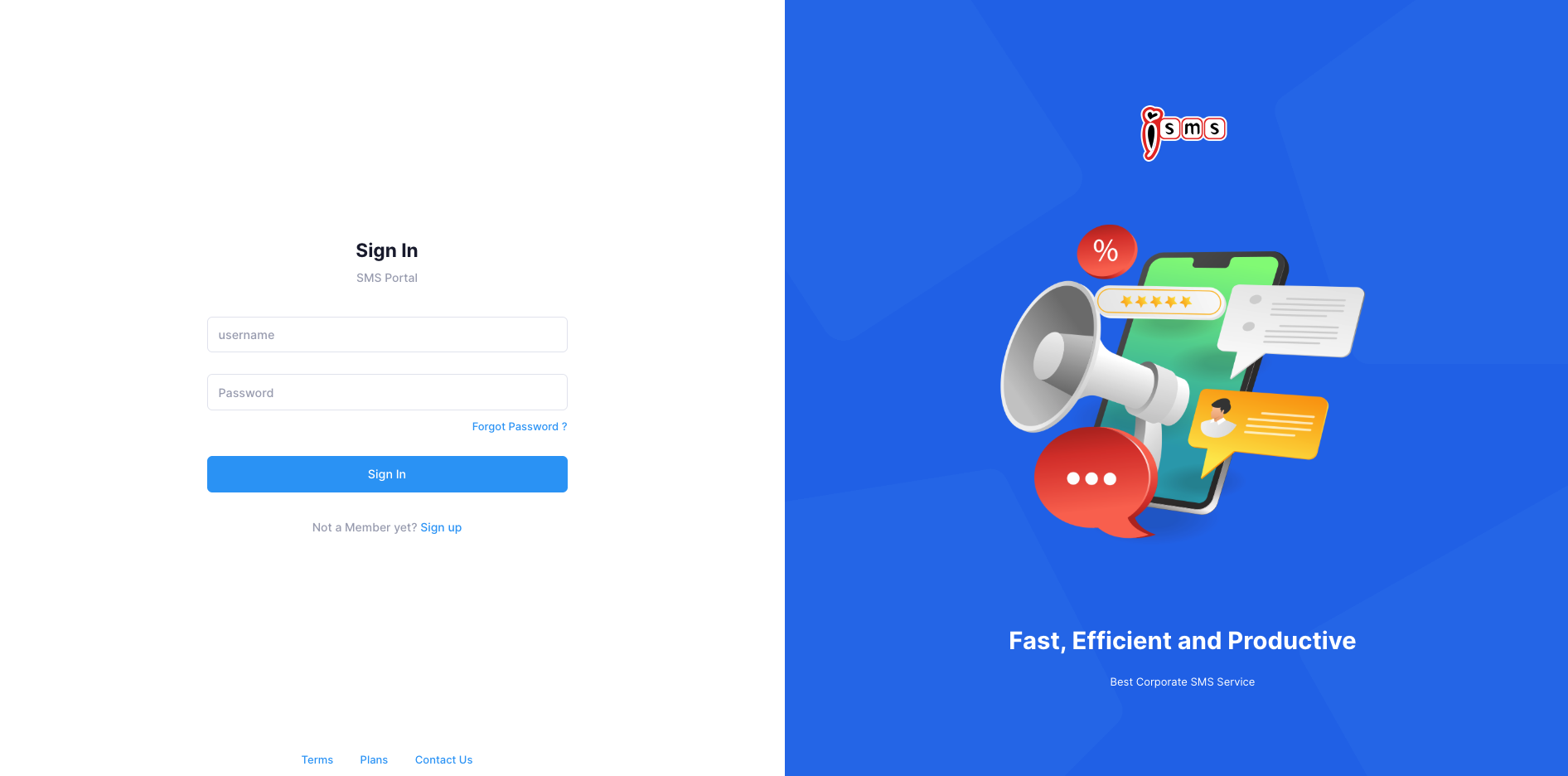
    Open the iSMS website in your web browser. The Sign In panel appears on the left.

  2. 2

    Sign in

    Enter your Username and Password, then click Sign In. Not a member yet? Use the Sign up link to create an account first.

The iSMS Sign In screen, with username and password fields, a Sign In button, and links for Forgot Password and Sign up.
Fig. 1The iSMS Sign In screen. Enter your username and password to continue.
Forgot your password? Click Forgot Password? on the Sign In screen to receive a reset link at your registered email address.
  1. 3

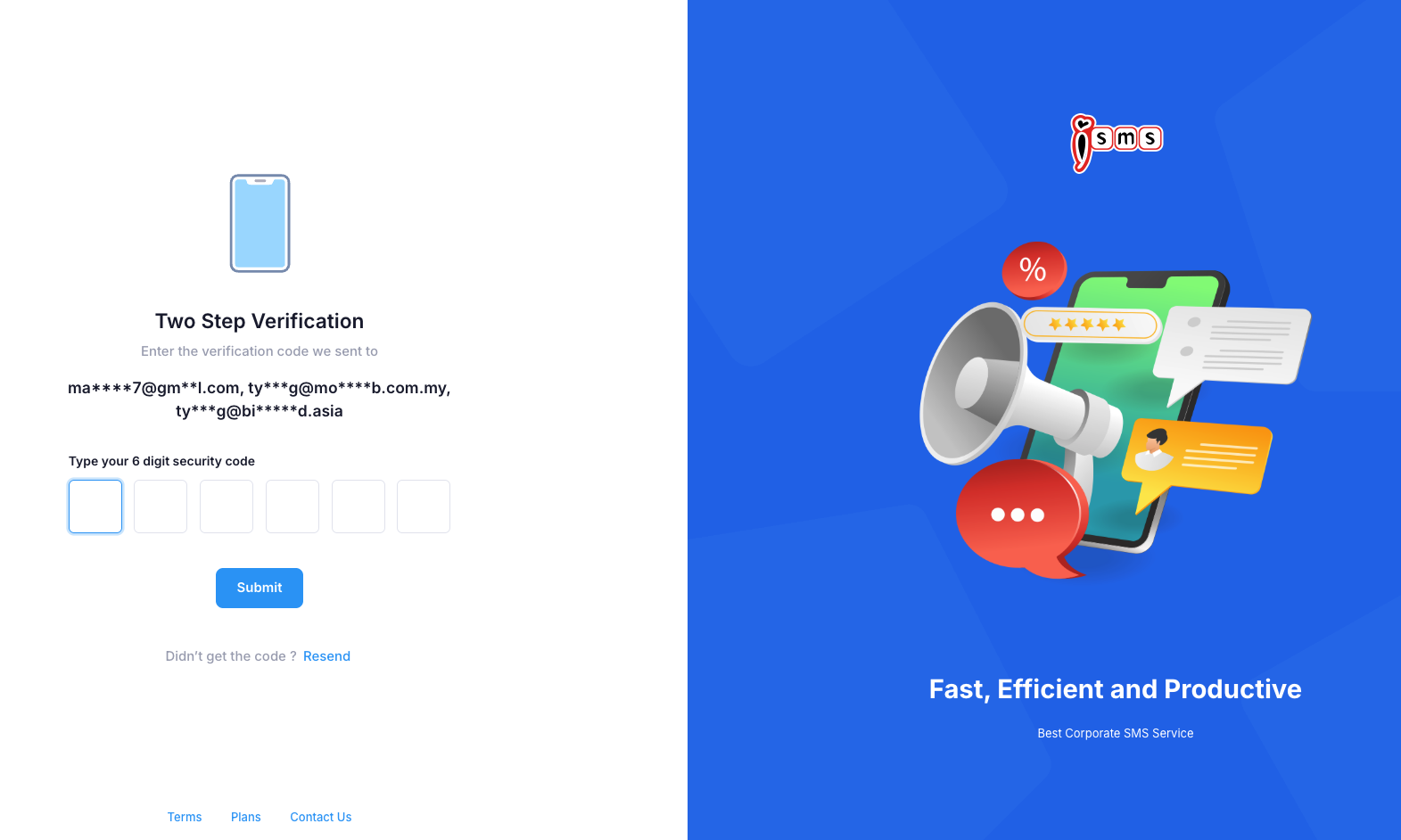
    Enter your two-step verification code

    For security, iSMS emails a 6-digit security code to your registered email address. Open your email, type the 6 digits into the boxes on the Two Step Verification screen, then click Submit.

The iSMS Two Step Verification screen, asking for a 6-digit security code sent by email, with a Submit button and a Resend link.
Fig. 2Two-step verification — enter the 6-digit code from your email and click Submit.
Didn’t get the code? It’s sent to the email you registered with. Check your spam or junk folder if it doesn’t arrive within a minute, then click Resend on the verification screen.
  1. 4

    You’re in

    After verification you’re taken to the iSMS Main Member Page, where you can compose SMS, view reports, and manage your account.

Chapter 03 · Part 1

iSMS Main Member Page

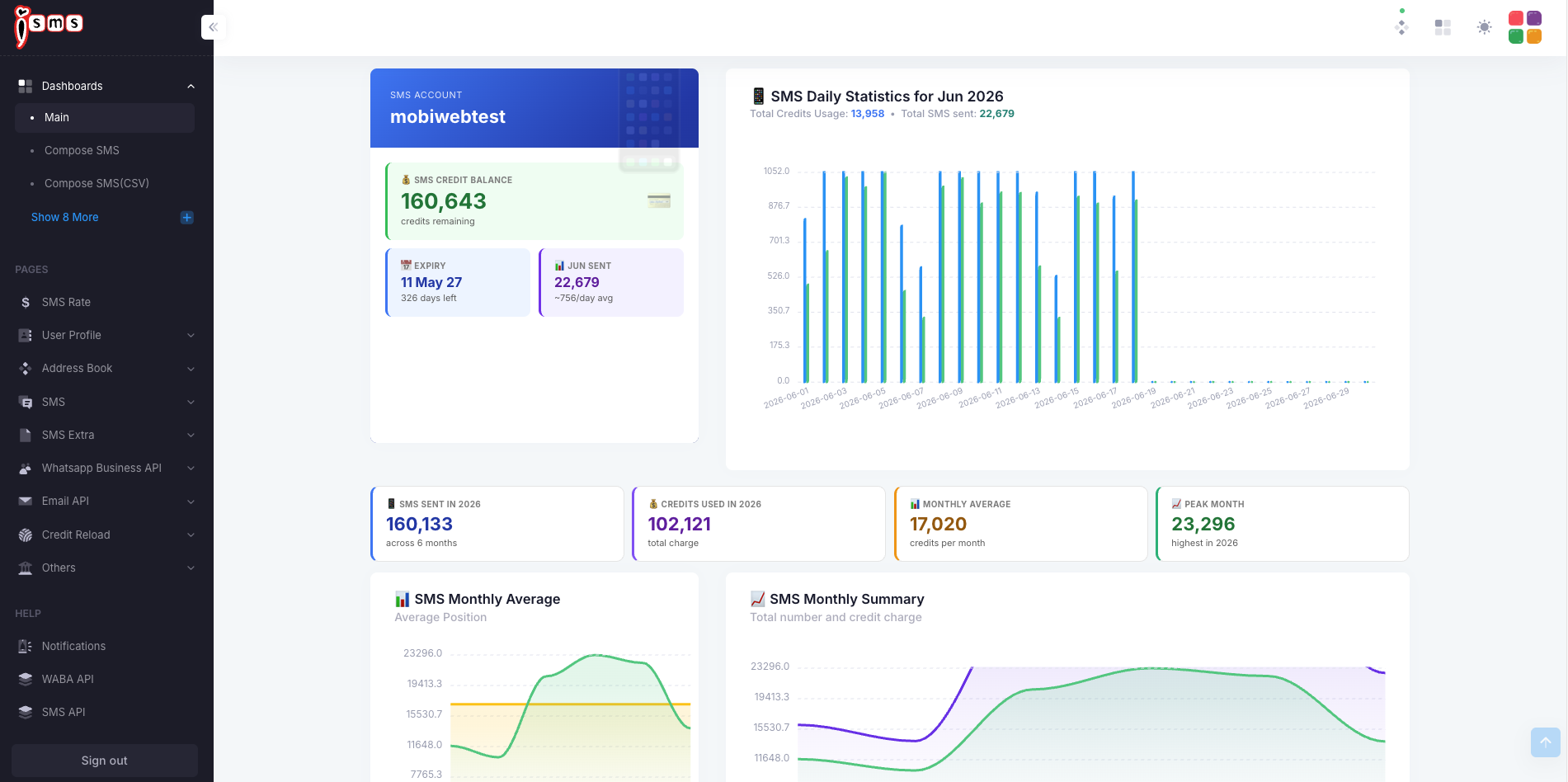
After you log in, the Main Member Page is your home dashboard. It shows your SMS credit balance and expiry, your sending statistics, and — if enabled — a full WhatsApp Business API panel. Here’s what everything means.

Your dashboard at a glance

When you log in, the dashboard opens automatically. The menu on the left links to everything — Compose SMS, Address Book, SMS reports, WhatsApp Business API, Credit Reload, and more.

The iSMS main member dashboard, showing the SMS account name, credit balance, expiry date, this-month sent total, and daily and monthly statistics charts.
Fig. 1The iSMS main dashboard. Your account summary sits top-left, with usage statistics across the rest of the page.

What’s on your dashboard

SMS Credit Balance

Your remaining SMS credits. Each SMS you send is deducted from this balance.

Credits Expiry

The date your current credits expire, plus how many days you have left.

This Month’s Sent

How many SMS you’ve sent this month, with a rough daily average.

Usage Statistics

Daily and monthly charts of SMS sent and credits used, including your peak month.

Top up your SMS credits

Running low? Click Top Up (or open Credit Reload from the menu) to choose a credit package and pay. Your new credits are added to your balance straight away.

Buy SMS credits →

Extend your credit validity

To extend the validity of credits you already have, click Extend. This opens the iSMS contact page where you can send an extension request to our team.

How SMS credits work

  1. 1
    Purchase

    Buy an SMS credit package

  2. 2
    Use

    Send SMS through the year

  3. 3
    1-year validity

    Credits expire 12 months after purchase

  4. 4
    Extend

    Request an extension before expiry

Credit terms. SMS credits are valid for one (1) year from the purchase date and can’t be carried forward once expired. Accounts left inactive for more than 90 days after expiry may be terminated.

WhatsApp Business API (WABA) dashboard

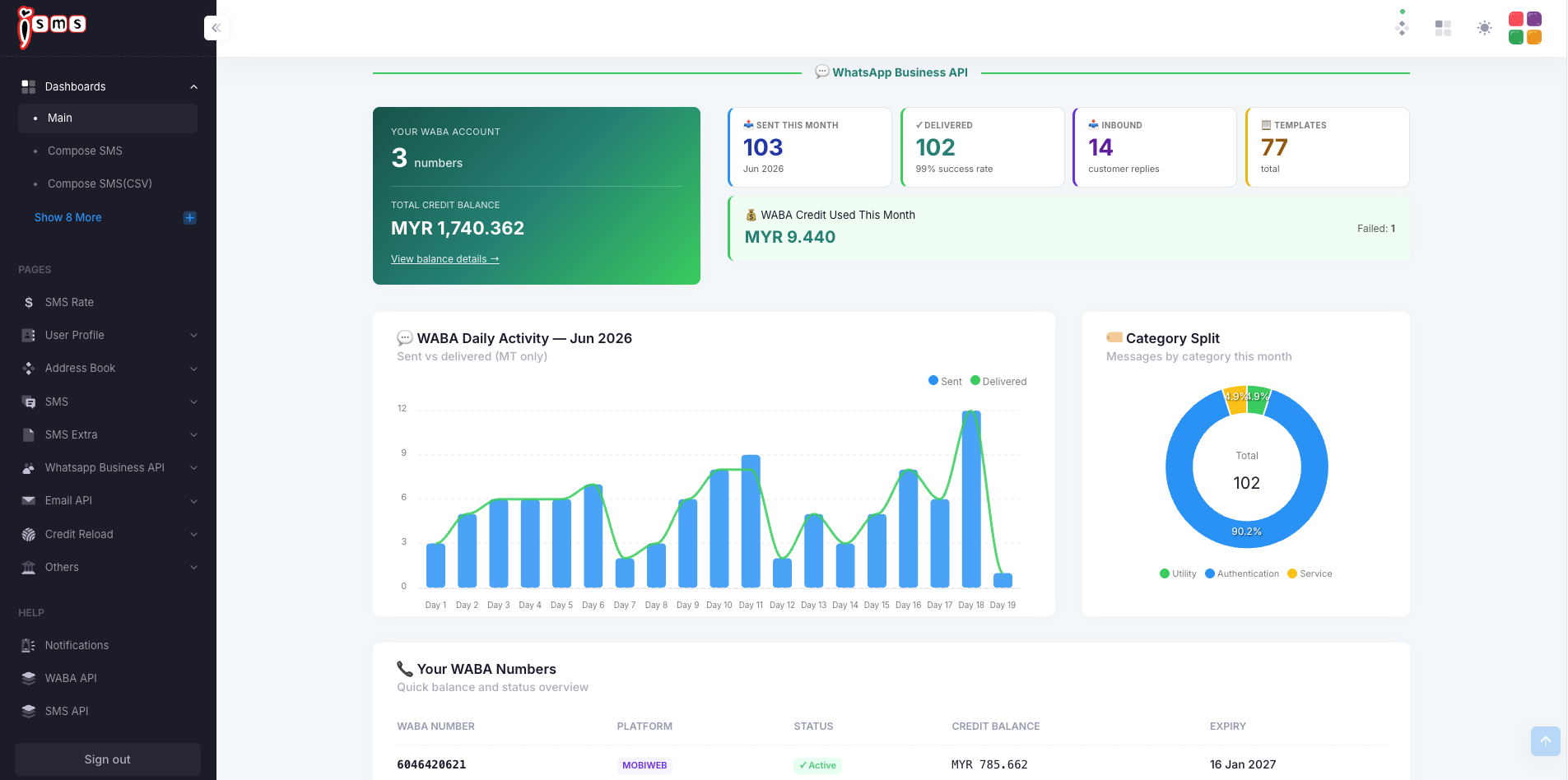
If your account has WhatsApp Business API enabled, scroll down to the WhatsApp Business API panel for a separate dashboard covering your WhatsApp messaging.

The WhatsApp Business API section of the iSMS dashboard, showing WABA account numbers, credit balance, messages sent and delivered, inbound replies, templates, a daily activity chart, a category split donut, and a table of WABA numbers.
Fig. 2The WhatsApp Business API panel — your WABA account, monthly activity, message categories, and registered numbers.

The WABA panel shows your WABA account (how many WhatsApp numbers you have) and Total Credit Balance in MYR, alongside this month’s key figures:

  • SentWhatsApp messages sent this month.
  • DeliveredMessages successfully delivered, with the success rate.
  • InboundReplies received from your customers.
  • TemplatesHow many approved message templates you have.

Below that, the WABA Daily Activity chart compares sent vs delivered messages, the Category Split shows the mix of message types, and Your WABA Numbers lists each number with its platform, status, balance, and expiry.

Example · WhatsApp message categories

Total 102
Authentication 90.2%
Utility 4.9%
Service 4.9%

WhatsApp messages are billed by category. The Category Split on your dashboard shows the month’s mix — this example is mostly Authentication traffic.

From here you’re ready to send your first message — head to Compose SMS.

Chapter 04 · Part 1

Compose Bulk SMS

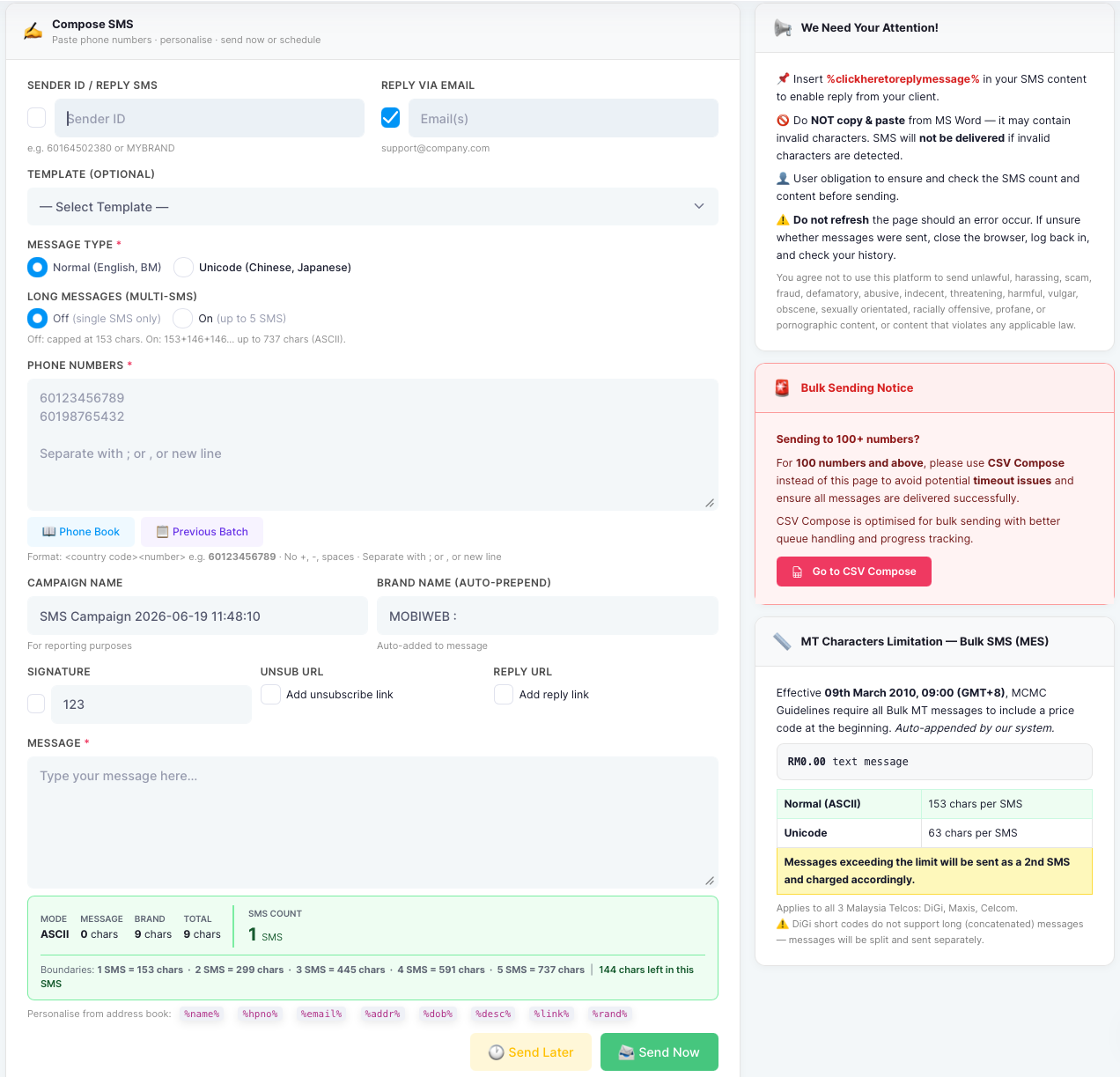
The Compose SMS page is where you type a message, paste your recipient numbers, and send — now or scheduled for later. This walkthrough covers every option, including sender ID, reply settings, message types, and how characters turn into SMS credits.

Sending a bulk SMS

From the left menu, open SMS → Compose SMS, then work through the form. For sending to 100 numbers or more, use CSV Compose instead — it’s built for large batches.

  1. 1

    Set your Sender ID

    In Sender ID / Reply SMS, enter the name or number recipients will see — a registered Sender ID such as MYBRAND, or a mobile number like 60164502380.

  2. 2

    Choose how replies come back

    Tick Reply via Email and enter an address to have customer replies forwarded to your inbox. To let customers reply by SMS, insert the %clickheretoreplymessage% token in your message.
  3. 3

    (Optional) Pick a template

    Choose a saved message from the Template dropdown to auto-fill the message box.

  4. 4

    Choose the message type

    Select Normal (English, BM) or Unicode (Chinese, Japanese). This changes how many characters fit in one SMS — see the limits below.

  5. 5

    Turn Long Messages on or off

    Off sends a single SMS (capped at 153 characters). On joins up to 5 SMS into one long message (up to 737 ASCII characters).

  6. 6

    Enter the phone numbers

    Type recipient numbers in the Phone Numbers box — one per line, or separated by ; or ,. Use country code + number, e.g. 60123456789, with no +, dashes, or spaces. You can also load contacts from Phone Book or reuse a Previous Batch.

  7. 7

    Name your campaign

    The Campaign Name is for your own reporting. A Brand Name is automatically added to the start of every message.
  8. 8

    Write your message

    Type your text in the Message box. The live counter shows the mode, character count, and how many SMS credits the message will use. You can also add a Signature, an unsubscribe link, or a reply link.

  9. 9

    Send now or later

    Click Send Now to send immediately, or Send Later to schedule for a future date and time.

The iSMS Compose SMS form, with fields for sender ID, reply via email, template, message type, long messages, phone numbers, campaign and brand name, the message box, a live SMS counter, and Send Now / Send Later buttons.
Fig. 1The Compose SMS page. The live counter (lower panel) shows your character count and SMS credits as you type.

How characters become SMS credits

One SMS holds 153 ASCII characters. Longer messages are split and joined into a multi-SMS message — and charged per part, up to 5 SMS.

ASCII message length → SMS credits

1 SMS
2
3
4
5 SMS
153
299
445
591
737

Characters used (cumulative). The first SMS holds 153 characters; each additional joined SMS adds 146, up to 737 characters across 5 SMS.

Message typeCharacters per SMS
Normal (ASCII — English, BM)153
Unicode (Chinese, Japanese, emoji)63

Messages over the limit are sent as additional SMS and charged accordingly.

Personalise your message

Insert any of these tokens and iSMS replaces them with each contact’s details from your address book:

%name%name %hpno%phone %email%email %addr%address %dob%birthday %desc%description %link%link %rand%random
Don’t paste from MS Word. Hidden characters can stop messages from being delivered — type directly into the box. And don’t refresh the page while sending; if you’re unsure a send went through, log back in and check your SMS history.
Sending to 100+ numbers? Use CSV Compose instead. It handles large batches with better queue handling and progress tracking, and avoids timeouts. A small MCMC price code (e.g. RM0.00) is also auto-added to the start of every bulk SMS.

Chapter 05 · Part 1

CSV Compose Bulk SMS

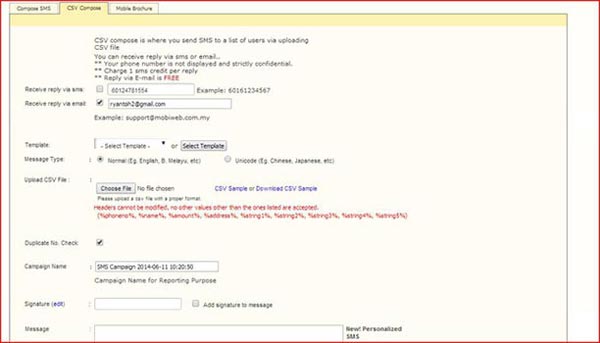
CSV Compose is the best way to send to large lists or to personalise each message — you upload a spreadsheet of recipients and iSMS merges each row’s details into the message. Use it for any send of 100 numbers or more.
Sending bulk SMS from a CSV

From the left menu, open SMS → Compose SMS (CSV). Most fields work just like Compose SMS — the difference is that your recipients (and their personalised details) come from an uploaded CSV file.

  1. 1

    Set Sender ID & reply options

    Enter your Sender ID, and tick Reply via Email to have replies forwarded to your inbox. Optionally choose a Template and the Message Type (Normal or Unicode).

  2. 2

    Prepare your CSV file

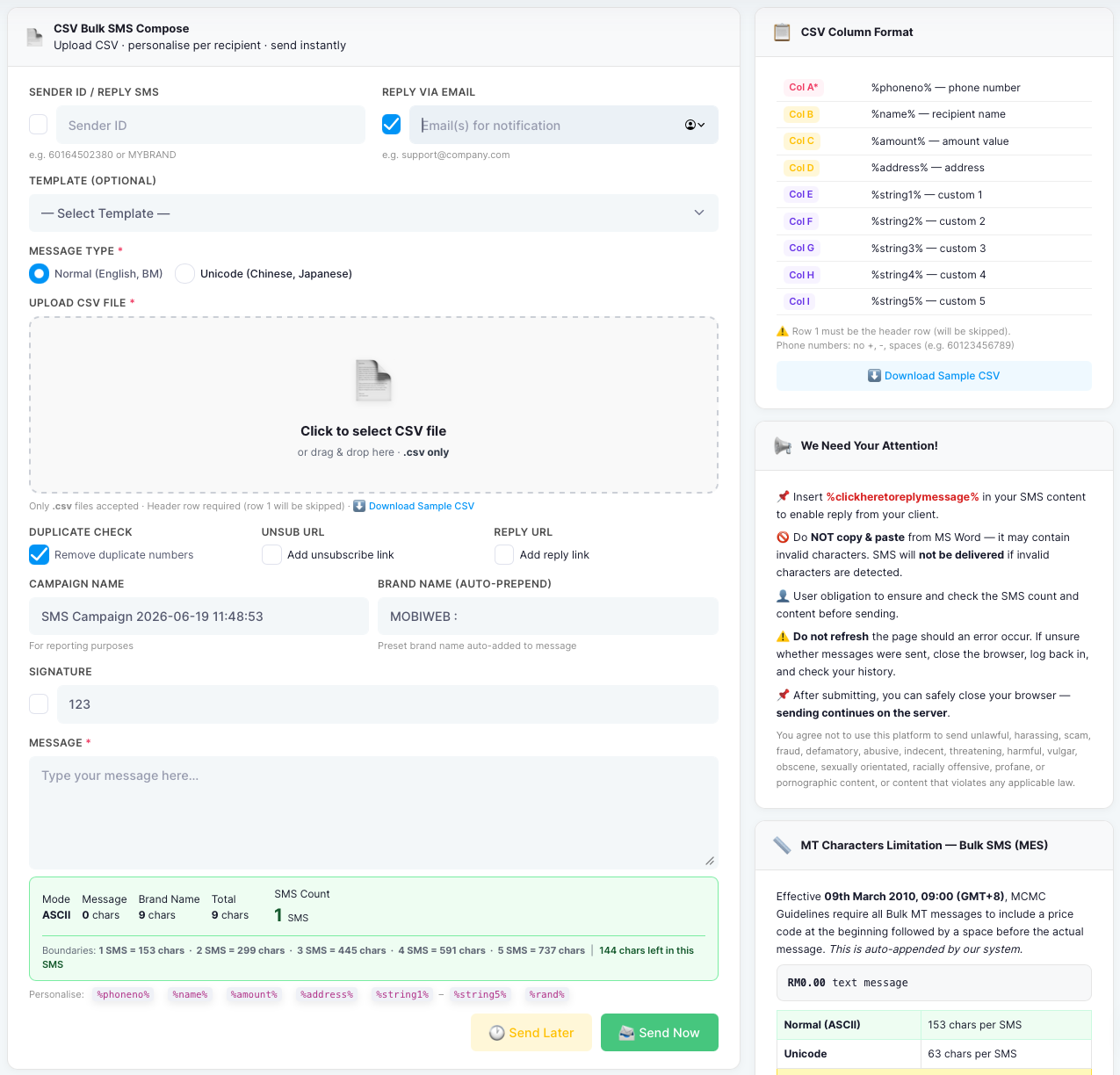
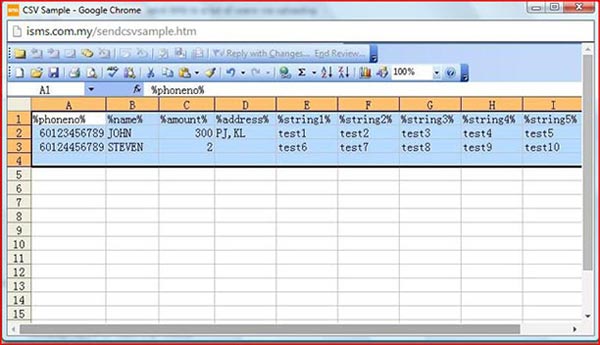
    Lay your file out in the exact column order shown below. Row 1 is the header row and is skipped on import, so your data starts on row 2. Phone numbers go in Column A with no +, dashes, or spaces.

  3. 3

    Upload the CSV

    Click the upload box (or drag your file onto it) to select your .csv file. Only .csv files are accepted — you can grab a Sample CSV from the page to start from.

  4. 4

    Remove duplicates (optional)

    Tick Remove duplicate numbers under Duplicate Check to automatically skip any repeated phone numbers in your file.

  5. 5

    Add campaign details & write your message

    Set a Campaign Name for reporting (a Brand Name is auto-added to the start). Type your message, using the column tokens below to personalise each recipient’s text.

  6. 6

    Send now or later

    Click Send Now to start, or Send Later to schedule. After submitting, you can safely close your browser — sending continues on the server.

The iSMS CSV Compose form, with sender ID, reply via email, message type, a click-to-upload CSV box, duplicate check, campaign and brand name, the message box, and a panel describing the CSV column format.
Fig. 1The CSV Compose page. Upload your file in the centre; the panel on the right lists the required column format.

CSV column format

Each column maps to a personalisation token you can drop into your message. Only Column A (the phone number) is required; the rest are optional.
ColTokenInserts
A*%phoneno%Phone number (required)
B%name%Recipient name
C%amount%Amount value
D%address%Address
E%string1%Custom field 1
F%string2%Custom field 2
G%string3%Custom field 3
H%string4%Custom field 4
I%string5%Custom field 5

For example, a message of Hi %name%, your balance is %amount% becomes personalised for every row in your file. You can also use %rand% for a random value.

Header row matters. Row 1 of your CSV is treated as headings and skipped, so make sure your first recipient is on row 2. Keep the columns in the A–I order above.
Character limits & pricing. The same SMS rules apply here — 153 ASCII (or 63 Unicode) characters per SMS, and a small MCMC price code auto-added to each message. See Compose SMS for the full character-to-credit breakdown.
Chapter 06 · Part 1

How to Compose a CSV File

Before you upload, your file needs the right column order and your message needs the right personalisation tokens. Start from the sample file, then write a message that fills in each recipient’s details automatically.

Formatting your CSV

This goes hand-in-hand with CSV Compose. Beginning from the sample file keeps your columns lined up with what iSMS expects.

The CSV journey

Prepare list

Excel, OpenOffice or Gmail

Format

Phone first, fix numbers

Save as CSV

Comma-delimited .csv

Upload

To CSV Compose

Send

Now or scheduled

  1. 1

    Download the CSV sample

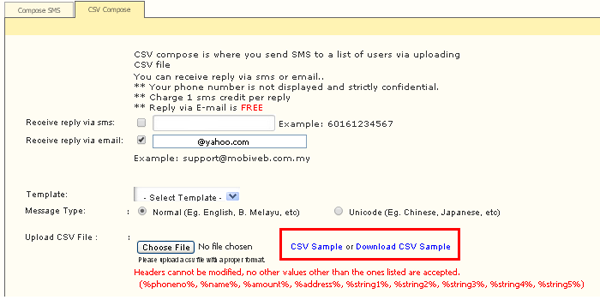
    On the CSV Compose tab, click CSV Sample (Download CSV Sample) to get a correctly formatted template to start from.

    The CSV Compose page with the CSV Sample download button highlighted.
  2. 2

    Follow the column & token format

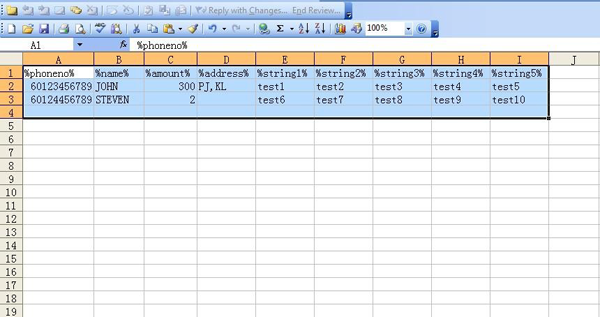
    Fill the sample with your data, then write your message using the matching tokens. iSMS swaps each token for that row’s value when it sends.

    Example CSV columns mapped to personalisation tokens.

How personalisation works

Drop tokens into your message and each recipient gets their own version:

Your message (template)
Hi %name%, your credit balance is %amount%, please make payment to %string1%.
iSMS fills in each row from your CSV
What that recipient receives
Hi JOHN, your credit balance is 300, please make payment to test.
Need the full column list? See CSV Compose for the complete column map (Col A–I) and what each token inserts. Remember the phone number goes in Column A, and row 1 is the header row.

Chapter 07 · Part 1

How to Create a CSV File in Excel

Building your recipient list in Excel is straightforward — the key is the phone-number format. Every Malaysian number must start with 60. Here’s how to set that up and save a clean CSV.

Building your CSV in Excel

Phone numbers must start with 60. Put the mobile number (e.g. 60123456789) in the first column. You can also download the sample CSV from the CSV Compose page to start from.
  1. 1

    Arrange your data

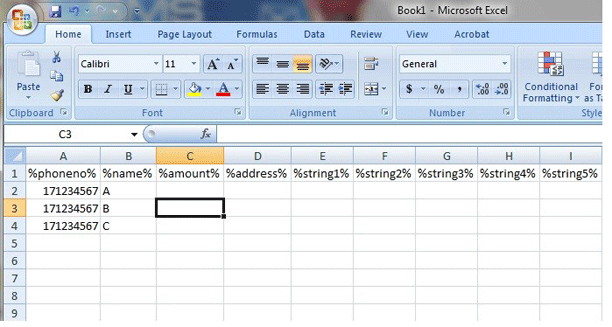
    Lay your data out in the CSV column order, with the mobile number (starting 60) in the first column.

    Data arranged in Excel with the phone number in the first column.
  2. 2

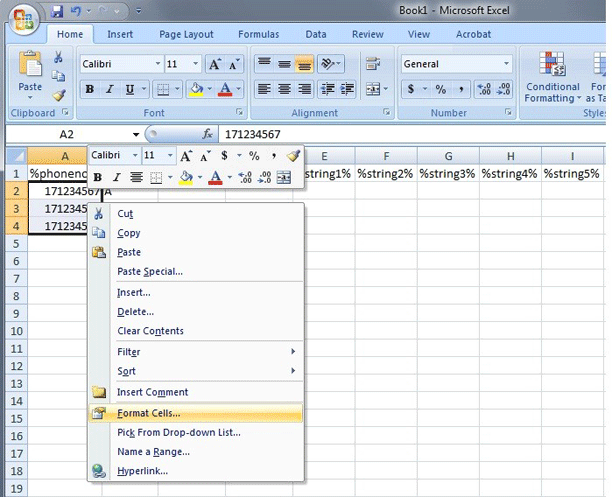
    Select the phone numbers

    Highlight all the phone numbers, right-click, and choose Format Cells.

    Right-click menu with Format Cells selected in Excel.
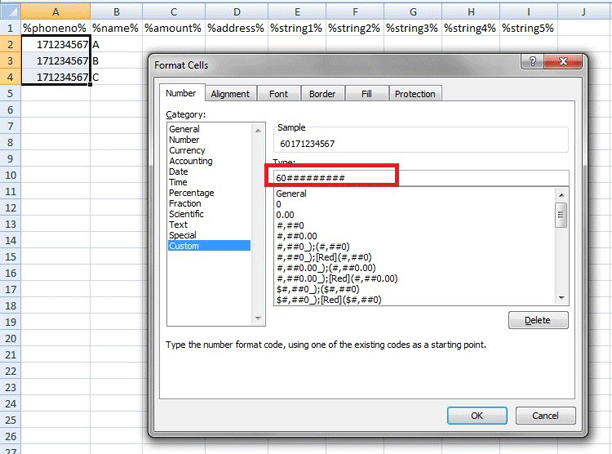
  3. 3

    Apply the 60 format

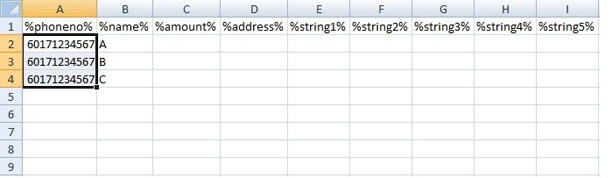
    Choose Custom and enter 60########## (60 followed by ten # symbols), then click OK. Excel adds the 60 prefix to every number.

    Custom number format 60########## entered in Excel. Phone numbers now showing the 60 prefix.

The phone-number format

60 ########## 60 + a 10-digit mobile number

The custom mask 60########## keeps the country code on every number and stops Excel dropping leading digits.

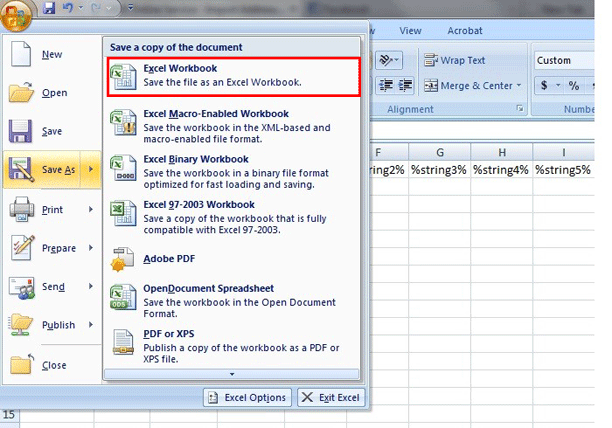
  1. 4

    Save as CSV

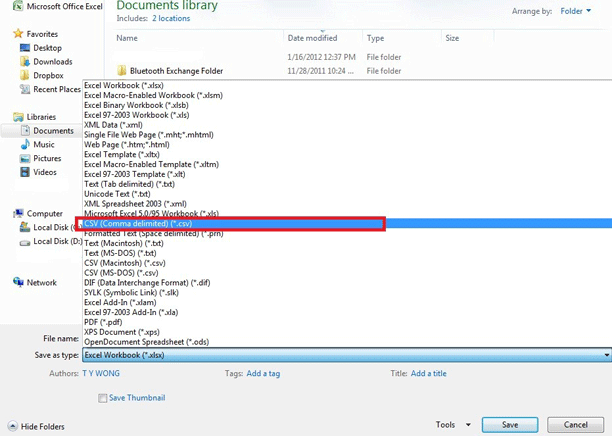
    Go to File → Save As and choose CSV (Comma delimited) (.csv) as the file type.

    Excel Save As dialog with CSV (Comma delimited) selected.
  2. 5

    Confirm the CSV format

    When Excel asks, confirm you want to keep the CSV format. Your file is now ready to upload to iSMS.

    Excel prompt to keep the CSV format. The finished CSV file ready to upload.

Your CSV is ready — head to CSV Compose to upload and send.

Chapter 08 · Part 1

Export Excel to CSV (Windows)

If Excel keeps saving your CSV with semicolons instead of commas, it’s following your Windows “List Separator” setting. Switch it to a comma once and your CSV will export correctly for iSMS.

Why this happens

Excel uses the Windows List Separator as the delimiter when it saves a CSV. In many regions that’s a semicolon (;), but iSMS expects a comma (,). Changing this one Windows setting fixes every CSV you export afterwards.
  1. 1

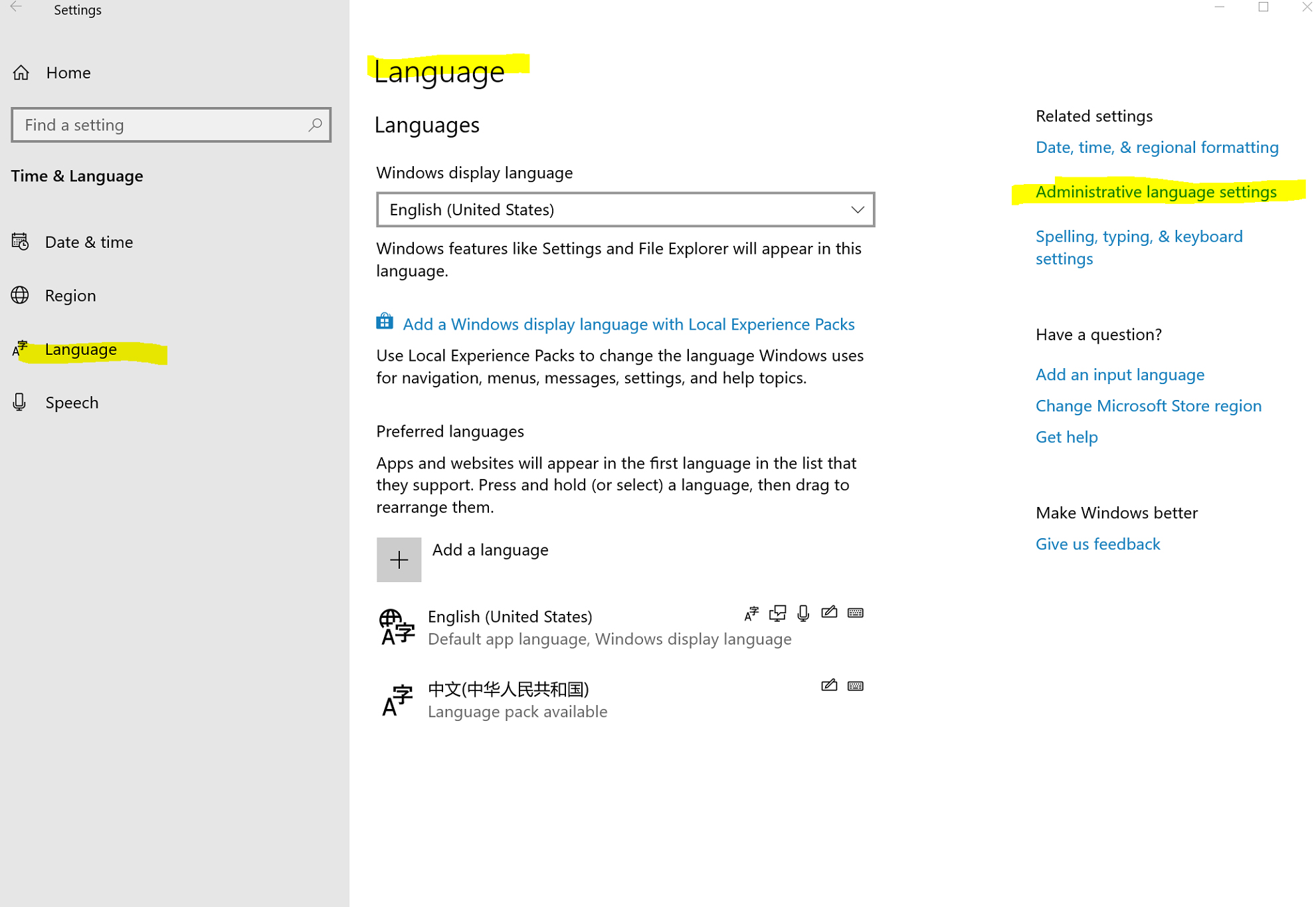
    Open Administrative Language Settings

    Open the Windows Region control panel and go to Administrative (or Additional) settings. The exact name varies slightly by Windows version.

    Windows Region settings, Administrative Language Settings.
  2. 2

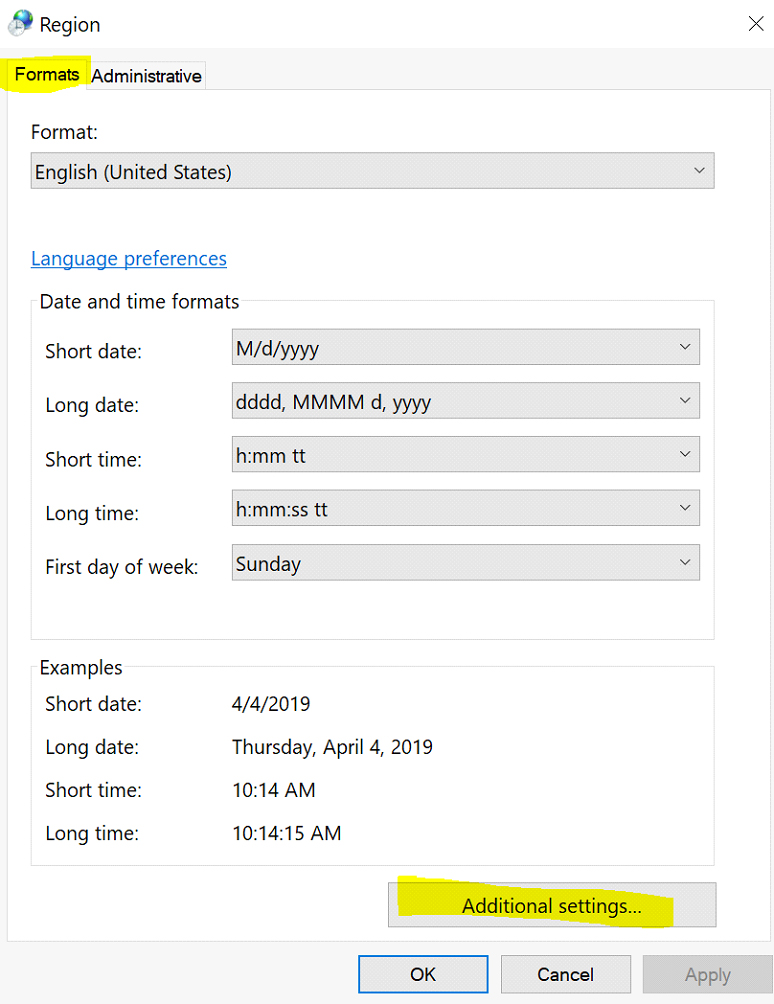
    Open Additional settings

    On the Formats tab, click Additional settings.

    Formats tab with the Additional settings button.
  3. 3

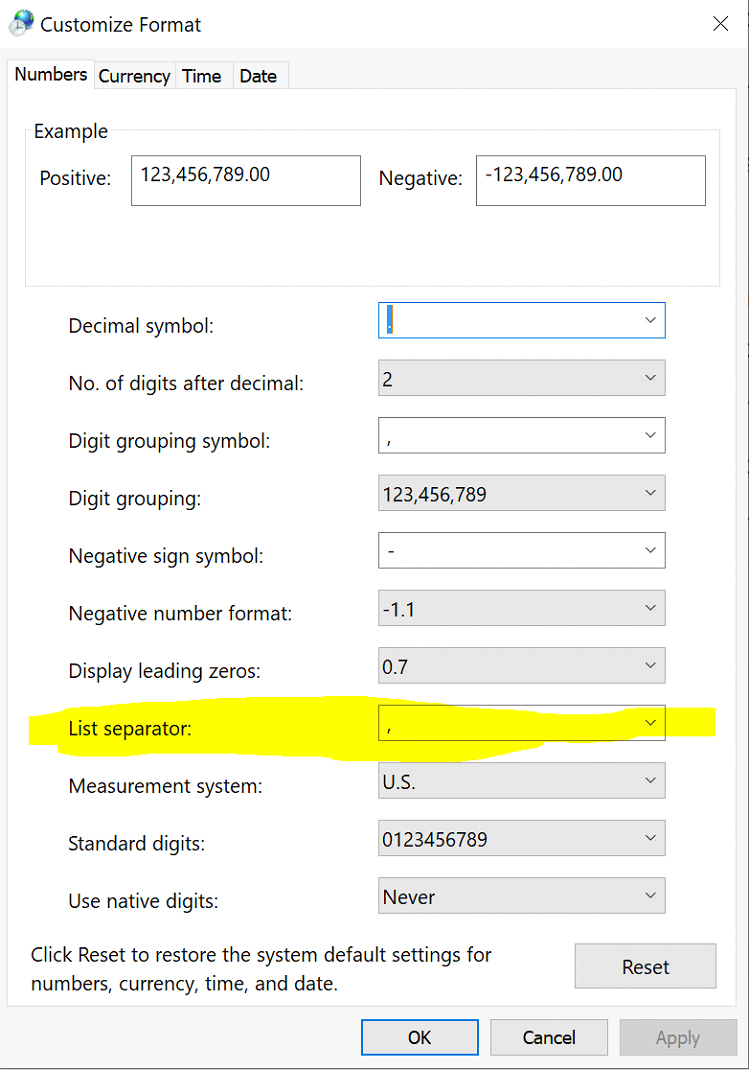
    Change the List separator

    Change the List separator from a semicolon (;) to a comma (,), then click Apply and OK. Now save your file as CSV in Excel — it will use commas.

    List separator field changed from semicolon to comma.

The change you’re making

;Before
,After

Set the List separator to a comma so Excel writes a standard, iSMS-ready CSV.

With commas set, save your sheet as CSV and continue to CSV Compose to upload it.

Chapter 09 · Part 1

Export Excel to CSV (Mac OS)

On a Mac, turning an Excel sheet into a CSV is just a Save As with the right file format. Here are the three steps.

Saving your sheet as CSV on Mac

These steps use Microsoft Excel for Mac. The wording may differ slightly between versions, but the flow is the same.

  1. 1

    Open Save As

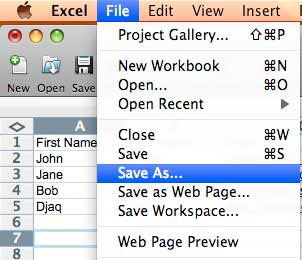
    Open or create your spreadsheet, then choose File → Save As… from the menu bar.

    File menu in Excel for Mac with Save As selected.
  2. 2

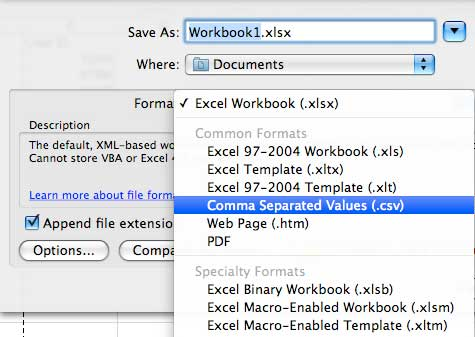
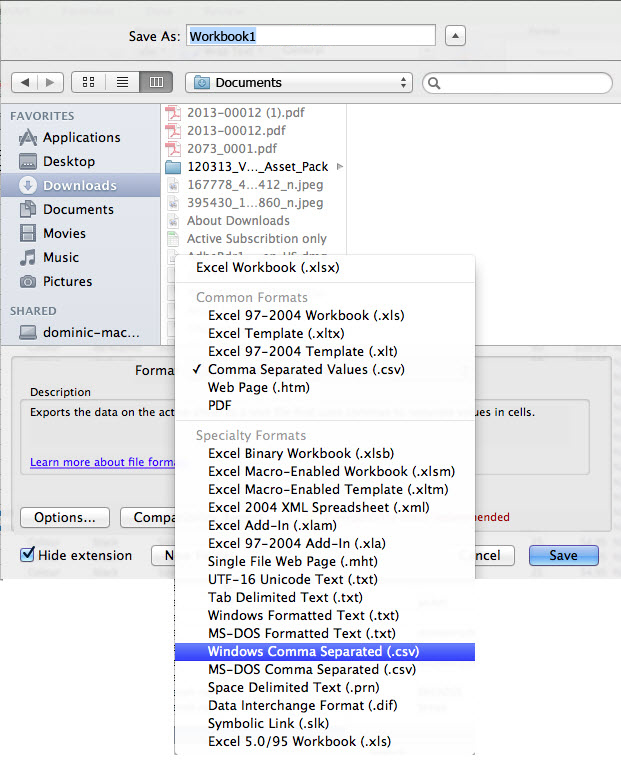
    Choose the CSV format

    From the File Format dropdown, pick a CSV option — choose Windows Comma Separated (.csv) if it’s offered, as it’s the most compatible with iSMS.

    File Format dropdown open in Excel for Mac. CSV format selected in the dropdown.
  3. 3

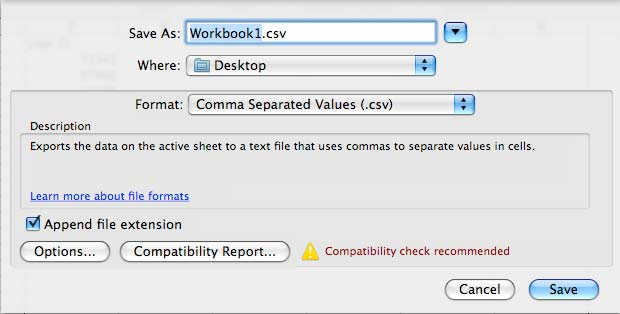
    Name and save

    Rename the file or pick a different location if you like, then click Save at the bottom right.

    Save dialog with the Save button highlighted.

Your CSV is ready — continue to CSV Compose to upload and send.

Chapter 10 · Part 1

How to Create a CSV File in OpenOffice

Using OpenOffice Calc? You can open, format, and save a clean CSV that iSMS will accept. The important parts are the number format and choosing the right delimiters when you save.

Creating your CSV in OpenOffice Calc

  1. 1

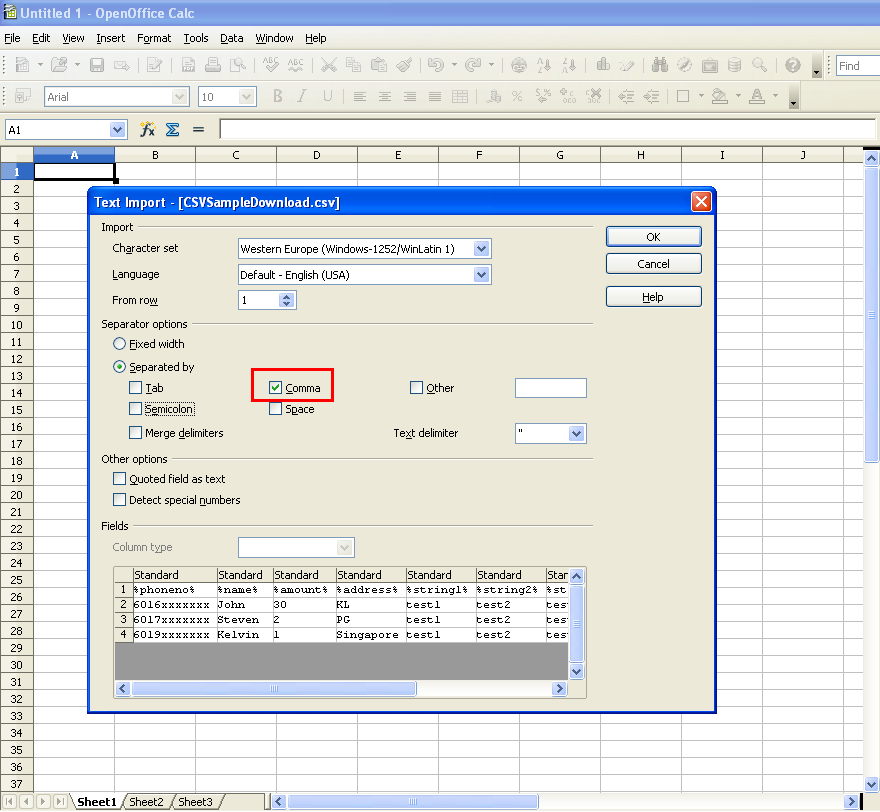
    Open in Calc with the comma separator

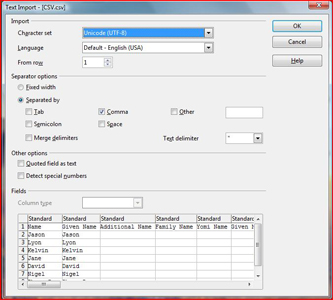
    Open your .csv in OpenOffice Calc, and on the import screen choose Separated by → Comma.

    OpenOffice Calc text import with Comma selected as separator.
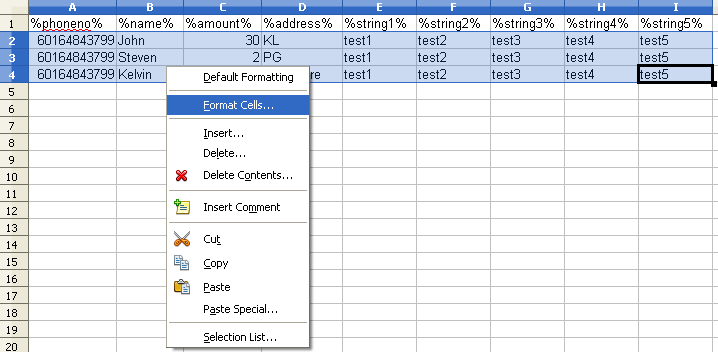
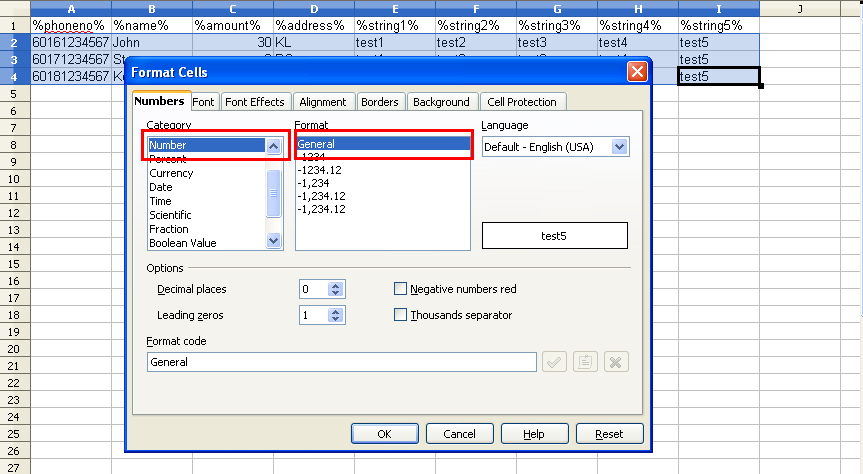
  2. 2

    Format the cells as General

    Highlight all the data, right-click and choose Format Cells, then set Category → Number and Format → General.

    Format Cells selected in OpenOffice Calc. Number category with General format selected.
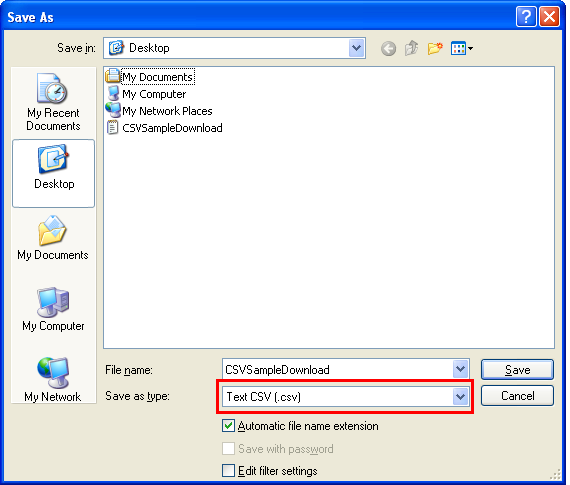
  3. 3

    Save as Text CSV

    Go to File → Save As and set Save as type → Text CSV (.csv).

    Save As dialog with Text CSV file type selected.
  4. 4

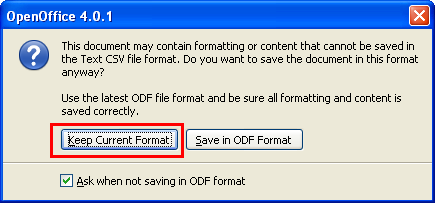
    Keep the current format

    When OpenOffice asks, click Keep Current Format to save as CSV rather than the OpenOffice format.

    Prompt to keep the current (CSV) format.
  5. 5

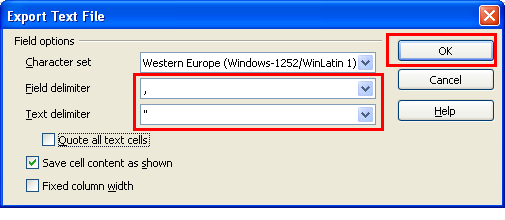
    Set the delimiters and save

    Choose a comma (,) as the Field delimiter and a quotation mark (") as the Text delimiter, then click OK to save the CSV file.

    Export dialog with comma field delimiter and quote text delimiter.

The two delimiters to set

,
Field delimiterseparates each column
"
Text delimiterwraps text values

In the export dialog, set the field delimiter to a comma and the text delimiter to a quotation mark so iSMS reads the columns correctly.

Your CSV is ready — head to CSV Compose to upload and send.

Chapter 11 · Part 1

Export Gmail Contacts to CSV

Already have your contacts in Gmail? Export them as a CSV, then reformat so the phone number comes first and your column titles use iSMS tokens. Then it’s ready to upload.

From Gmail contacts to an iSMS-ready CSV

The export itself is quick — the key step is reformatting the file so it matches the iSMS CSV format (phone number first, titles wrapped in % … %).

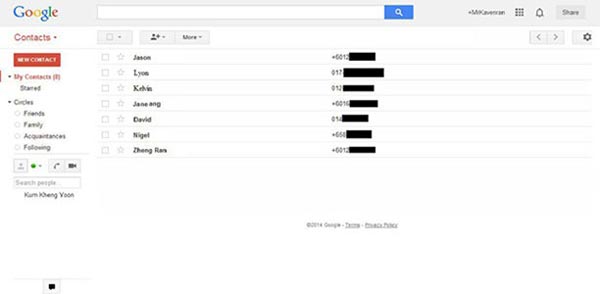
  1. 1

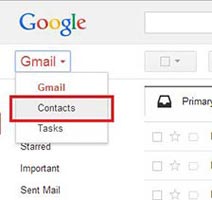
    Open Google Contacts

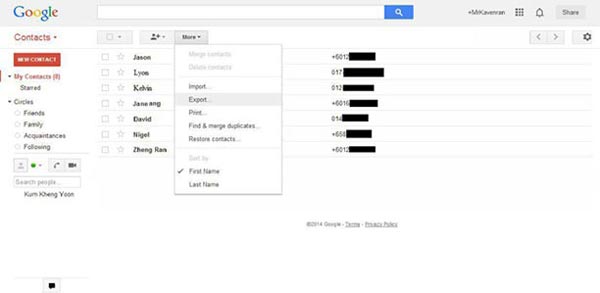
    In Gmail, open the apps menu and go to Contacts.

    Gmail apps menu with Contacts option. Contacts selected from the Gmail menu.
  2. 2

    You’re in Google Contacts

    The Contacts page opens, listing everyone in your account.

    The Google Contacts interface.
  3. 3

    Choose Export

    Click More (or the menu) and select Export.

    Export option in Google Contacts.
  4. 4

    Export as Google CSV

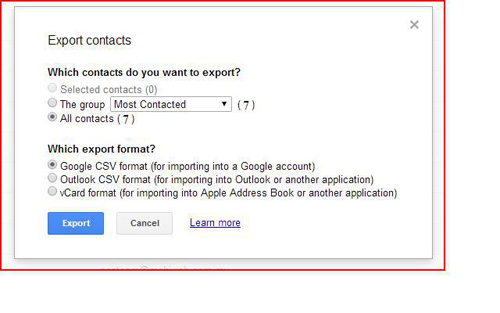
    Pick which contacts to export, choose Google CSV, then click Export.

    Export dialog with Google CSV format selected.
  5. 5

    Open it in a spreadsheet

    Open the exported file in Excel or OpenOffice, pick the correct import format, and click OK.

    Import format selection when opening the Gmail CSV.
  6. 6

    Spot the format difference

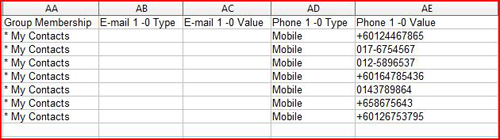
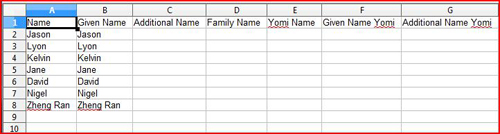
    Gmail puts phone numbers in a later column, but iSMS needs the phone number first. You’ll rearrange this next.

    Gmail CSV with phone numbers in the last column. Comparison of Gmail format vs iSMS format.
  7. 7

    Get the iSMS sample

    In iSMS, go to SMS → Compose SMS → CSV Compose and click CSV Sample to download the correct template.

    CSV Compose page in iSMS. Downloading the CSV sample. The iSMS CSV sample format.
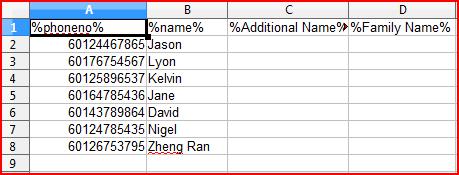
  8. 8

    Reformat to match

    Rearrange so the phone number is in the first column, and wrap each column title in % … % — for example %name%.

    Reformatting the Gmail CSV to match iSMS. The finished, correctly formatted CSV.
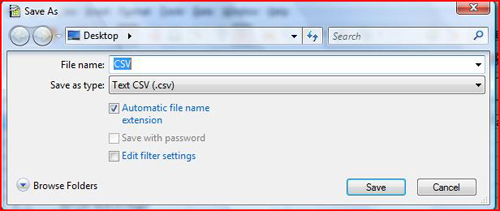
  9. 9

    Save as Text CSV

    Save the file in Text CSV (.csv) format.

    Saving the file as Text CSV.
  10. 10

    Upload to iSMS

    Upload your reformatted CSV in CSV Compose and send your messages.

    Uploading the CSV in iSMS CSV Compose.

The reformat that matters

Gmail export
Name, Email, …, Phone
iSMS format
%phoneno%, %name%, …

Move the phone number to the first column and wrap each heading in % … % so iSMS can read and personalise the file.

The one step that matters most: move the phone number to the first column and wrap your headings in % … %. That’s what turns a Gmail export into a file iSMS can read and personalise.

Chapter 12 · Part 1

Convert E+11 to Number in Excel

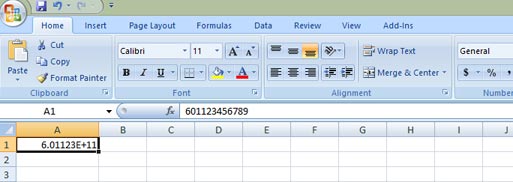
When you open a CSV in Excel, long phone numbers can turn into something like 6.01234E+11. That’s only how Excel displays them — here’s how to switch the column back to plain numbers and save a clean CSV.

What’s going on

Excel shows very long numbers in scientific notation by default. The data isn’t lost — you just need to tell Excel to show the column as plain numbers.

What you’re fixing

How Excel shows it
6.01234E+11
What you want
60123456789

Formatting the cells as plain numbers (with no decimals) restores the full phone number.

How to fix it

  1. 1

    Open the CSV in Excel

    Open your .csv in Microsoft Excel. If the Text Import Wizard appears, tick Comma as the delimiter and click Next / Finish.

    Phone numbers shown as E+11 scientific notation in Excel.
  2. 2

    Open Format Cells

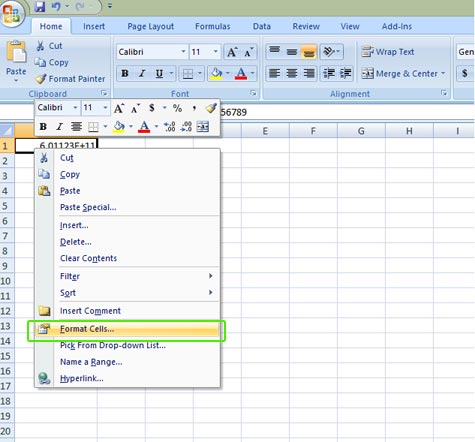
    Select the column showing the E+11 numbers, right-click, and choose Format Cells.

    Right-click menu with Format Cells selected.
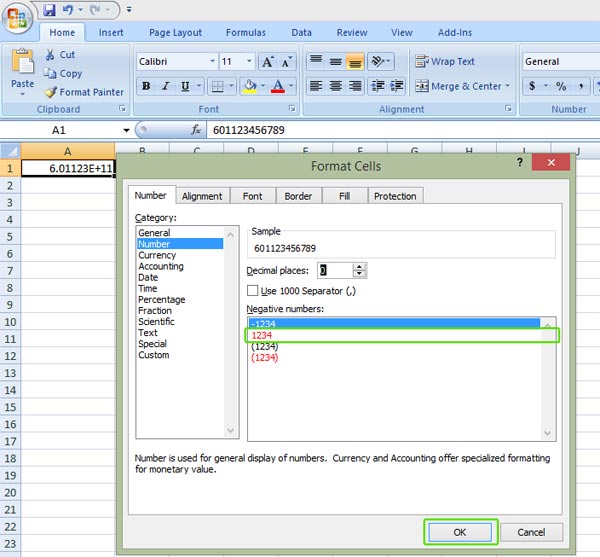
  3. 3

    Choose Number with 0 decimals

    Pick the Number category, set 0 decimal places, and click OK. The phone numbers display in full.

    Format Cells dialog with Number category and 0 decimal places.
  4. 4

    Save as CSV again

    Save the file as CSV once more before uploading to iSMS, so the corrected numbers are kept.

Avoid it next time: format the phone column as a number (or text) before pasting your data, or use the 60########## custom format from Create CSV File in Excel.

With the numbers fixed and saved, head to CSV Compose to upload and send.

Part 2

Reports & scheduler

Save reusable templates, schedule one-time and recurring sends, and read your delivery, summary, and detail reports.

  1. 13SMS Templates
  2. 14Generate SMS Report
  3. 15SMS Delivery Details Report
  4. 16SMS Summary Report
  5. 17SMS Scheduler Overview
  6. 18SMS Scheduler (One Time / Daily)

Chapter 13 · Part 2

SMS Templates

Save the messages you send often as templates, then reuse them in one click when composing or scheduling. Each template stores a name, message type, and an optional preset brand name.

Creating a template

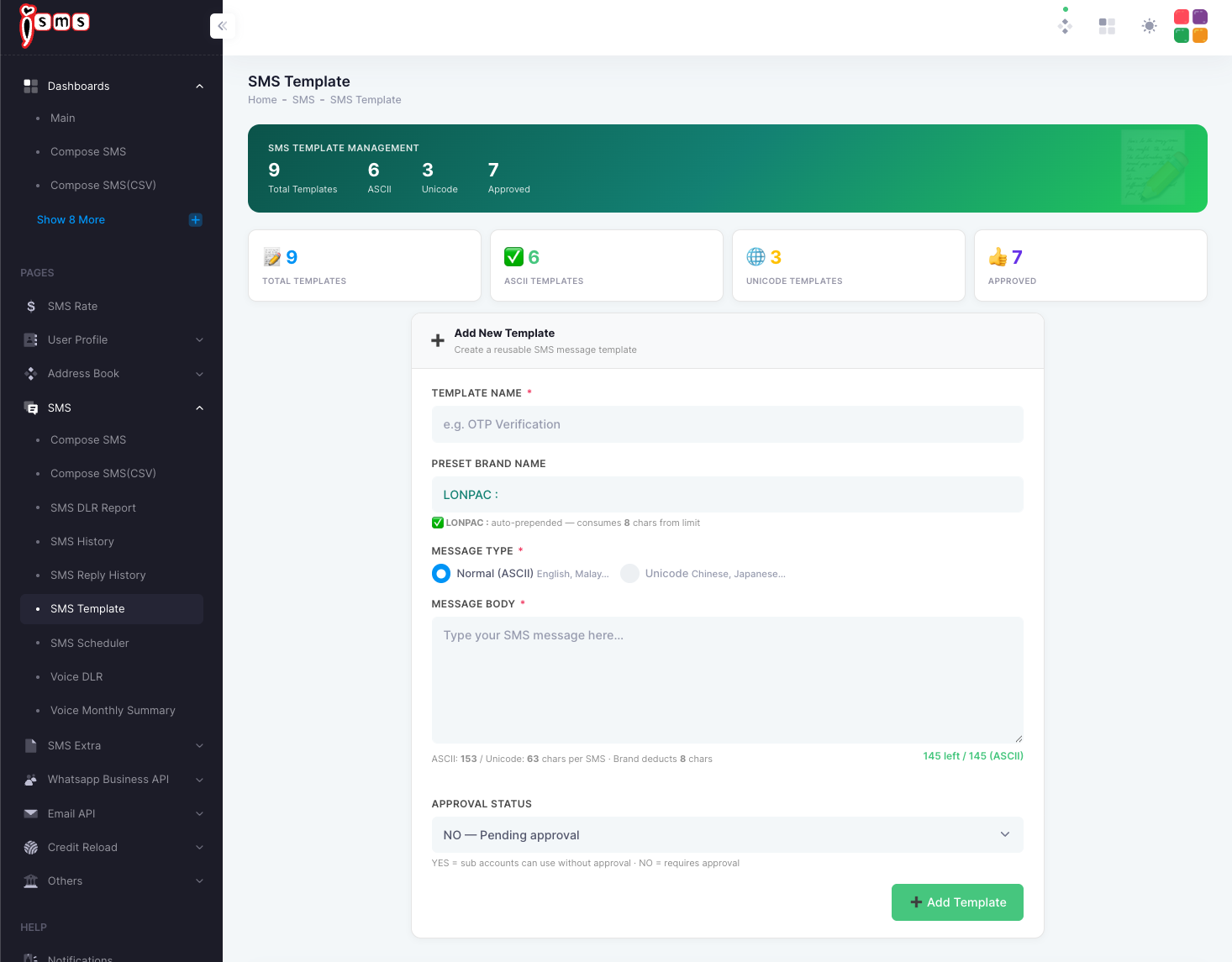
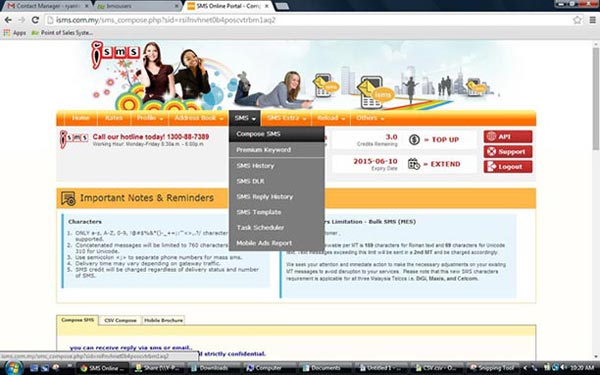
From the left menu, go to SMS → SMS Template. The Template Management screen shows your totals (total, ASCII, Unicode, and approved) and a form to add a new one.

  1. 1

    Name the template

    Enter a Template Name that's easy to recognise later, e.g. OTP Verification.

  2. 2

    Set the preset brand (optional)

    A Preset Brand Name is automatically added to the start of the message. Note it consumes 8 characters of your per-SMS limit.
  3. 3

    Choose the message type

    Pick Normal (ASCII) for English/Malay, or Unicode for Chinese, Japanese, and other scripts.

  4. 4

    Write the message body

    Type your message. The counter shows how many characters remain (after the brand name is deducted).

  5. 5

    Set the approval status

    NO = the template requires approval before sub-accounts can use it. YES = sub-accounts can use it straight away.

  6. 6

    Add the template

    Click Add Template. Saved templates then appear in the Template dropdown when you compose or schedule an SMS.
The iSMS SMS Template Management screen, with template totals and an Add New Template form: name, preset brand, message type, message body, and approval status.
Fig. 1SMS Template Management. Totals sit across the top; the form below adds a new reusable template.

Character limits

Message typeCharacters per SMS
Normal (ASCII — English, BM)153
Unicode (Chinese, Japanese, emoji)63
Brand name eats into the limit. If you use a preset brand, it’s prepended to every message and uses about 8 characters of the limit above — so plan your message length accordingly.

Chapter 14 · Part 2

Generate & View SMS Reports

iSMS gives you a few ways to review your sending: a monthly summary, a day-by-day summary, and a calendar view you can click into. Every view can be filtered by date and exported to Excel.

Three ways to view your activity

Open your reports from the SMS menu. Pick the view that suits what you need — a high-level monthly trend, daily detail, or a calendar at a glance.

Monthly Summary

Totals and trends month by month, with credits used and a peak month.

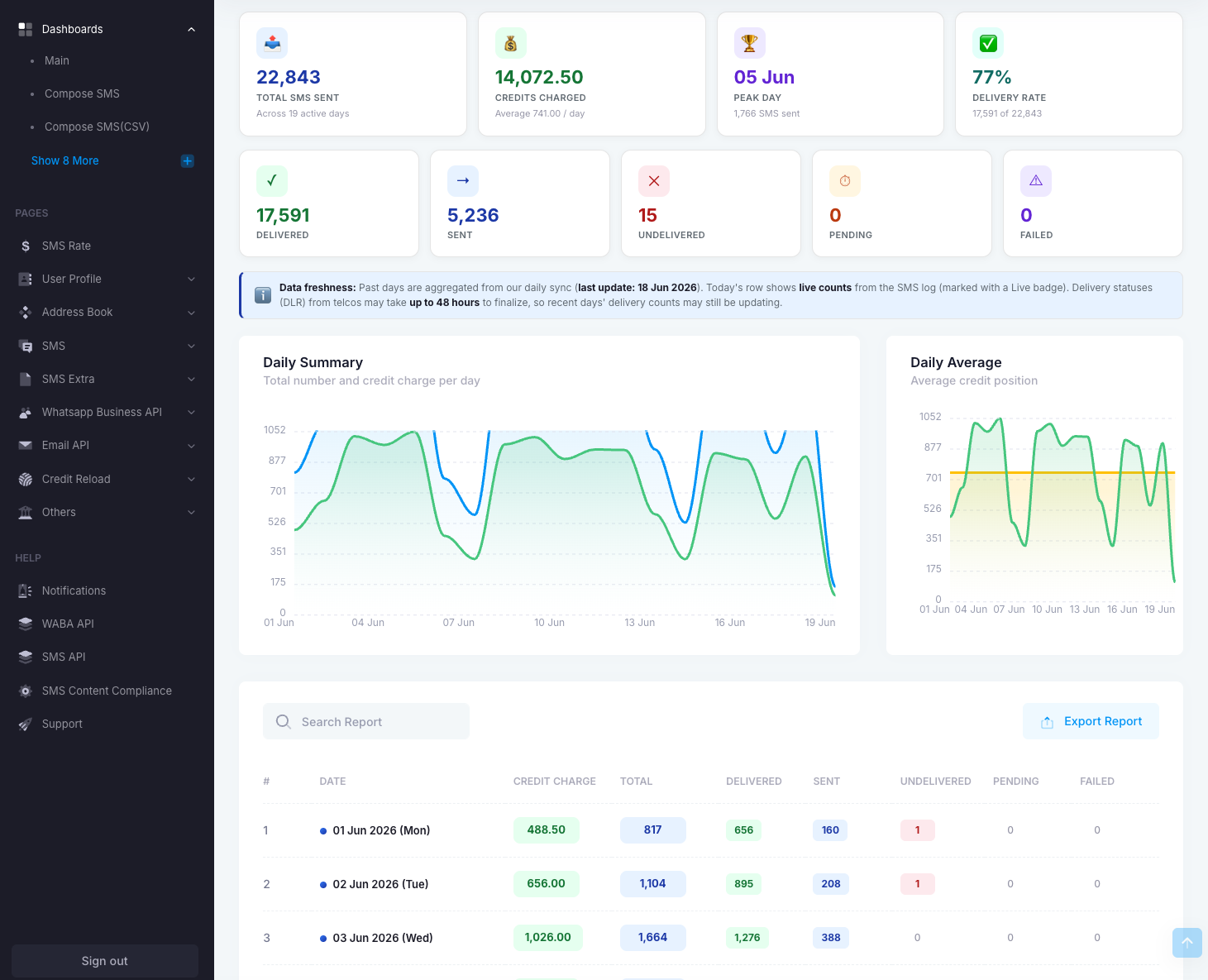
Daily Summary

Day-by-day counts and credit charge, with a peak day and delivery rate.

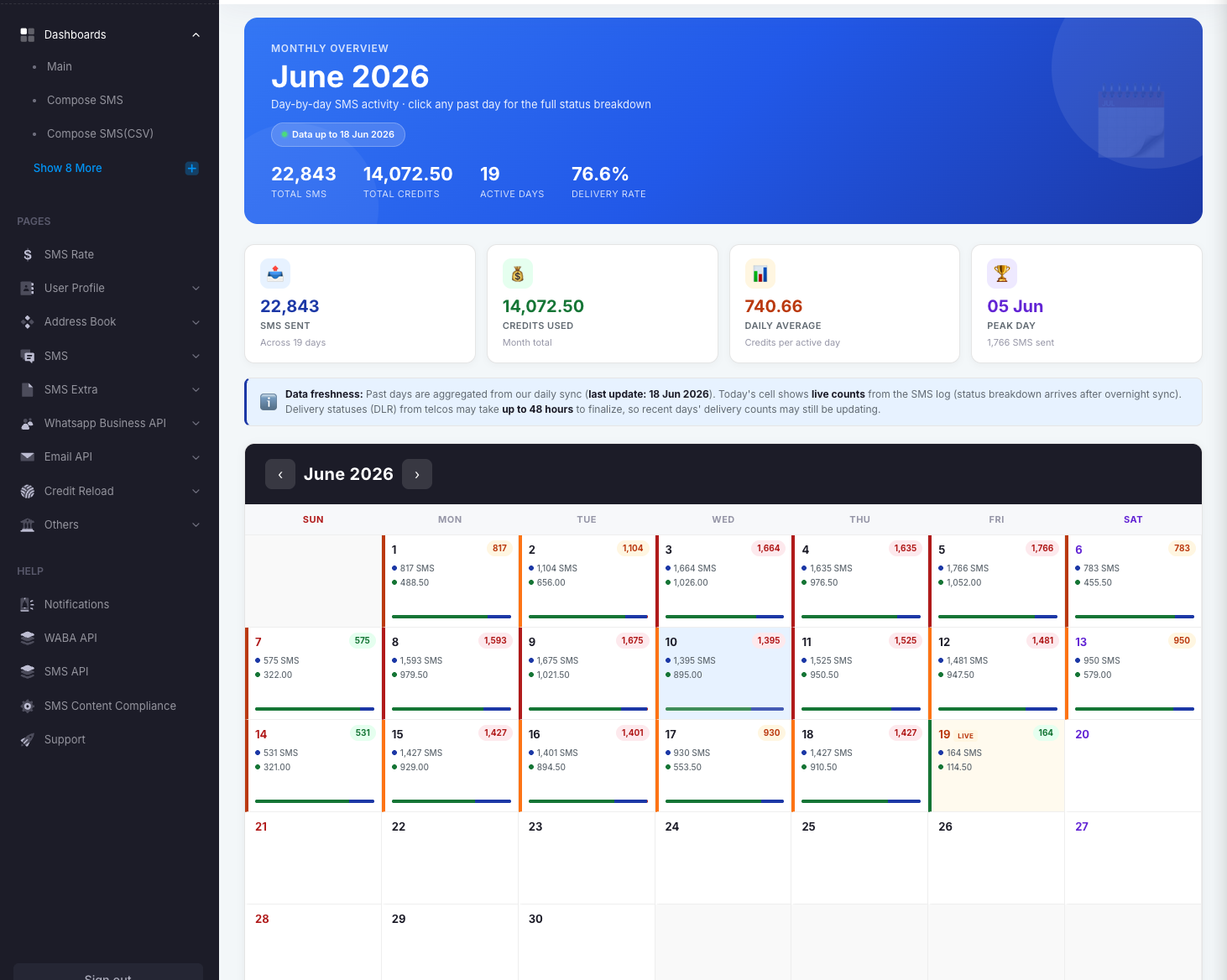
Daily Calendar

A month grid showing each day’s SMS — click any day for the full breakdown.

By account

Per-user and sub-account breakdowns — see the Summary Report.

Monthly Summary

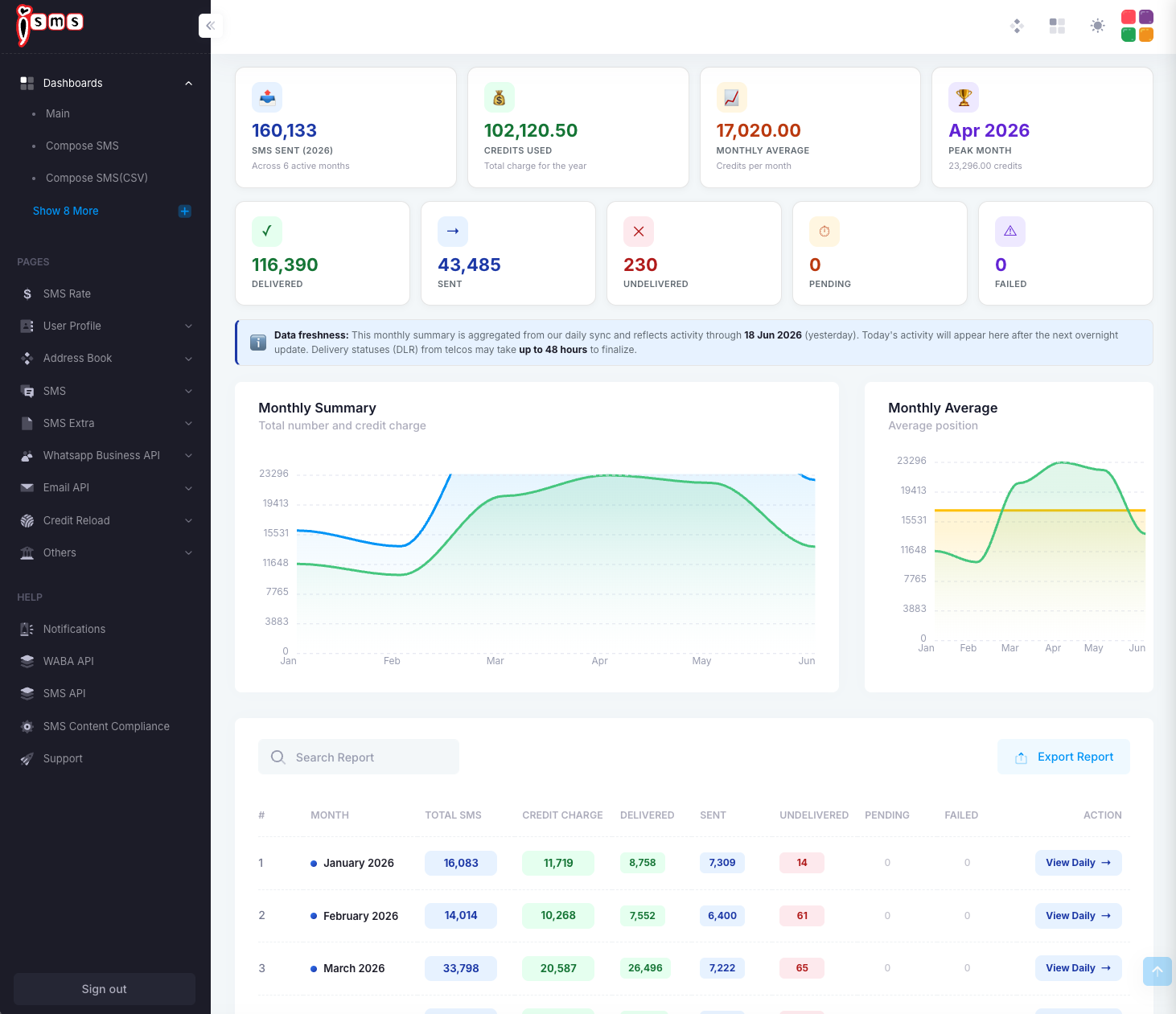
Shows your year at a glance — total SMS sent, credits used, monthly average, and your peak month — with delivered / sent / undelivered counts, trend charts, and a month-by-month table. Use View Daily on any row to drill into that month.

The iSMS Monthly Summary report: yearly totals, status counts, monthly trend charts, and a month-by-month table.
Fig. 1Monthly Summary — yearly totals, trend charts, and a per-month table.

Daily Summary

Breaks a month down by day, with credit charge, totals, and delivery status per day, plus daily trend charts and your busiest day.

The iSMS Daily Summary report: per-day totals, credit charge, status counts, and daily trend charts.
Fig. 2Daily Summary — day-by-day totals and a per-day table.

Daily Calendar

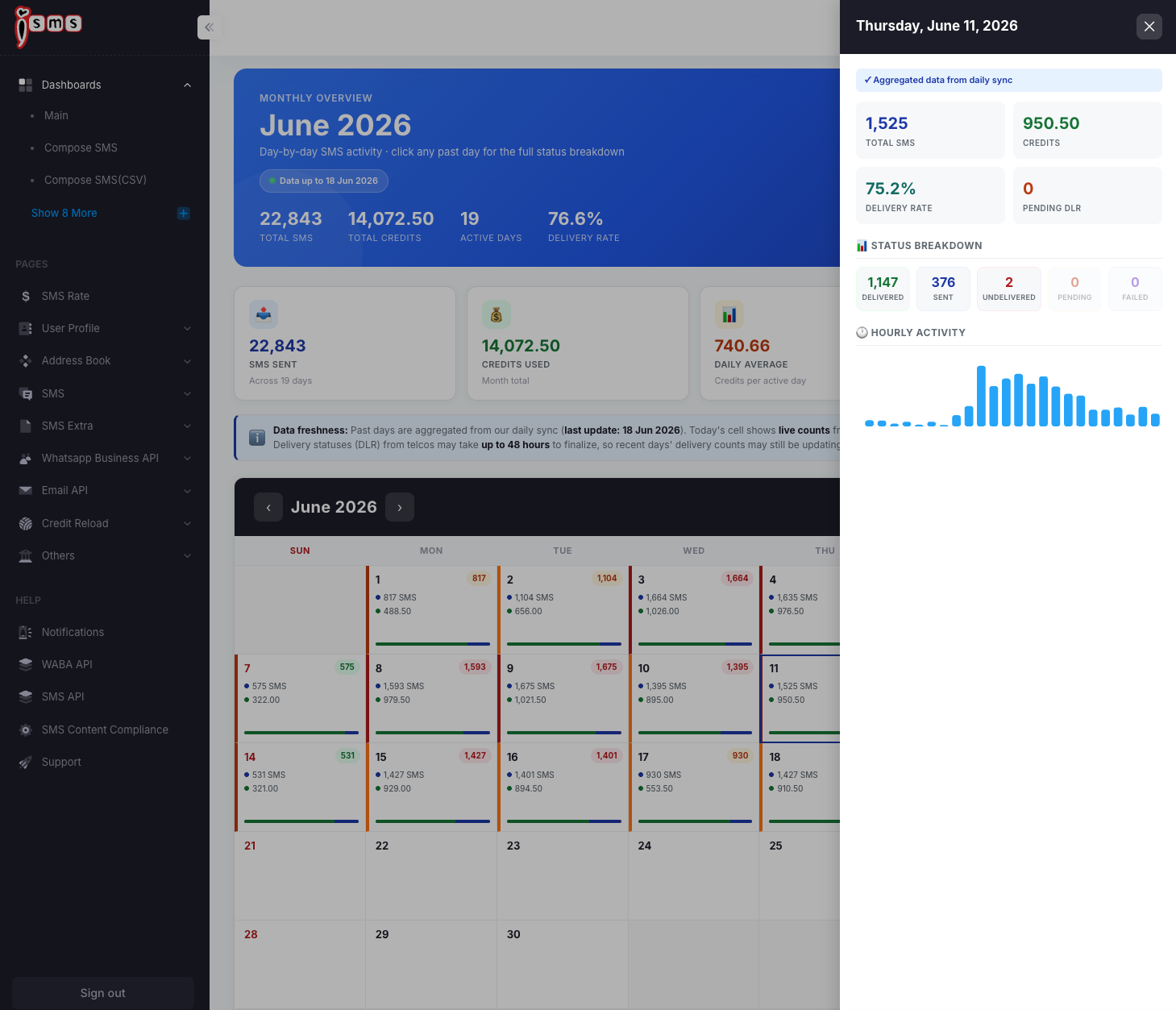
Lays the month out as a calendar, with each day showing its SMS count and credit. Click any day to open a side panel with the full status breakdown and hourly activity.

The iSMS Daily Calendar report: a month grid with each day's SMS count and credit charge.
Fig. 3Daily Calendar — the whole month at a glance.
A single day selected in the calendar, showing total SMS, credits, delivery rate, status breakdown, and hourly activity.
Fig. 4Click a day to see its status breakdown and hourly activity.
Filter & export: use the date range and search box to narrow any report, then click Export Report to download it to Excel for billing or campaign reviews.
Data freshness: past days are aggregated from the overnight sync; today’s row shows live counts. Delivery statuses (DLR) from the telcos can take up to 48 hours to finalise, so recent days may still be updating.

Chapter 15 · Part 2

SMS Delivery (DLR) Report

The Delivery Report (DLR) shows what happened to every SMS you sent — with a performance breakdown and a status for each message. Here’s how to read it and what each status means.
The Delivery Report

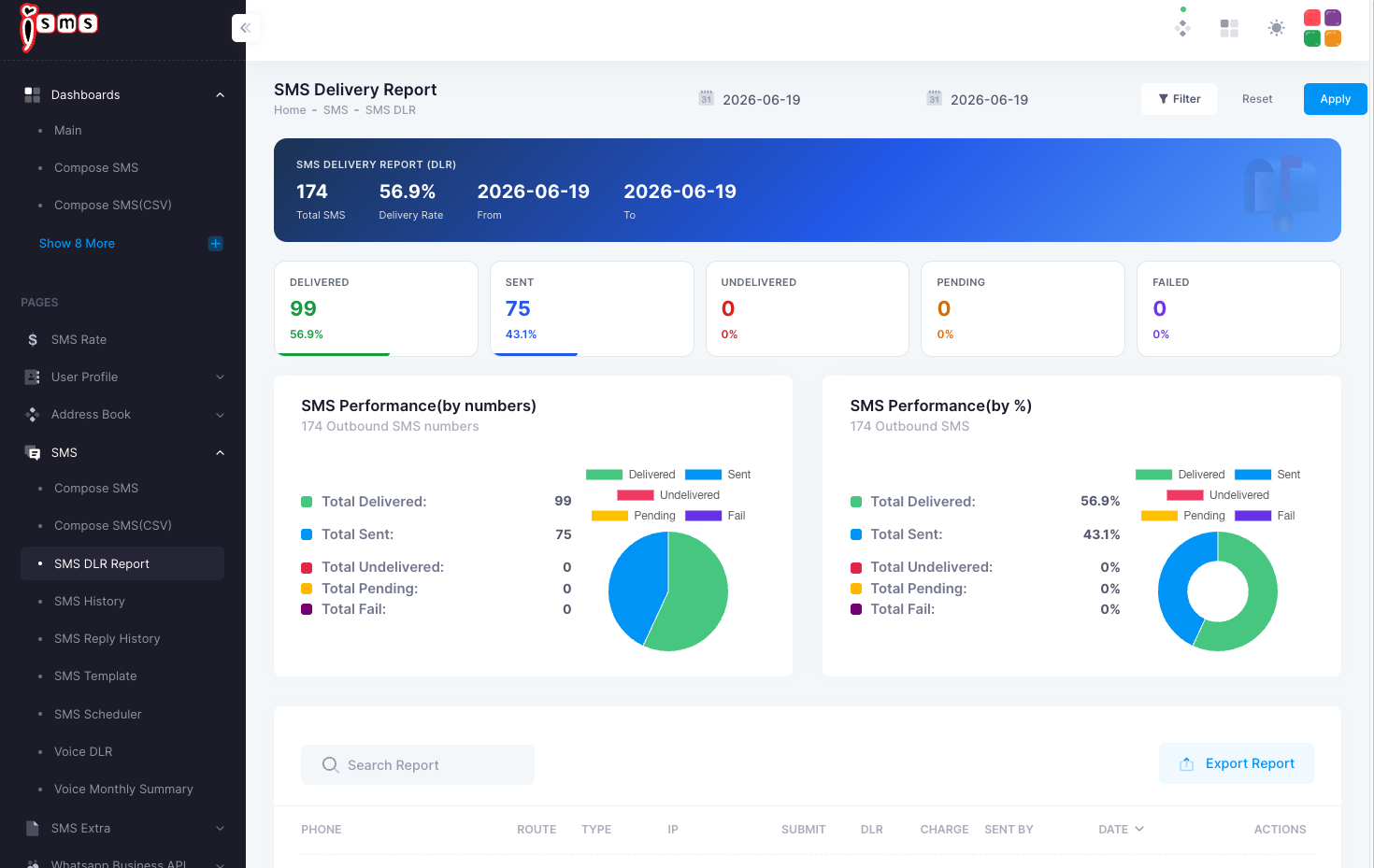
Open it from SMS → SMS DLR Report and filter by date. The top cards show your totals and delivery rate, and the performance charts split your messages by status — both by count and by percentage.

The iSMS SMS Delivery (DLR) report: total SMS and delivery rate, status cards, and performance charts by number and by percentage.
Fig. 1The SMS Delivery Report — status totals plus performance by count and by percentage.

How a message travels

SMS delivery path

Pending

Queued on the iSMS server

Sent

Submitted to the telco SMSC

Delivered

Confirmed by the SMSC

The successful path. If a message can’t complete it, it shows as Undelivered or Fail instead (explained below).

What each status means

Sent

Submitted to the carrier’s SMSC and awaiting a delivery confirmation. It may already be delivered, but the SMSC hasn’t returned a final status.

Delivered

Delivered to the destination number and acknowledged by the carrier SMSC.

Undelivered

The validity period expired (phone off / out of coverage after all retries), or the number was inactive/untraceable, or the inbox was full.

Pending

Accepted by the iSMS server and queued for the carrier — not yet sent to the SMSC.

Fail

Rejected at the carrier SMSC — the destination network was unavailable or blocked. Failed SMS are not charged.

Malaysia DLR note: a Delivered status confirms receipt at the telco SMSC — not necessarily delivery to the recipient’s physical handset. Handset-level DLR isn’t provided by Malaysian operators by default. This is standard across all local operators.

Chapter 16 · Part 2

SMS Summary Report

The Summary reports group your sending by account — so you can see how much is the main account versus any sub-users, and review sub-account activity on its own.

Usage by account

This view splits the month’s sending across your users. The cards show the main account’s share versus sub-users, with a per-user table underneath.

Main account
100%
Sub-users
0%
The iSMS summary report broken down by user: main account vs sub-user share, a per-user chart, and a per-user table.
Fig. 1Usage by user — the split between the main account and sub-users.

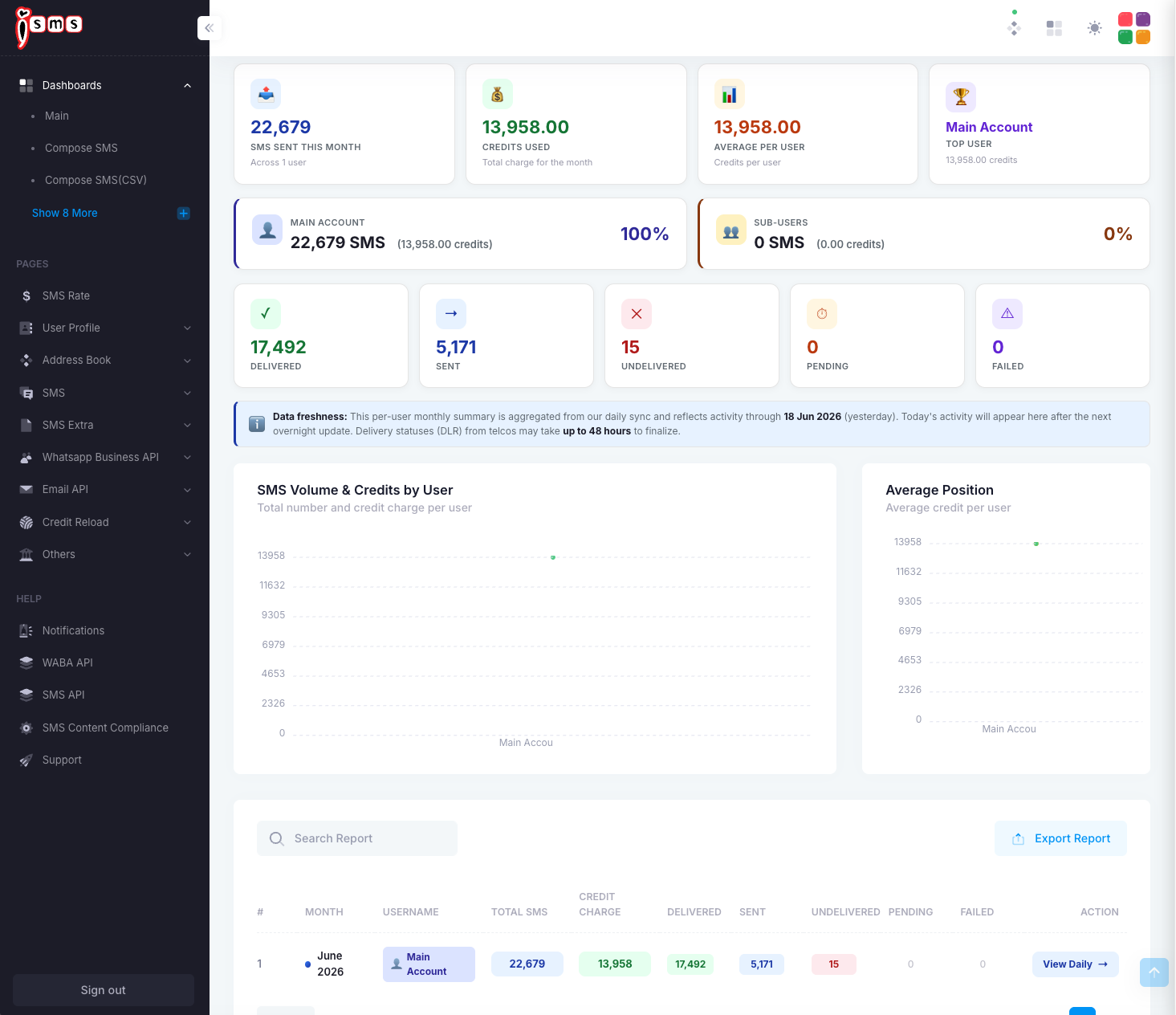
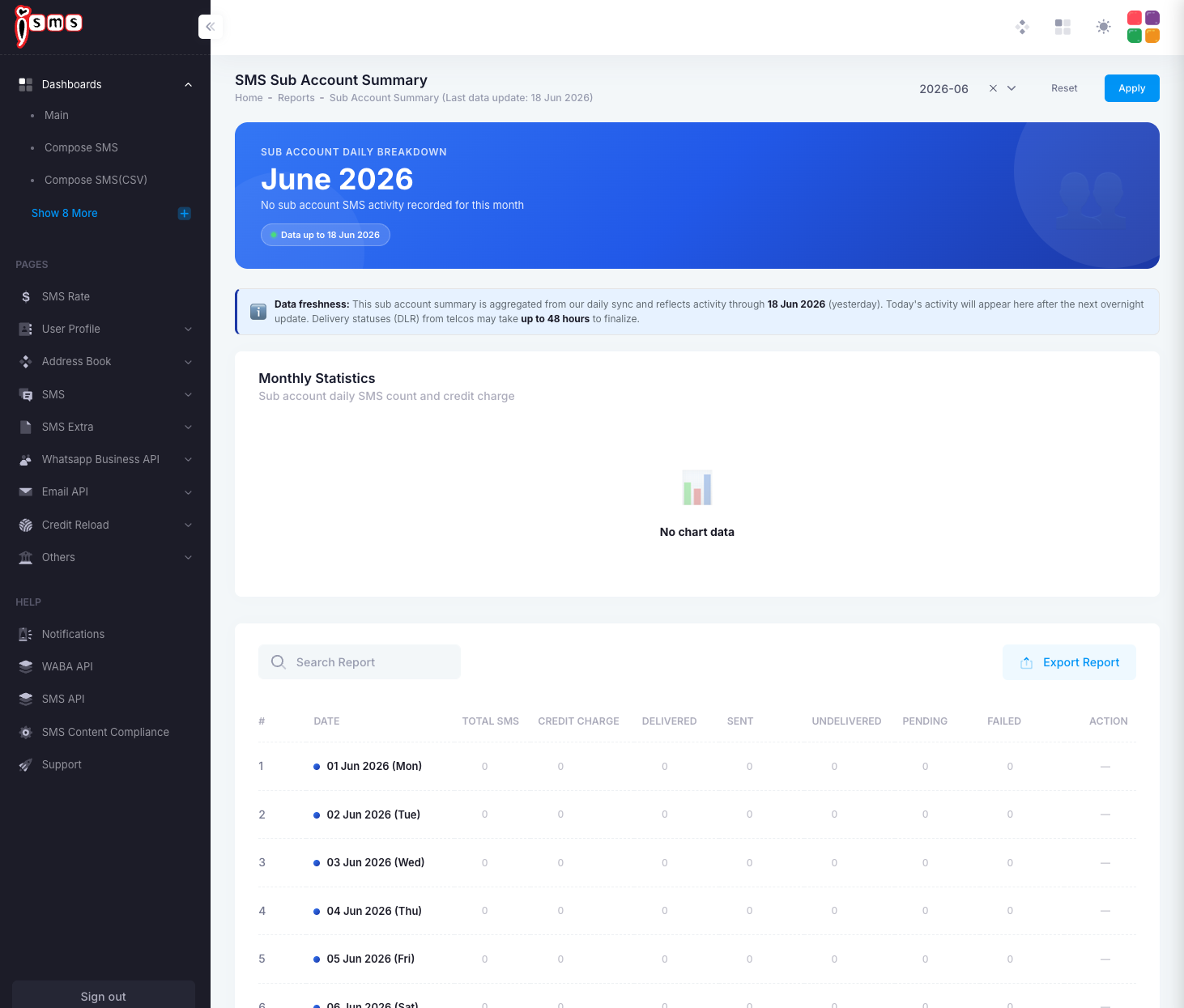
Sub-account summary

A dedicated view of sub-account activity, day by day. If you have no sub-accounts (or they haven’t sent anything), it simply shows no activity for the period.

The iSMS Sub Account Summary report for a month, with a daily table; shown here with no sub-account activity.
Fig. 2Sub Account Summary — per-day sub-account activity for the selected month.

What the columns mean

Every summary table (monthly, daily, and sub-account) uses the same columns:

  • Total SMSAll messages submitted in that period.
  • Credit ChargeCredits used for those messages.
  • DeliveredConfirmed delivered to the telco SMSC.
  • SentSubmitted to the carrier, awaiting a final delivery status.
  • UndeliveredCould not be delivered (off, out of coverage, or invalid number).
  • PendingQueued, not yet submitted to the carrier.
  • FailedRejected at the carrier SMSC — not charged.
Reading delivery status: in Malaysia, status reflects acknowledgement by the telco SMSC, not confirmed delivery to the handset. For per-message statuses, see the SMS Delivery (DLR) Report.

Chapter 17 · Part 2

SMS Scheduler Overview

The scheduler sends your message automatically at a future date and time — great for reminders, alerts, and timed campaigns. You set it up once, and the Task Scheduler keeps track of every scheduled send.

How scheduling works

Compose your message as usual, then choose Send Later instead of Send Now. You can also create a schedule directly from SMS → SMS Scheduler using + New Schedule.

From message to scheduled send

Compose

Write your message

Send Later

Set date & time

Create Trigger

Save the schedule

Auto-sends

At the set time

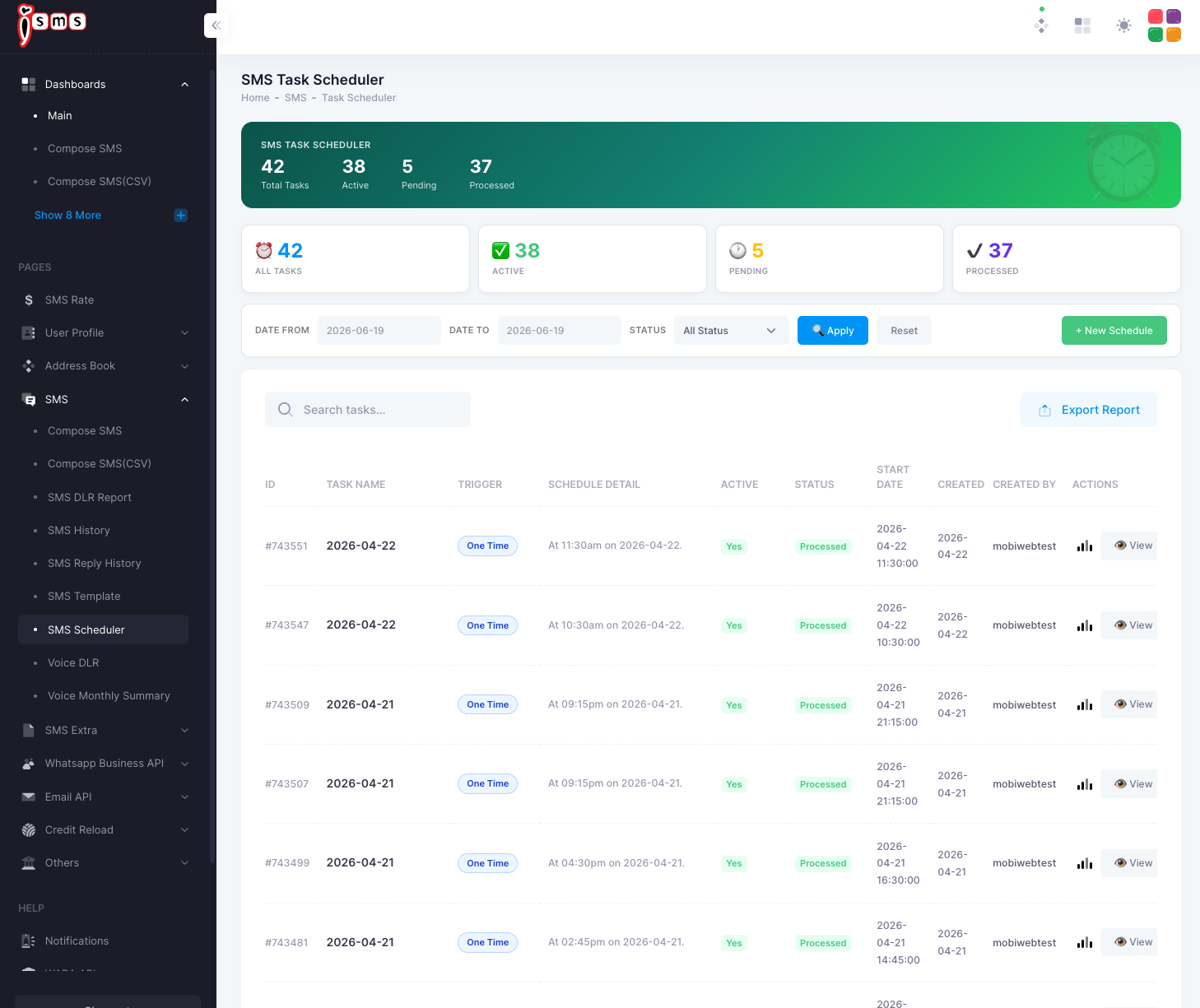
The Task Scheduler

Every scheduled send lives in the Task Scheduler. Each row shows the task name, trigger type (One Time or Daily), the schedule detail, whether it’s active, and its status (Pending or Processed). From here you can search, filter by date, add a new schedule, view a task, or export the list.

The iSMS SMS Task Scheduler: totals for all/active/pending/processed tasks and a table listing each scheduled task with its trigger, schedule, and status.
Fig. 1The Task Scheduler — manage every scheduled send and check its status.
You can edit or cancel a scheduled send any time before its delivery time from the Task Scheduler. Next, see how to set a one-time or recurring daily schedule.

Chapter 18 · Part 2

Scheduler: One Time & Daily

When you set up a schedule (via Send Later or + New Schedule), you configure the trigger. Choose a single one-time send, or a recurring daily send that repeats automatically.

One-time or recurring daily

The Timer setting decides how often the task runs. Pick whichever matches your message.
One Time

Sends once, at the exact date and time you set. Best for a single announcement, an event reminder, or a one-off blast.

Daily (recurring)

Repeats every day at the same time until you disable it. Ideal for daily reminders, alerts, or repeating campaigns.

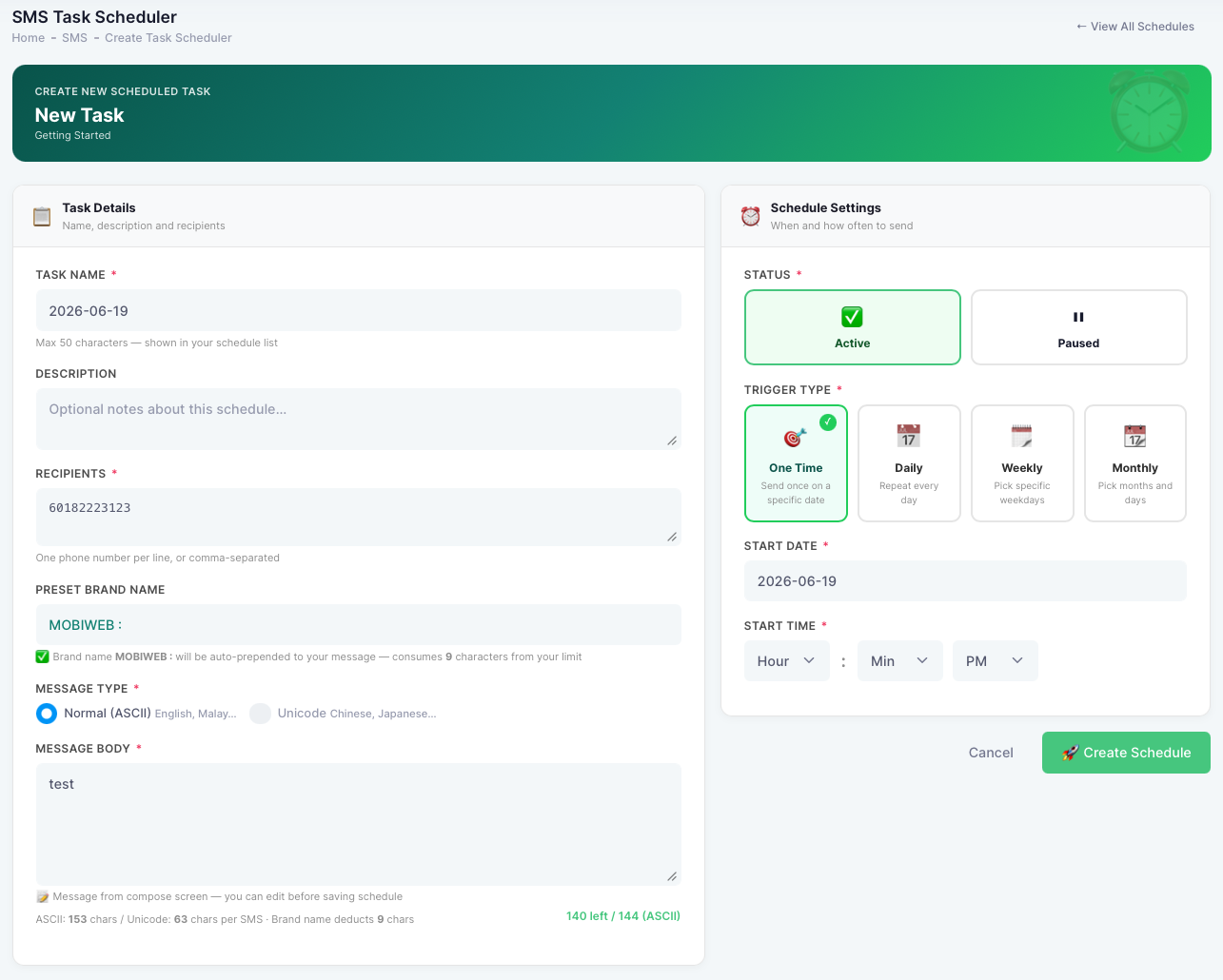
Setting up the trigger

From SMS → SMS Scheduler → + New Schedule (or after clicking Send Later), fill in the task:

  1. 1

    Recipient

    Enter the destination number(s) to send to.

  2. 2

    Message Type

    Normal (ASCII, up to 153 characters) by default, or Unicode (up to 63 characters) for Chinese, Japanese, and other scripts.

  3. 3

    Message Body

    Type the SMS content that will be sent.

  4. 4

    Task Name & Description

    Give the task a clear name so it’s easy to find later, and an optional description for notes or remarks.

  5. 5

    Start Date & Time

    Set when the task should first run.

  6. 6

    Timer

    Choose One Time or Daily, as described above.

  7. 7

    Create Trigger

    Click Create Trigger to save and activate the schedule. It then appears in your Task Scheduler.

The iSMS scheduler trigger settings: recipient, message type, message body, task name, description, start date and time, and timer.
Fig. 1The trigger settings — recipient, message, timing, and the one-time / daily timer.
Manage, edit, or disable any scheduled task from SMS → SMS Scheduler when you no longer need it — recurring daily tasks keep running until you switch them off.
Part 3

Account administration

Manage sub-accounts and their permissions, set credit reminders, and control country login and message routing.

  1. 19Manage Sub-Accounts
  2. 20Import Sub-Accounts (CSV)
  3. 21Credit Reminder
  4. 22Country Login Whitelist
  5. 23Manage SMS Route
  6. 24Manage Sender ID

Chapter 19 · Part 3

Manage Sub-Accounts

Give team members or clients their own login under your main account — each with its own sending limits and permissions. You stay in control of credits while they send on their own.

Adding a sub-account

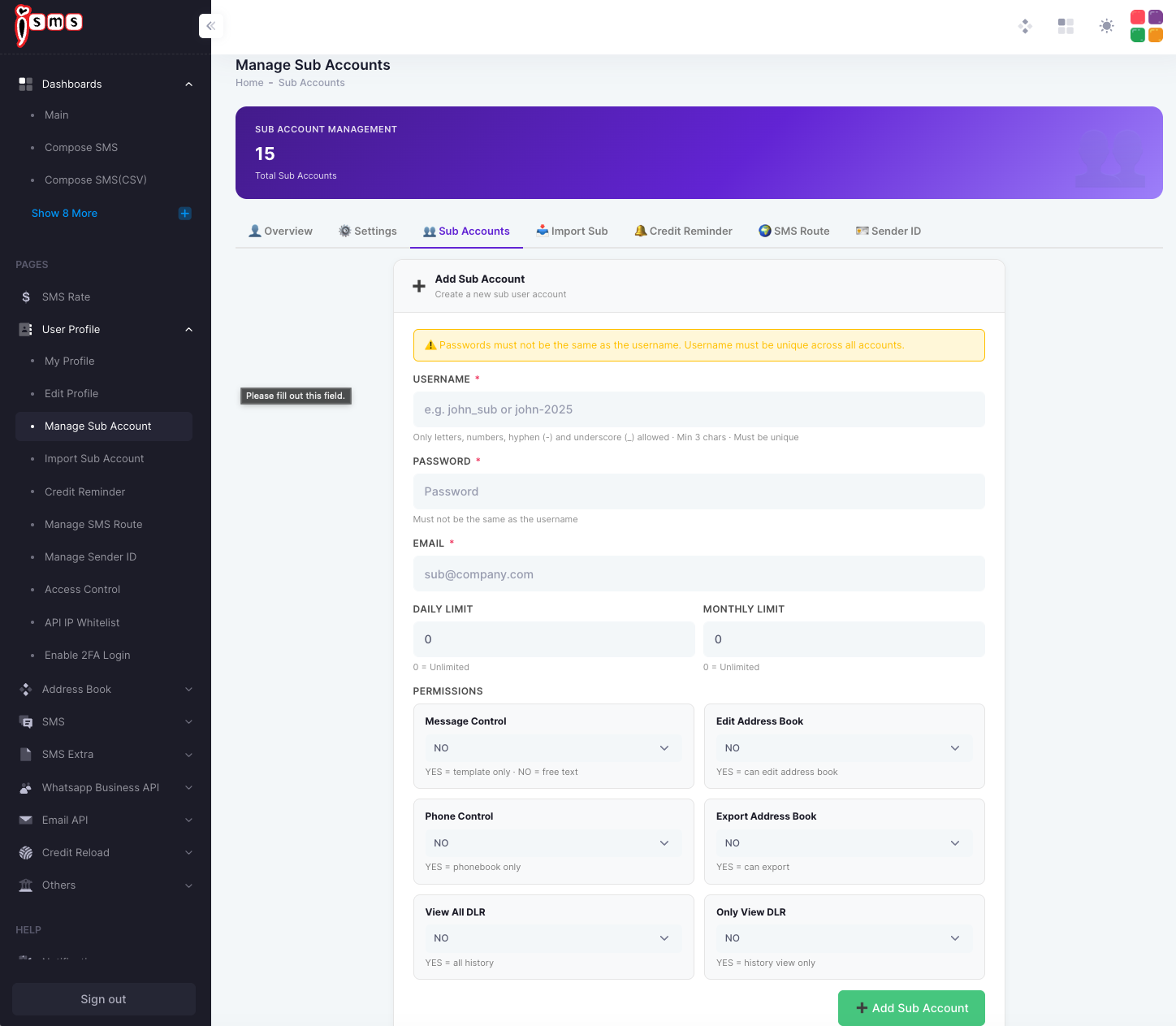
Go to User Profile → Manage Sub Account and open the Sub Accounts tab. Fill in the form to create a new sub-user.

  1. 1

    Username

    Letters, numbers, hyphen (-) and underscore (_) only, at least 3 characters, and unique across all accounts.

  2. 2

    Password

    Set a password — it must not be the same as the username.

  3. 3

    Email

    Enter the sub-user’s email address.

  4. 4

    Daily & monthly limits

    Cap how many SMS this sub-account can send. Enter 0 for unlimited.

  5. 5

    Permissions

    Decide what the sub-account can do (see the reference below), then click Add Sub Account.

The iSMS Manage Sub Accounts screen with the Add Sub Account form: username, password, email, daily/monthly limits, and permission toggles.
Fig. 1The Add Sub Account form, with limits and permission toggles.

Permissions reference

Each permission is a simple YES / NO toggle:

  • Message ControlYES = template only · NO = free text.
  • Phone ControlYES = phonebook numbers only.
  • Edit Address BookYES = can edit the address book.
  • Export Address BookYES = can export contacts.
  • View All DLRYES = can see all delivery history.
  • Only View DLRYES = history view only.
Have a lot of sub-accounts to add? Create them all at once with Import Sub-Accounts (CSV).

Chapter 20 · Part 3

Import Sub-Accounts (CSV)

Creating sub-accounts one at a time is fine for a few — but if you have many, upload them all at once with a CSV file. Each row in the file becomes one sub-account.

The CSV column order

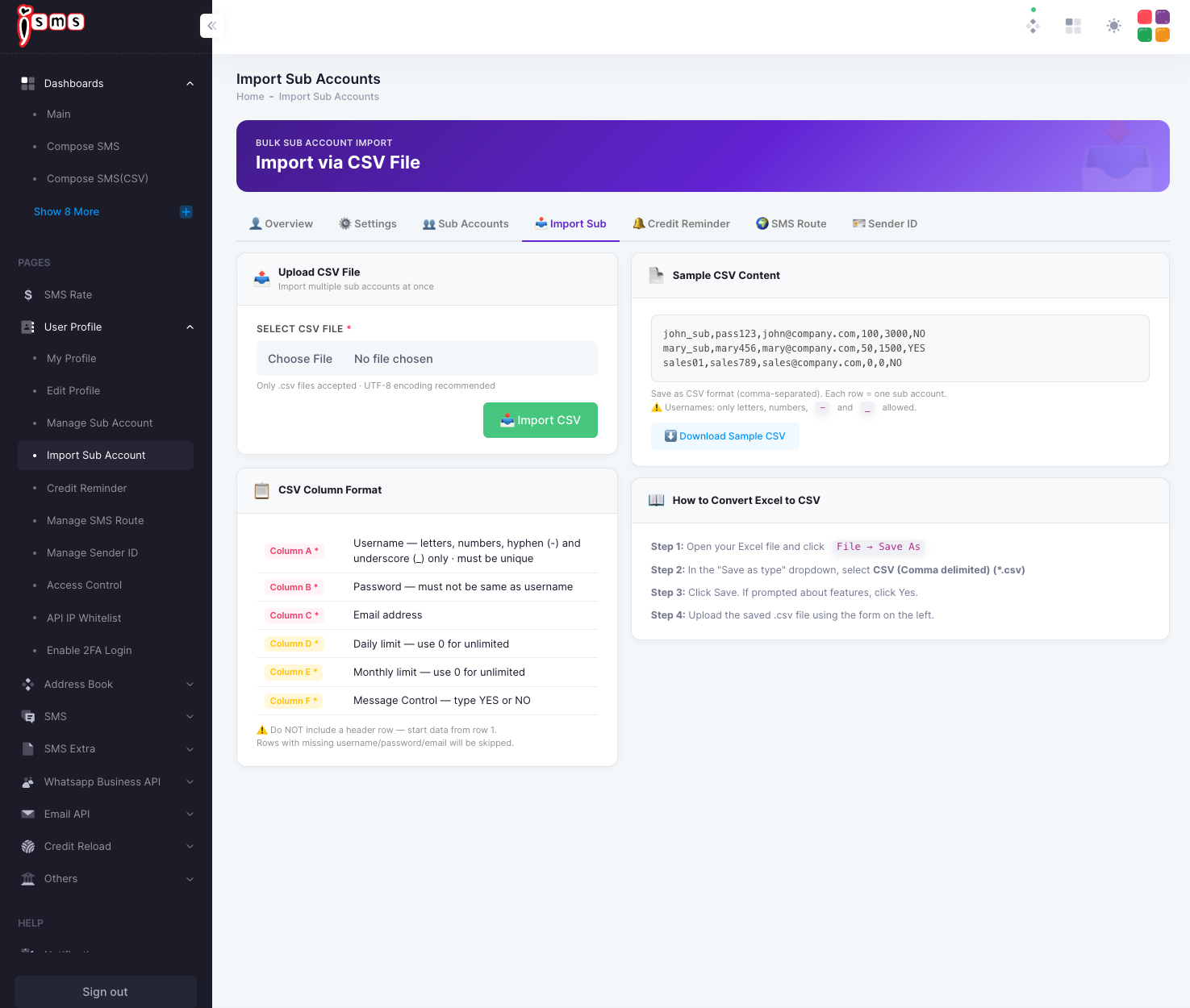
Go to User Profile → Manage Sub Account → Import Sub. Your file needs six columns, in this exact order — and no header row.

ColumnFieldRequired
AUsername — letters, numbers, -, _ only · must be uniqueYes
BPassword — must not match the usernameYes
CEmail addressYes
DDaily limit — use 0 for unlimitedYes
EMonthly limit — use 0 for unlimitedYes
FMessage Control — type YES or NOYes

A sample file looks like this — one sub-account per line:

# username,password,email,daily,monthly,message-control john_sub,pass123,john@company.com,100,3000,NO mary_sub,mary456,mary@company.com,50,1500,YES sales01,sales789,sales@company.com,0,0,NO

Uploading the file

  1. 1

    Prepare the file

    Fill the six columns above, starting data on row 1 (no header). Save as CSV (comma-separated, UTF-8). New to this? See Create CSV in Excel and Export Excel to CSV.

  2. 2

    Choose & import

    Click Choose File, select your .csv, then click Import CSV. You can also Download Sample CSV from the page to start from a ready-made template.

The iSMS Import Sub Accounts screen: upload a CSV, the sample CSV content, the six-column format, and Excel-to-CSV steps.
Fig. 1The Import Sub Accounts screen, with the column format and a downloadable sample.
Two things to watch: do not include a header row — start your data on row 1; and any row missing a username, password, or email is skipped.

Chapter 21 · Part 3

Credit Reminder

Never get caught short mid-campaign. Set a balance threshold and iSMS will email you when your credit drops below it — giving you time to top up before sending stops.

Setting up the reminder

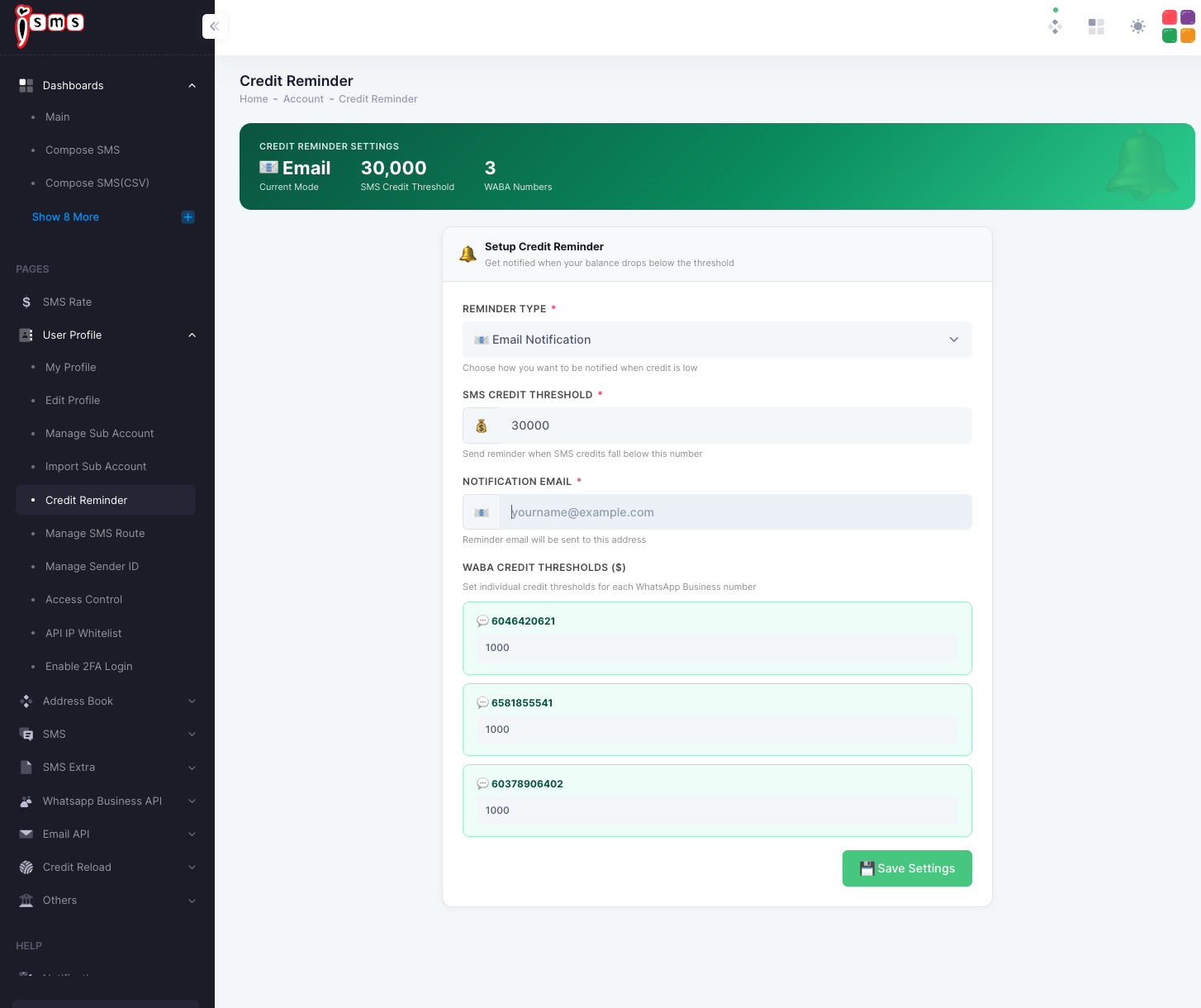
Go to User Profile → Credit Reminder. The summary at the top shows your current mode, SMS threshold, and how many WhatsApp numbers are covered.

  1. 1

    Reminder Type

    Choose how you want to be alerted — Email Notification.

  2. 2

    SMS Credit Threshold

    Enter the number of credits at which to warn you (e.g. 30,000). When your balance falls below it, the reminder is sent.

  3. 3

    Notification Email

    Enter the email address the reminder should go to.

  4. 4

    WABA credit thresholds

    If you use WhatsApp Business API, set a separate threshold for each WhatsApp number so you’re warned per number too.

  5. 5

    Save

    Click Save Settings to activate the reminder.

The iSMS Credit Reminder settings: reminder type, SMS credit threshold, notification email, and per-number WABA credit thresholds.
Fig. 1Credit Reminder settings — SMS threshold, email, and per-number WABA thresholds.

When you get reminded

Balance falls

As you keep sending

Hits threshold

Drops below your number

Email sent

To your notification address

Top up in time

Reload before it runs out

Set the threshold high enough to leave time for a top-up to clear — especially before a large scheduled send.

Chapter 22 · Part 3

Country Login Whitelist

A geographic lock on your account: logins are only allowed from the countries you approve. Attempts from anywhere else are blocked automatically — an extra layer against unauthorised access.

How it works

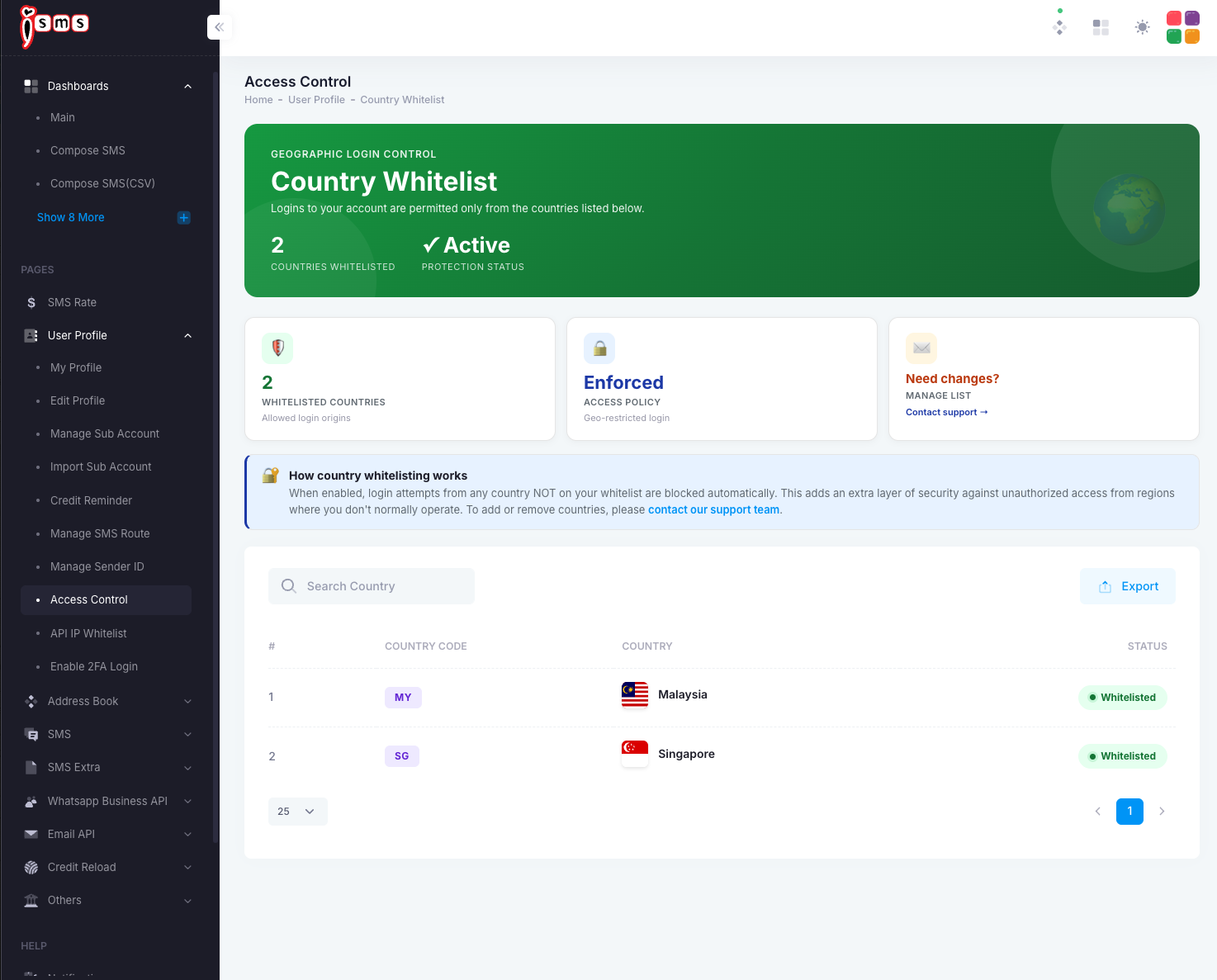
Find it under User Profile → Access Control. When the whitelist is active, only the listed countries can sign in — logins from any country not on the list are refused, even with the correct password.

Whitelisted countries
Allowed
Access policy
Enforced

The table lists every country currently permitted, with its country code and status. In the example below, sign-in is limited to Malaysia and Singapore; an attempt from anywhere else would be blocked.

The iSMS Access Control screen showing the country login whitelist with Malaysia and Singapore marked as Whitelisted.
Fig. 1The country login whitelist — only listed countries may sign in.
Managed by support. To add or remove a country from your whitelist, contact our support team (use the Contact support link on the page) — this keeps the security setting tamper-resistant.

Chapter 23 · Part 3

Manage SMS Route

Decide which destination countries your account is allowed to send to. Block the countries you never message — it prevents accidental international sends and keeps your spend predictable.

How routing works

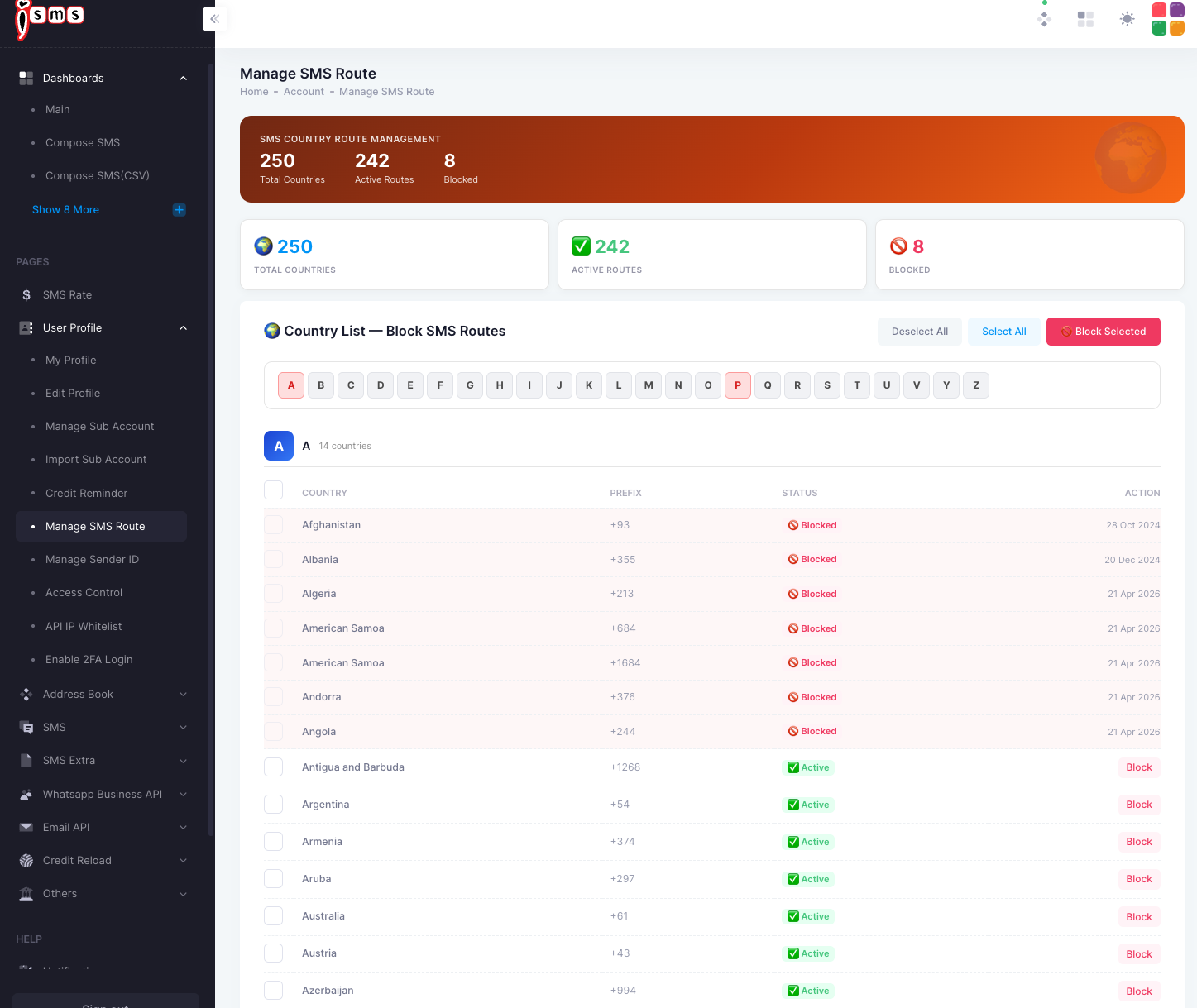
Open User Profile → Manage SMS Route. Every country has a route that’s either Active (your SMS can go there) or Blocked (sends are stopped). The summary shows your totals at a glance.

Total countries
Full list
Active routes
Allowed
Blocked
Stopped

Block or unblock a country

  1. 1

    Find the country

    Use the A–Z letter filter to jump to a country. Each row shows its dialling prefix and current status.

  2. 2

    Block a single route

    Click Block next to an active country to stop SMS to it. Blocked countries show a red Blocked badge.

  3. 3

    Block several at once

    Tick the countries you want (or use Select All), then click Block Selected. Use Deselect All to clear your selection.

The iSMS Manage SMS Route screen: totals for active and blocked routes, an A-Z filter, and a country list with prefix, status, and Block actions.
Fig. 1The country route list — block or unblock destinations individually or in bulk.
Blocking stops all SMS to that country until you re-enable it. If a campaign suddenly shows undelivered messages to one country, check whether its route is blocked here.

Chapter 24 · Part 3

Manage SMS Sender ID

A Sender ID is the name your recipients see as the message sender — for example your brand name instead of a number. Once a Sender ID has been registered and approved for your account, this is where you add it and switch it on.

Not available for Malaysia. Malaysian mobile networks don’t allow custom alphanumeric Sender IDs, so a Sender ID set here will not apply to Malaysian (60) numbers — those messages still go out on the standard route. Sender IDs are for supported international destinations only.

Before you add one

Sender IDs aren’t created on the spot — each one is registered and approved with our team first. Once yours is approved, the steps below add it to your account and activate it.

How a Sender ID goes live

Approved with us

Registered & approved first

Add it here

Enter the approved name

Activate

Switch it on

Send abroad

Used on international routes

Your Sender IDs at a glance

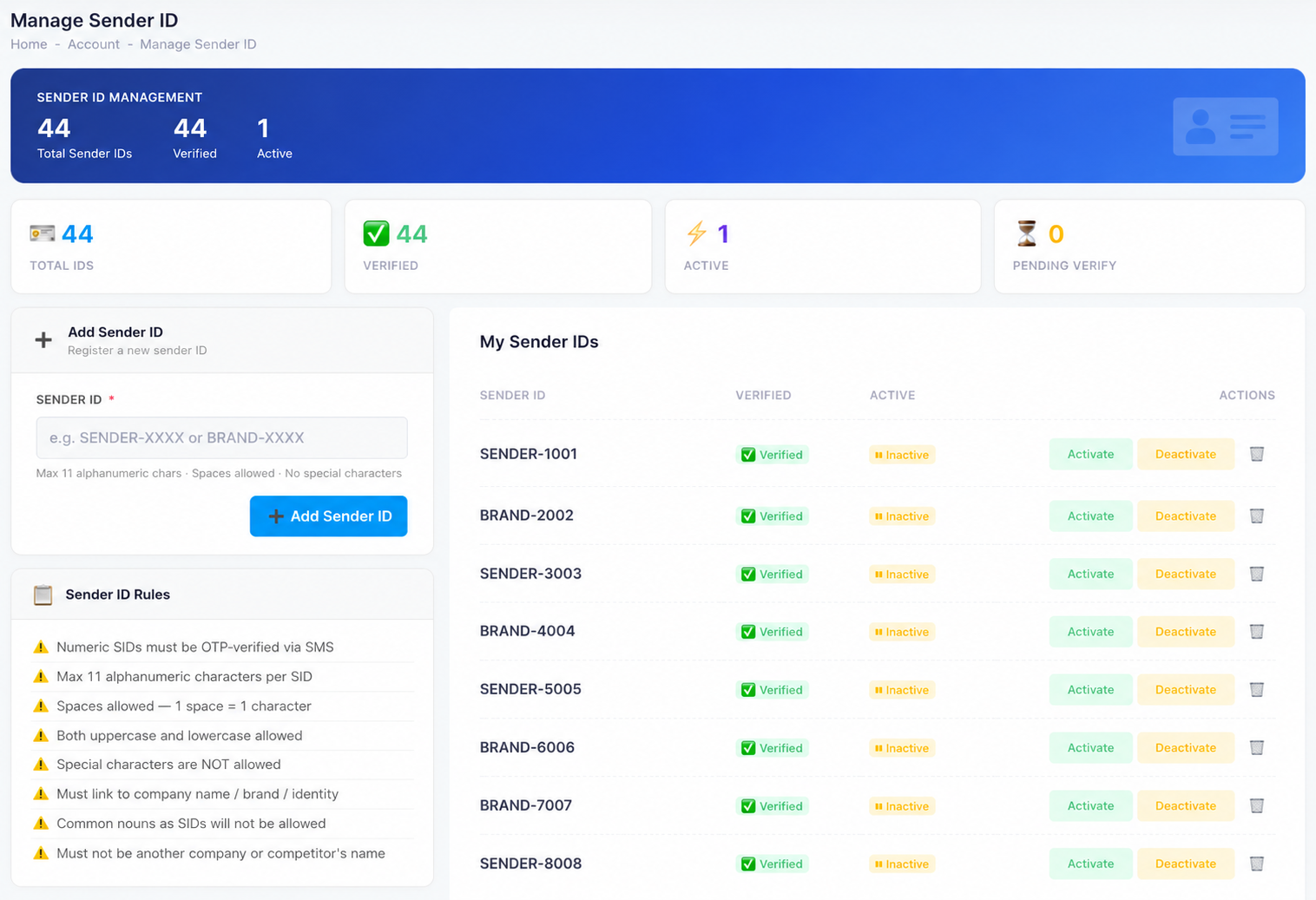
Open Account → Manage Sender ID. The summary cards tally your IDs, and the My Sender IDs list shows each one’s status.

Total IDs
All added
Verified
Ready
Active
In use
Pending verify
Awaiting OTP

Add & activate a Sender ID

  1. 1

    Enter your approved Sender ID

    In the Add Sender ID box, type the Sender ID exactly as it was approved (for example BRAND-2002) — up to 11 alphanumeric characters — then click Add Sender ID. It joins your My Sender IDs list.

  2. 2

    Verify it (numeric IDs only)

    A numeric Sender ID must be confirmed by an SMS OTP before it can be used; it sits under Pending Verify until then. Approved text IDs already show as Verified.

  3. 3

    Activate it

    Click Activate next to the Sender ID to start sending under that name. Deactivate turns it off again, and the trash icon removes it from your account.

The iSMS Manage Sender ID screen: totals for Total IDs, Verified, Active, and Pending Verify; an Add Sender ID box; the Sender ID rules; and the My Sender IDs list with Verified and Active status plus Activate, Deactivate, and delete actions.
Fig. 1Manage Sender ID — add an approved ID, then activate the one you want to send under.

Sender ID rules

Approved IDs already meet these — but it helps to know why one might be rejected:

  • Up to 11 alphanumeric charactersLetters and numbers only; both upper- and lower-case are fine.
  • Spaces are allowedOne space counts as one of the 11 characters.
  • No special charactersSymbols and punctuation aren’t permitted.
  • Must represent your identityTied to your company name, brand, or identity.
  • No generic or third-party namesCommon nouns, and any other company’s or a competitor’s name, are rejected.
  • Numeric IDs need OTPA numeric Sender ID must be verified by SMS OTP.
Need a new Sender ID approved, or not sure whether yours is registered yet? Contact us and we’ll set it up for you.
Part 4

WhatsApp Business API (WABA)

Everything WhatsApp Business API — templates, single and bulk sends, two-way conversations, and activity reporting.

  1. 25About WhatsApp Business API
  2. 26WABA Credit Balance
  3. 27WhatsApp Message Templates
  4. 28Send a WhatsApp Template
  5. 29Bulk Send via CSV
  6. 30WABA Scheduler
  7. 31WhatsApp Conversations
  8. 32WABA Outbound & Inbound Reports
  9. 33WABA Daily & Monthly Reports
  10. 34WABA Template Report
  11. 35WhatsApp Business API Documentation

Chapter 25 · Part 4

About WhatsApp Business API

The WhatsApp Business API (WABA) lets you reach customers on the app they already use every day — for notifications, one-time passcodes, promotions, and two-way support, all from inside iSMS.

Why WhatsApp

With billions of active users and very high open rates, WhatsApp is a powerful channel for both transactional messages and conversations. In iSMS, you manage it under WhatsApp Business API in the left menu.

Active users
2B+
Open rate
98%
Countries
180+
Message categories
4

The four message categories

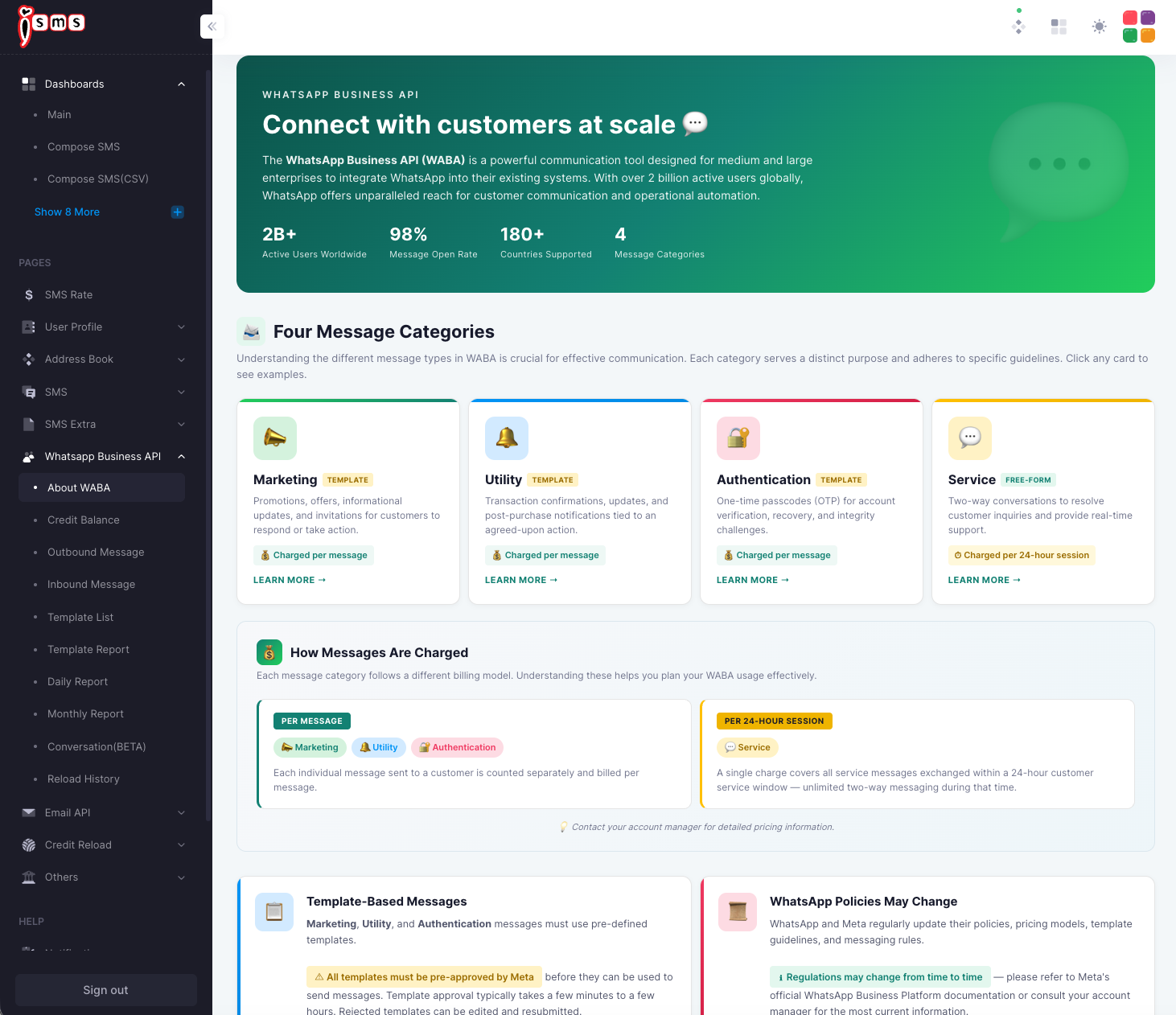
Every WhatsApp message falls into one of four categories. The first three use pre-approved templates; the last is free-form.

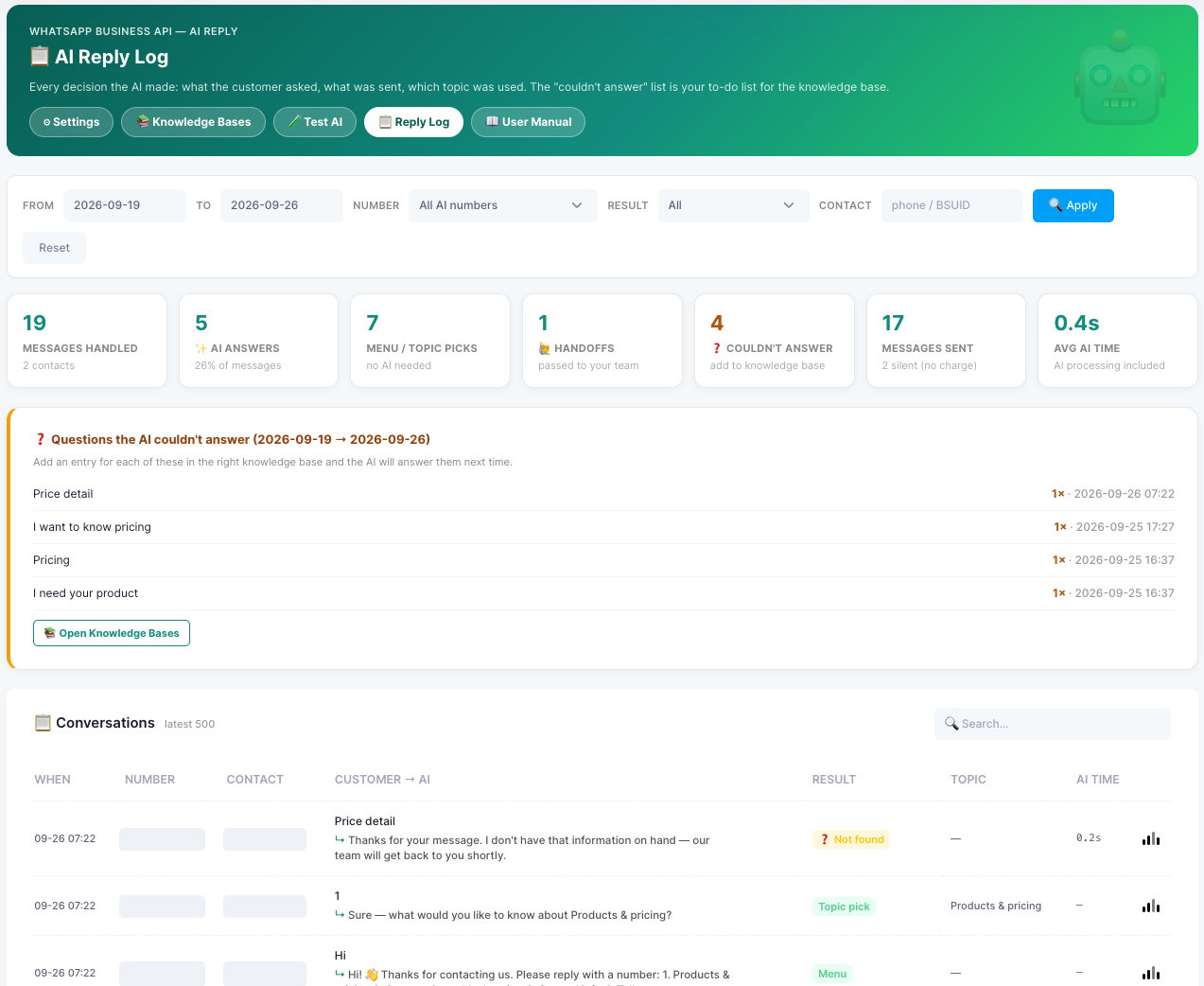
Marketing

Promotions, offers, informational updates, and invitations for customers to respond or act. Template · charged per message.
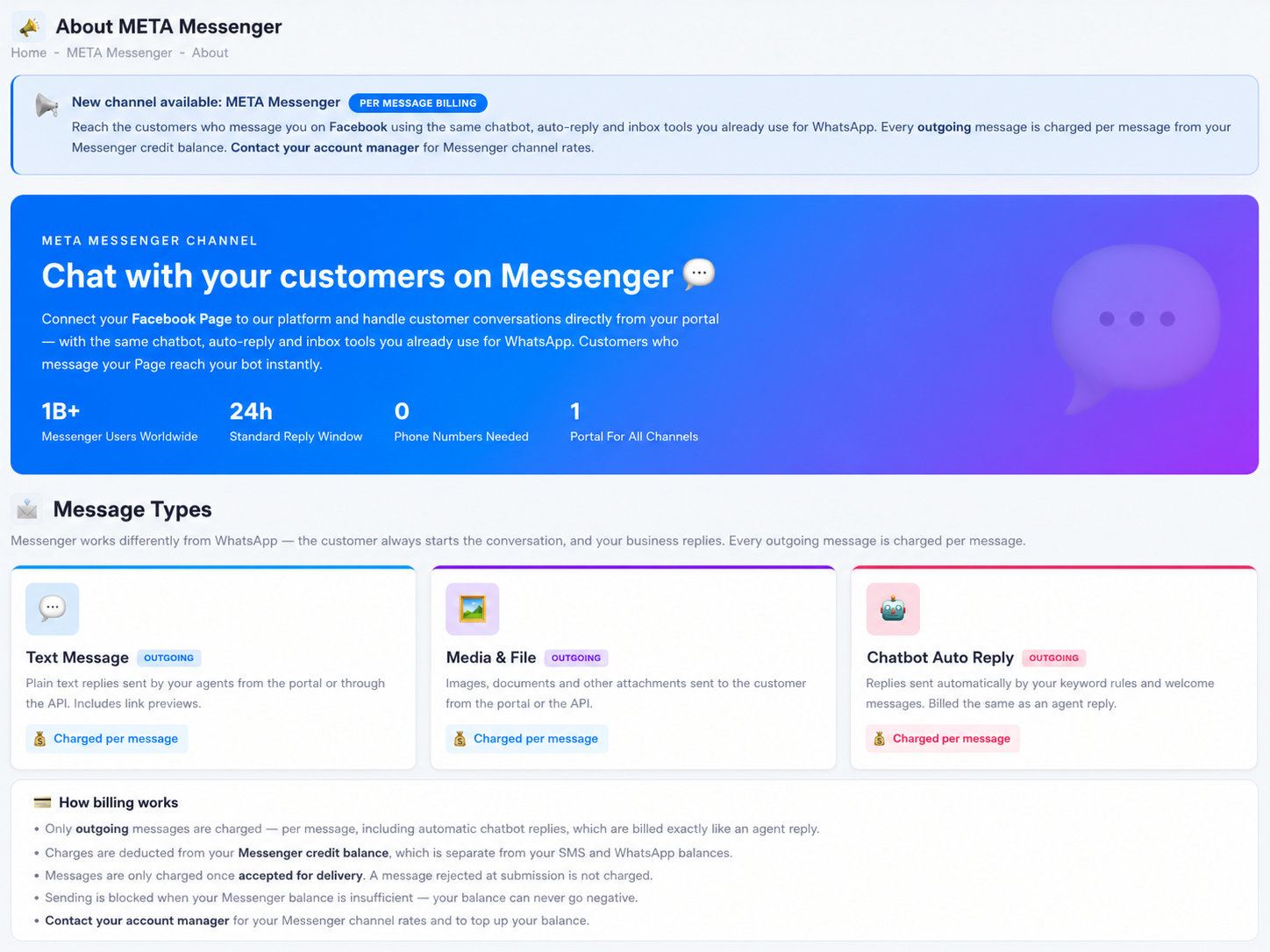
Utility

Transaction confirmations, updates, and post-purchase notifications tied to an agreed action. Template · charged per message.
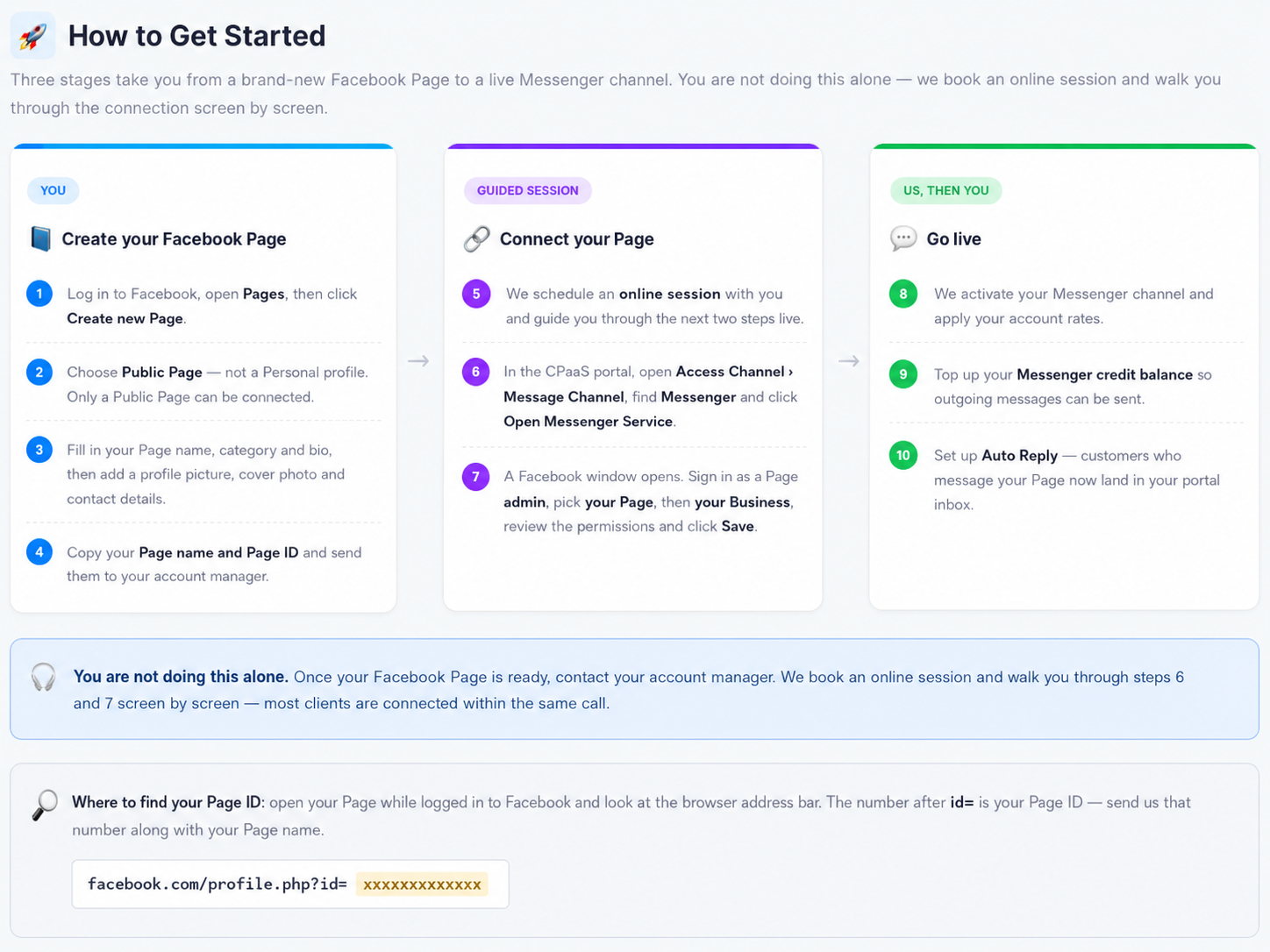
Authentication

One-time passcodes (OTP) for account verification, recovery, and integrity checks. Template · charged per message.
Service

Two-way conversations to resolve customer inquiries and give real-time support. Free-form · charged per 24-hour session.

The iSMS About WABA page: WhatsApp Business API overview, the four message categories, and how messages are charged.
Fig. 1The About WABA page — categories and charging at a glance.

How messages are charged

Each category follows one of two billing models:

  • Per messageMarketing, Utility, and Authentication — each message sent is counted and billed separately.
  • Per 24-hour sessionService — one charge covers unlimited two-way messaging within that 24-hour customer-service window.

Pricing varies by destination country — contact your account manager for a quote.

Templates need Meta approval. Marketing, Utility, and Authentication messages must use a pre-defined template, and every template is reviewed by Meta before it can be used. Approval usually takes minutes to a few hours; a rejected template can be edited and resubmitted. See WhatsApp Message Templates.
WhatsApp and Meta update their policies, pricing, and template rules from time to time. For the latest, refer to Meta’s official WhatsApp Business Platform documentation or your account manager.

Chapter 26 · Part 4

WABA Credit Balance

WhatsApp credit is held separately for each of your WhatsApp Business numbers. This page shows every number’s balance, its remind threshold, and when the credit expires — so nothing runs dry mid-conversation.

Reading the balance

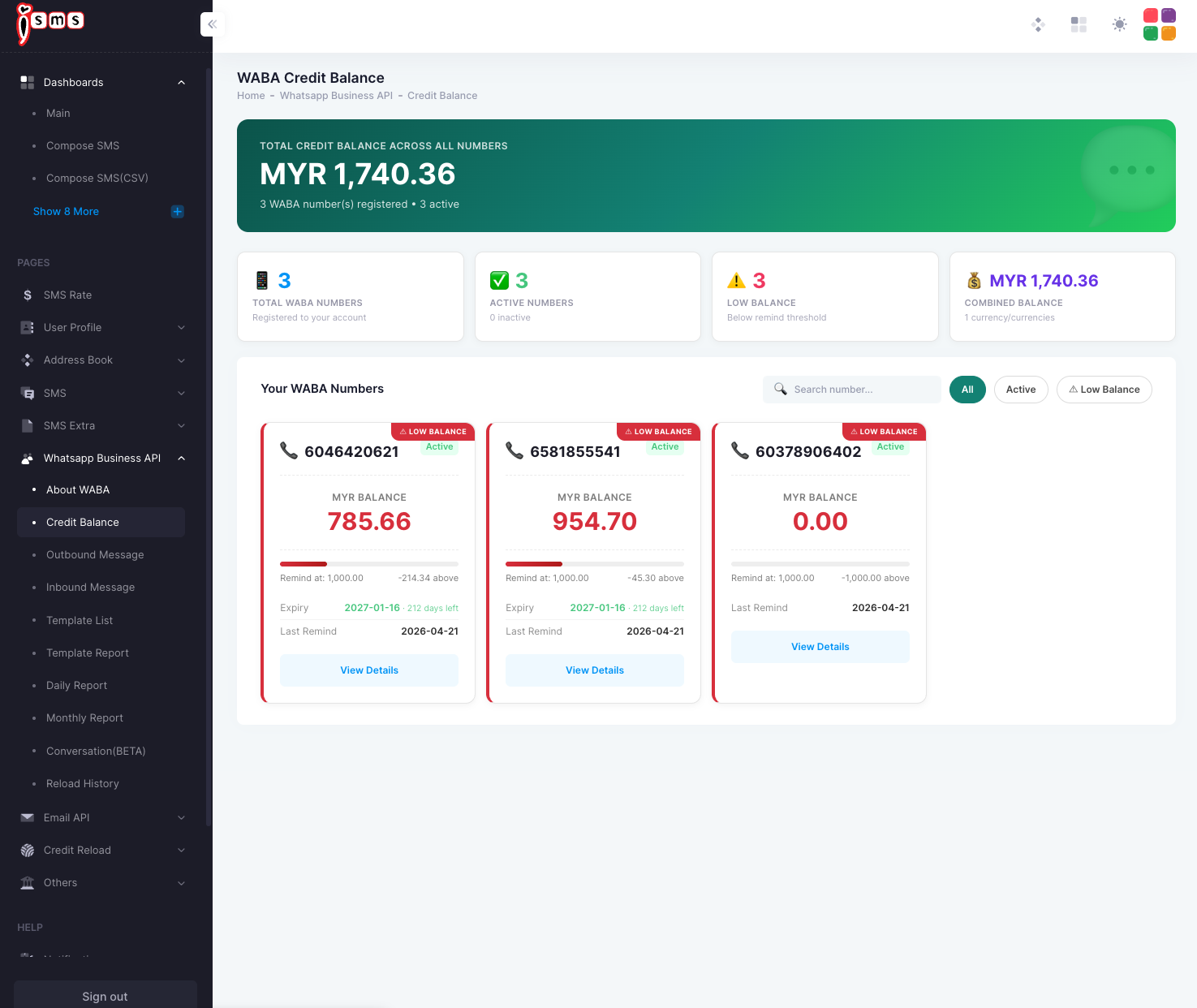
Go to WhatsApp Business API → Credit Balance. The banner shows your combined balance across all numbers, and the summary cards count how many numbers you have, how many are active, and how many are below their remind threshold.

Total WABA numbers
Registered
Active numbers
In use
Low balance
Below remind
Combined balance
All numbers
The iSMS WABA Credit Balance page: combined balance banner, summary cards, and a card per WhatsApp number showing balance, remind threshold, and expiry.
Fig. 1The WABA Credit Balance page — combined balance plus a card per number.

What each number card shows

Every WhatsApp number has its own card. Filter by All, Active, or Low Balance, or search for a number.

  • MYR balanceCurrent credit on that number.
  • Remind atThe threshold that triggers a low-balance reminder, with how far above/below it you are.
  • ExpiryWhen the credit expires, and the days remaining.
  • Last remindThe date the most recent reminder was sent.
  • View DetailsOpens the full history for that number.
A red Low Balance badge means that number has dropped below its remind threshold — top it up before sending a large batch. Set the threshold and notification email in Credit Reminder.

Chapter 27 · Part 4

WhatsApp Message Templates

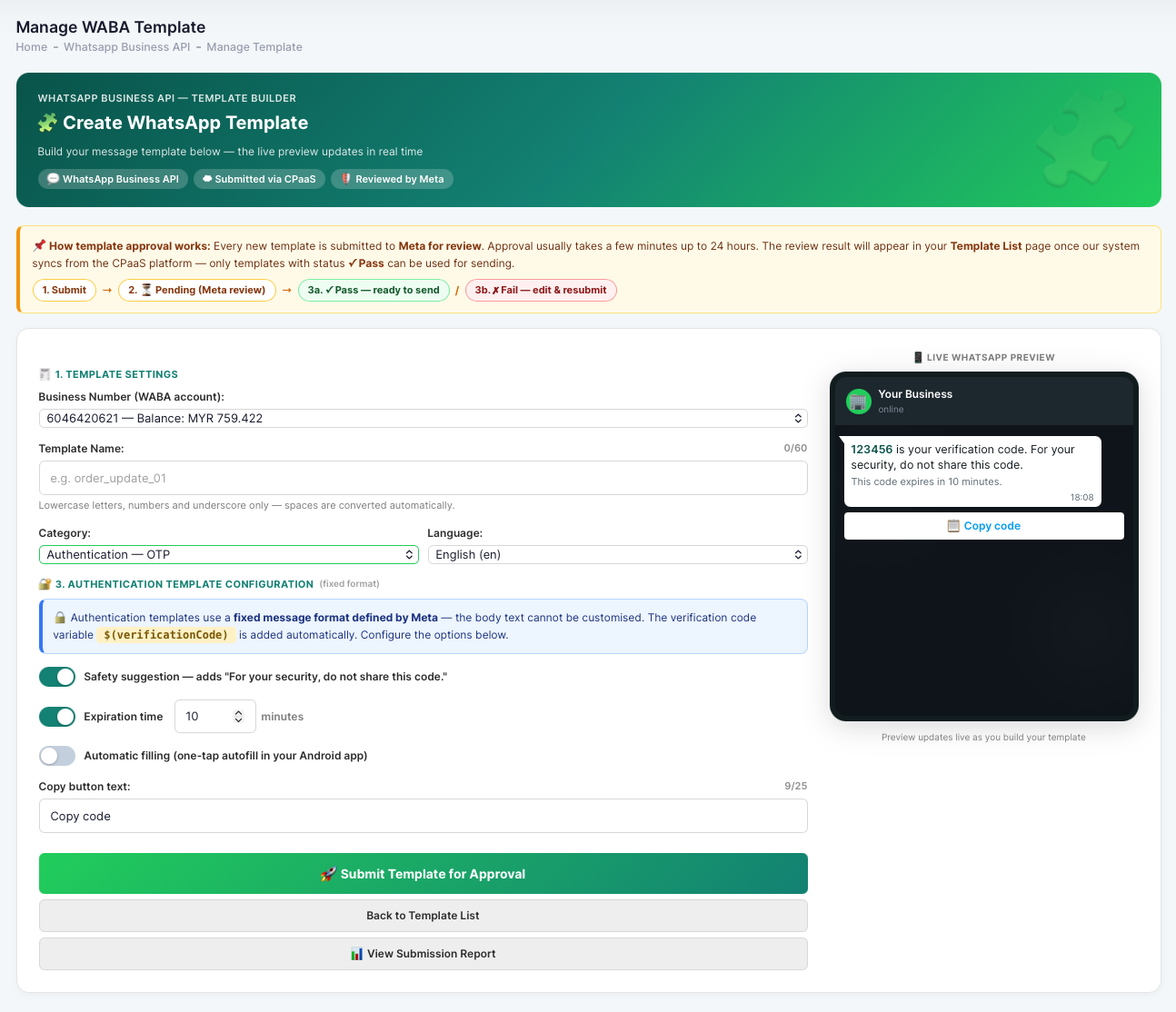
Marketing, Utility, and Authentication messages must use a pre-approved template. The Template List is your library — browse every template, check its approval status, and inspect exactly how it will look before you send.

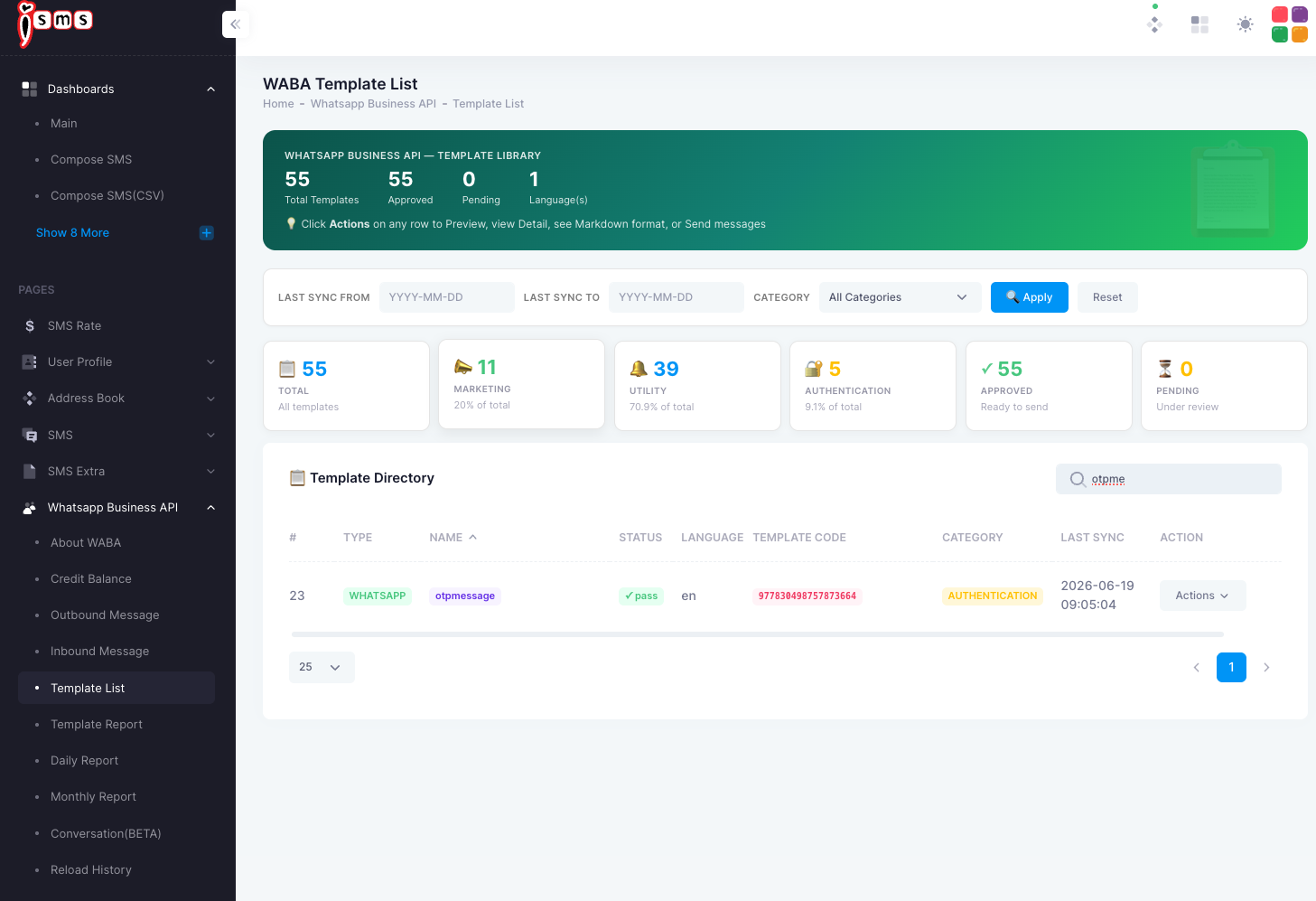
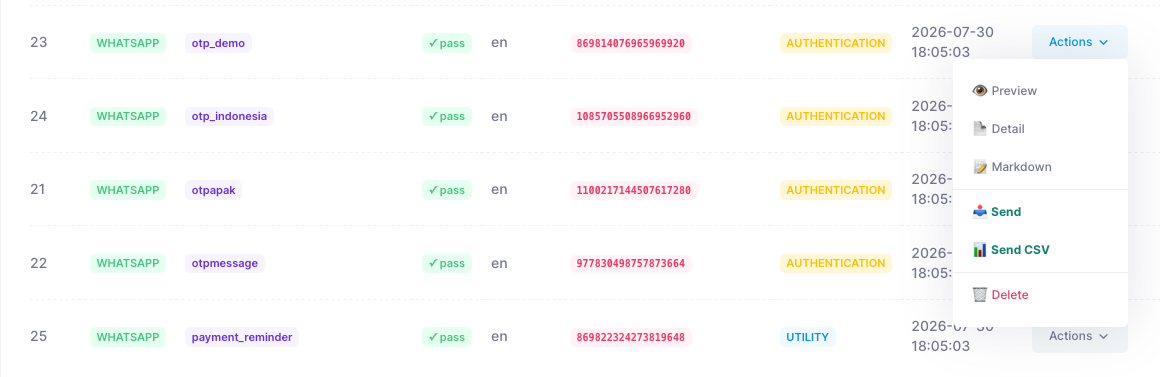
Your template library

Open WhatsApp Business API → Template List. The summary counts your templates by category and approval status; you can filter by category or last-sync date, and search by name or code.

Marketing
Promo
Utility
Updates
Authentication
OTP
Approved
Ready

Each row in the directory shows the template type, name, status, language, template code, category, and last sync. A status of pass means Meta has approved it and it’s ready to send.

The iSMS WABA Template List: counts by category and approval status, and a directory table of templates with type, name, status, code, and category.
Fig. 1The Template List — your approved WhatsApp templates, by category.

Template actions

Click Actions on any row to:

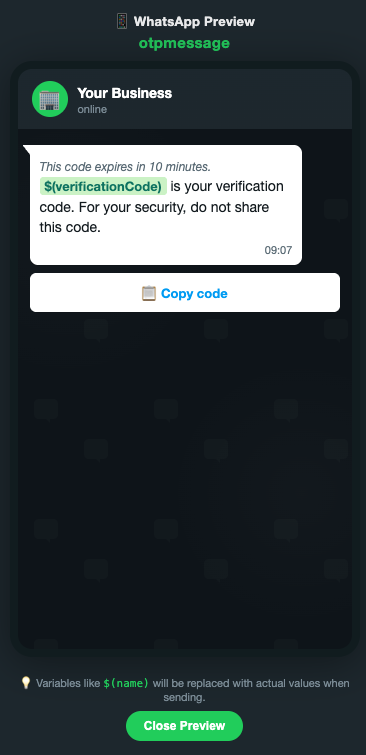
  • PreviewSee the template rendered as a WhatsApp message.
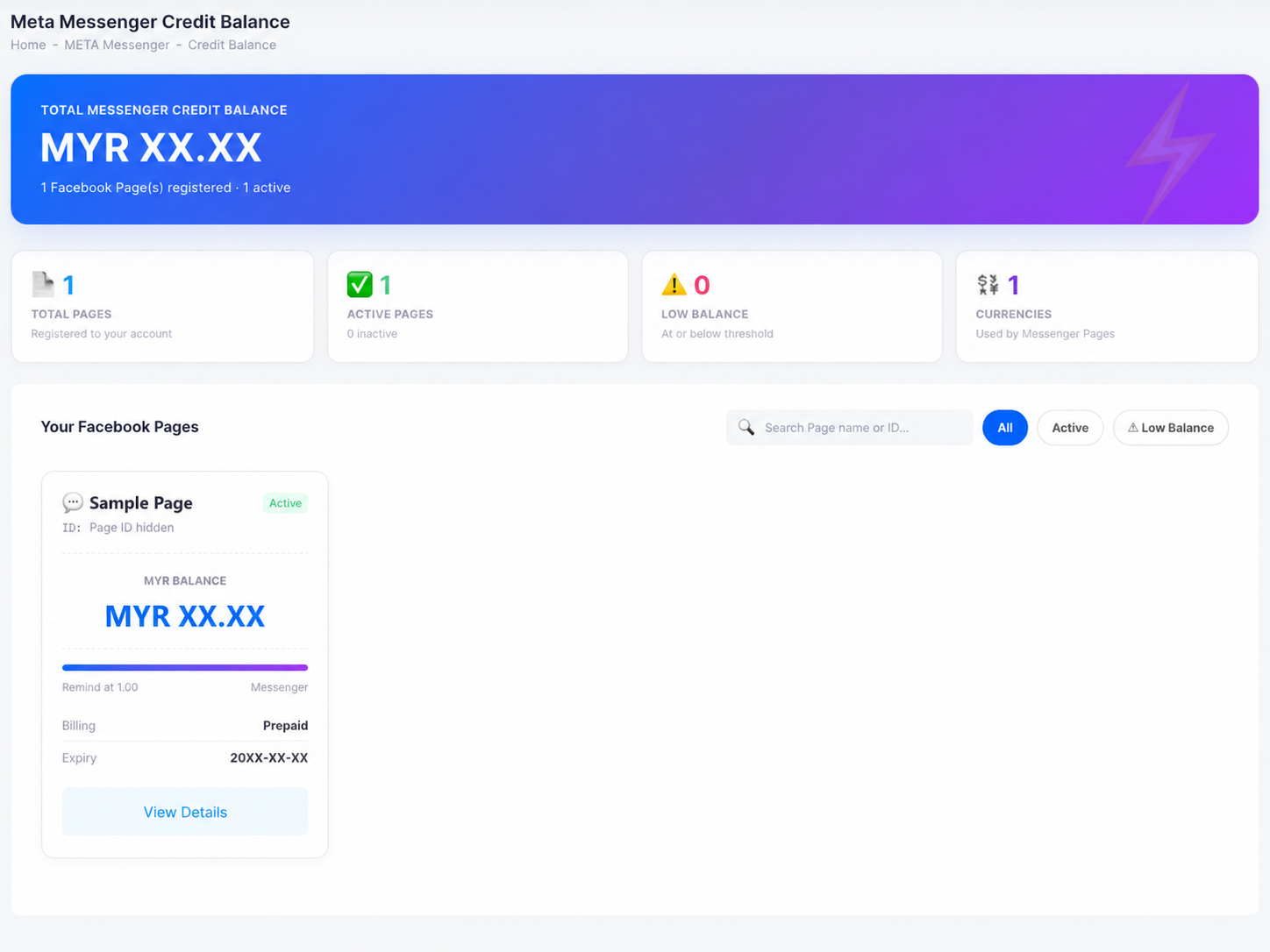
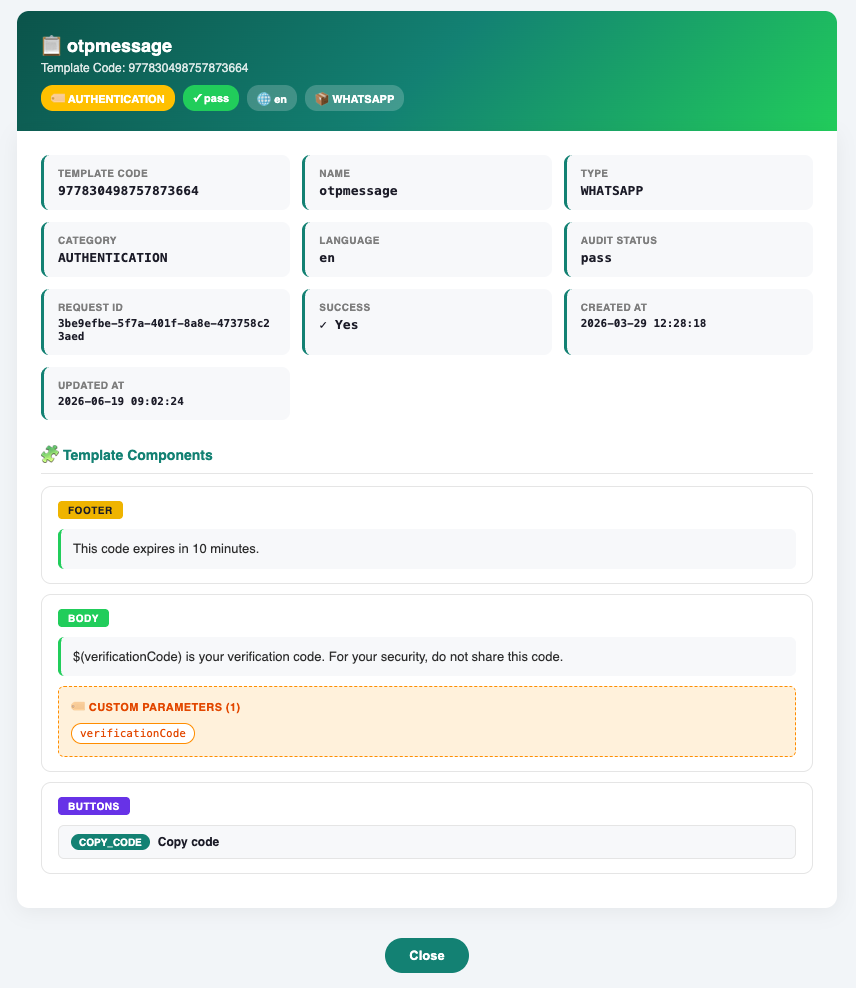
  • DetailView its components, variables, and audit status.
  • MarkdownView the template in markdown format.
  • SendSend the template to recipients — see Send a WhatsApp Template.

Inside a template

The Detail view breaks a template into its parts. A template is built from components — and any variable (shown like $(verificationCode)) is a placeholder that gets filled in per recipient when you send.

  • HeaderOptional title, image, or document at the top.
  • BodyThe main message text, which can include variables.
  • FooterSmall print under the body, e.g. “This code expires in 10 minutes.”
  • ButtonsActions such as Copy code, quick replies, or links.
An iSMS WhatsApp template detail view showing template code, category, audit status, and components: footer, body with a variable, and a copy-code button.
Fig. 2Template detail — components, the verificationCode variable, and audit status.
A WhatsApp-style preview of the otpmessage template, with a note that variables are replaced with real values when sending.
Fig. 3Preview — how the template looks in WhatsApp before you send.
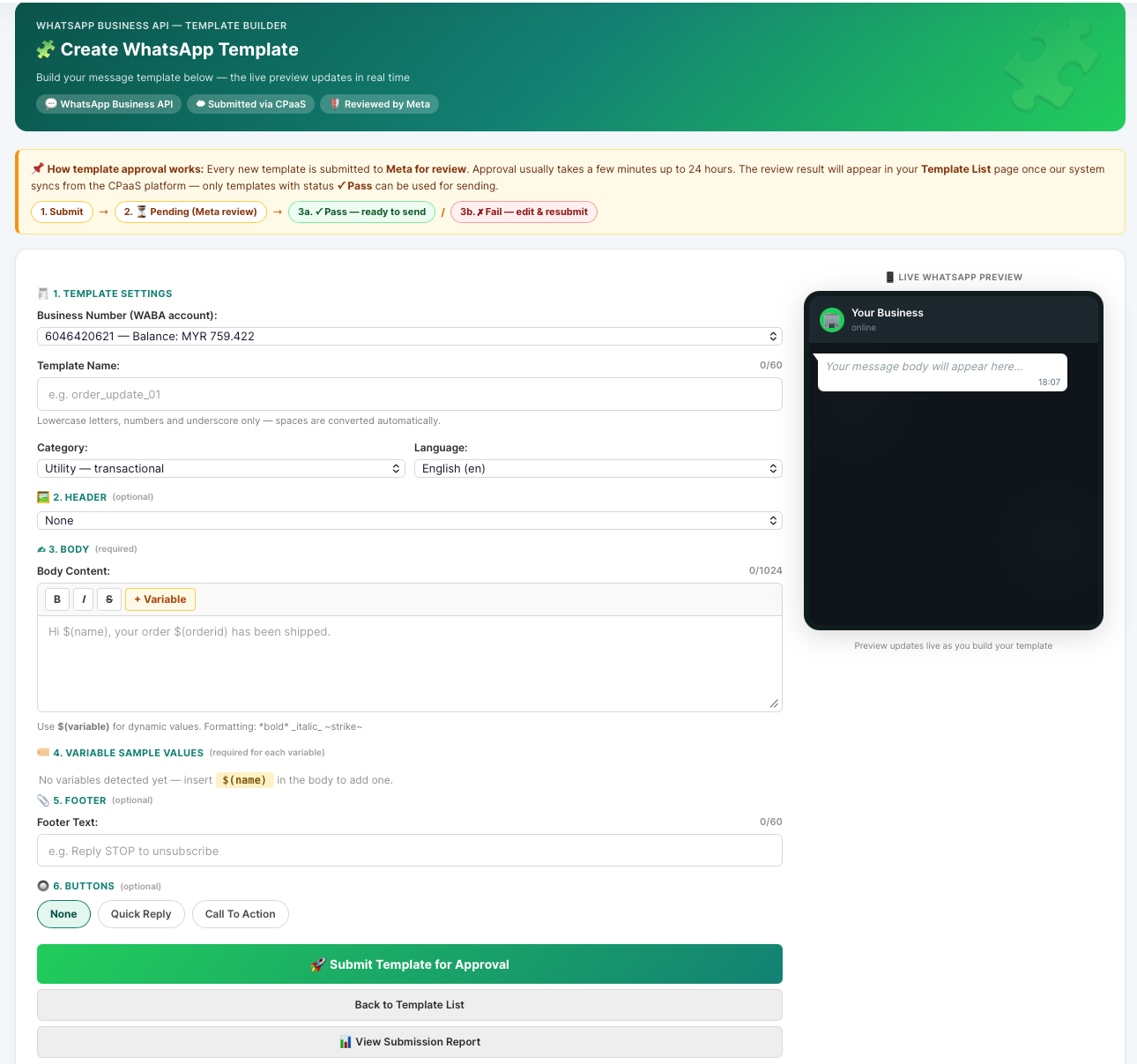
Templates are created and approved through Meta. A pass audit status means a template is live and ready — if a template isn’t showing, it may still be under review. See About WABA for how approval works.

Chapter 28 · Part 4

Send a WhatsApp Template

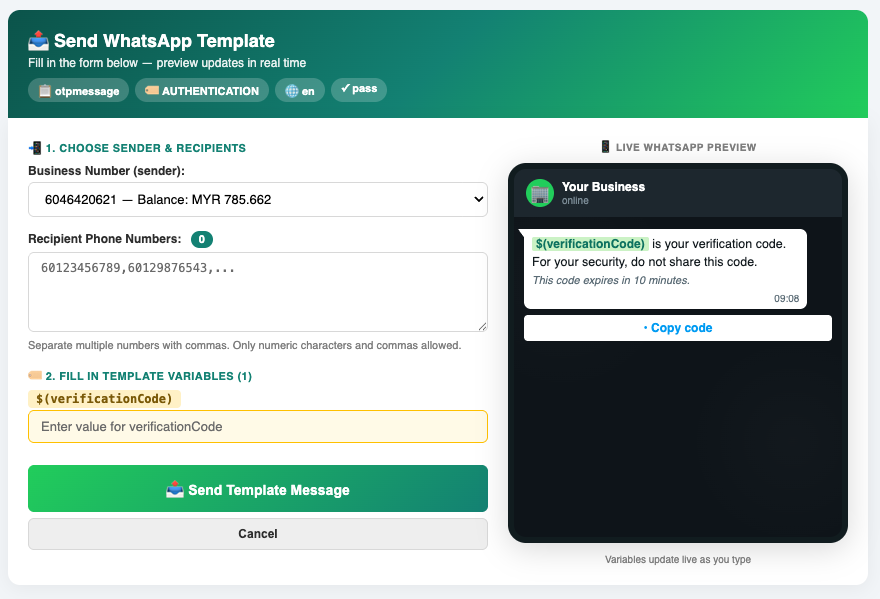
Send an approved template to one or more recipients. Fill in the template’s variables and a live WhatsApp preview shows the exact message before you hit send.

Sending a template

Open Template List, click Actions → Send on the template you want, and choose the single-send form.

  1. 1

    Choose the sender

    Pick the Business Number to send from — its current balance is shown next to it.

  2. 2

    Add recipients

    Enter one or more recipient phone numbers, separated by commas (numbers only). The counter shows how many you’ve added.

  3. 3

    Fill in the variables

    Enter a value for each template variable (for example $(verificationCode)). The live preview on the right updates as you type.

  4. 4

    Review & send

    Check the preview reads correctly, then click Send Template Message.
The iSMS Send WhatsApp Template form: choose sender, recipient phone numbers, template variable inputs, and a live WhatsApp preview that updates as you type.
Fig. 1The send form — variables on the left, a live WhatsApp preview on the right.
Variables like $(verificationCode) are replaced with the values you enter when the message is sent. When you list several recipients here, they all receive the same values — to give each recipient their own values, use Bulk Send via CSV.

Chapter 29 · Part 4

Bulk Send via CSV

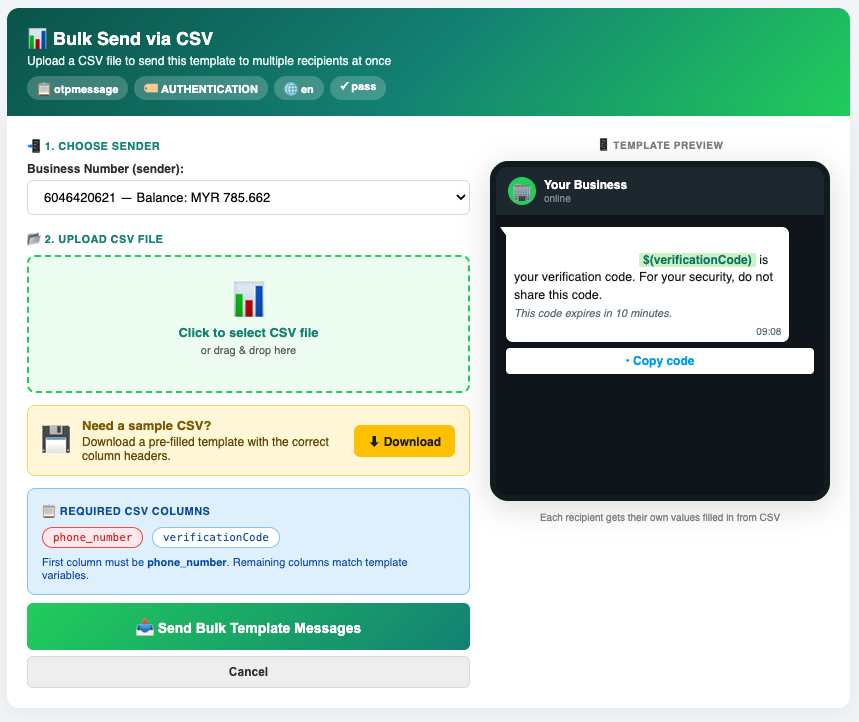
Send a template to a whole list at once, with each recipient getting their own personalised values. You provide a CSV; iSMS fills the template variables row by row.

How the CSV maps to the template

From Template List, click Actions → Send and choose Bulk Send via CSV. The first column must be phone_number, and every remaining column must match a template variable by name.

For a template with one variable, verificationCode, the file looks like this:

phone_number,verificationCode 60123456789,837192 60129876543,540021

Each row sends one message, with that row’s values filled into the template.

Sending the batch

  1. 1

    Choose the sender

    Pick the Business Number to send from — its balance is shown alongside.

  2. 2

    Prepare the CSV

    First column phone_number, then one column per template variable. Use Download on the page to grab a sample with the correct headers. New to CSVs? See Create CSV in Excel.

  3. 3

    Upload it

    Click to select your .csv or drag and drop it onto the upload area.

  4. 4

    Review & send

    Check the template preview, then click Send Bulk Template Messages.

The iSMS Bulk Send via CSV screen: choose sender, upload a CSV, the required columns (phone_number plus template variables), and a template preview.
Fig. 1Bulk Send via CSV — one row per recipient, columns matched to template variables.
The column headers must exactly match the template’s variable names, and phone_number must be first — downloading the sample CSV is the safest way to get them right.

Chapter 30 · Part 4

WABA Scheduler

Don’t need to send right now? Schedule a WhatsApp template send to your CSV list for later — once, or repeating daily, weekly, or monthly — then track every run from the Scheduler monitor.

How scheduling works

Scheduling starts from the same screen as a normal bulk send. From Template List, open Actions → Send → Bulk Send via CSV, set the sender, template, and CSV exactly as in a bulk send, then in the When to send panel choose Schedule for later instead of Send now.

From set-up to automatic send

Set up the send

Sender, template, CSV

Schedule for later

Instead of Send now

Pick trigger & time

Once or repeating

Saved as queued

Waits for its time

Runs automatically

At the scheduled time

Schedule a send

  1. 1

    Set up the send

    Choose the Business Number to send from and upload your recipient .csv, exactly as in a normal bulk send — first column phone_number, then one column per template variable.

  2. 2

    Choose “Schedule for later”

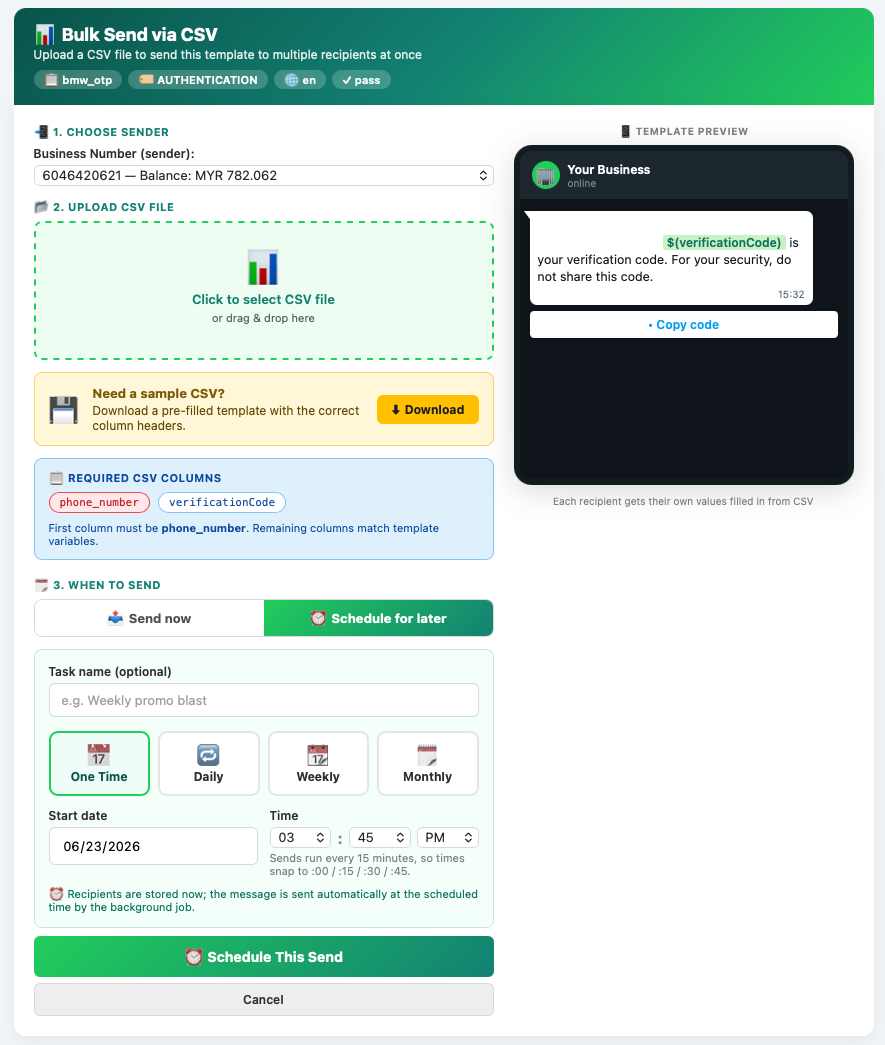
    In the When to send panel, switch from Send now to Schedule for later. The scheduling options appear.

  3. 3

    Name it (optional)

    Give the schedule a Task name (and a description) so it’s easy to find later. Leave it blank and a name is generated for you.

  4. 4

    Pick a trigger

    Choose One Time, Daily, Weekly, or Monthly (see the next section).

  5. 5

    Set the start date & time

    Pick the date and time. Times snap to :00, :15, :30, or :45, because sends run on a 15-minute cycle.

  6. 6

    Set the recurrence

    For Weekly, tick the weekdays to repeat on; for Monthly, choose the day(s) and month(s). One Time and Daily need nothing extra.

  7. 7

    Schedule it

    Click Schedule This Send. Your recipients are stored now, and the schedule appears on the monitor as Queued, ready to run on its own.

The Bulk Send via CSV screen with the When to send panel set to Schedule for later: task name, trigger buttons (One Time, Daily, Weekly, Monthly), a start date, and a time that snaps to quarter-hours.
Fig. 1The When to send panel — choose Schedule for later, a trigger, and a start date and time.

Trigger types

One Time

Runs once, at the chosen date and time, then stops.

Daily

Repeats every day at the chosen time, from the start date.

Weekly

Repeats on the weekdays you select, at the chosen time.

Monthly

Repeats on the day(s) and month(s) you choose.

For recurring triggers, the scheduler always shows the next run time and advances it automatically after each run. Each schedule also carries a plain-language summary of its timing, e.g. “At 17:45 everyday, starting 2026-06-23.”

Track your schedules

Open Scheduler from the WABA menu (next to Outbound Message) to reach the monitor. It opens on all of your schedules — not just today’s.

Total schedules
All yours
Waiting to run
Queued
Running now
Sending
Completed
Finished
Sent
Success rate
Send failures
Need a look

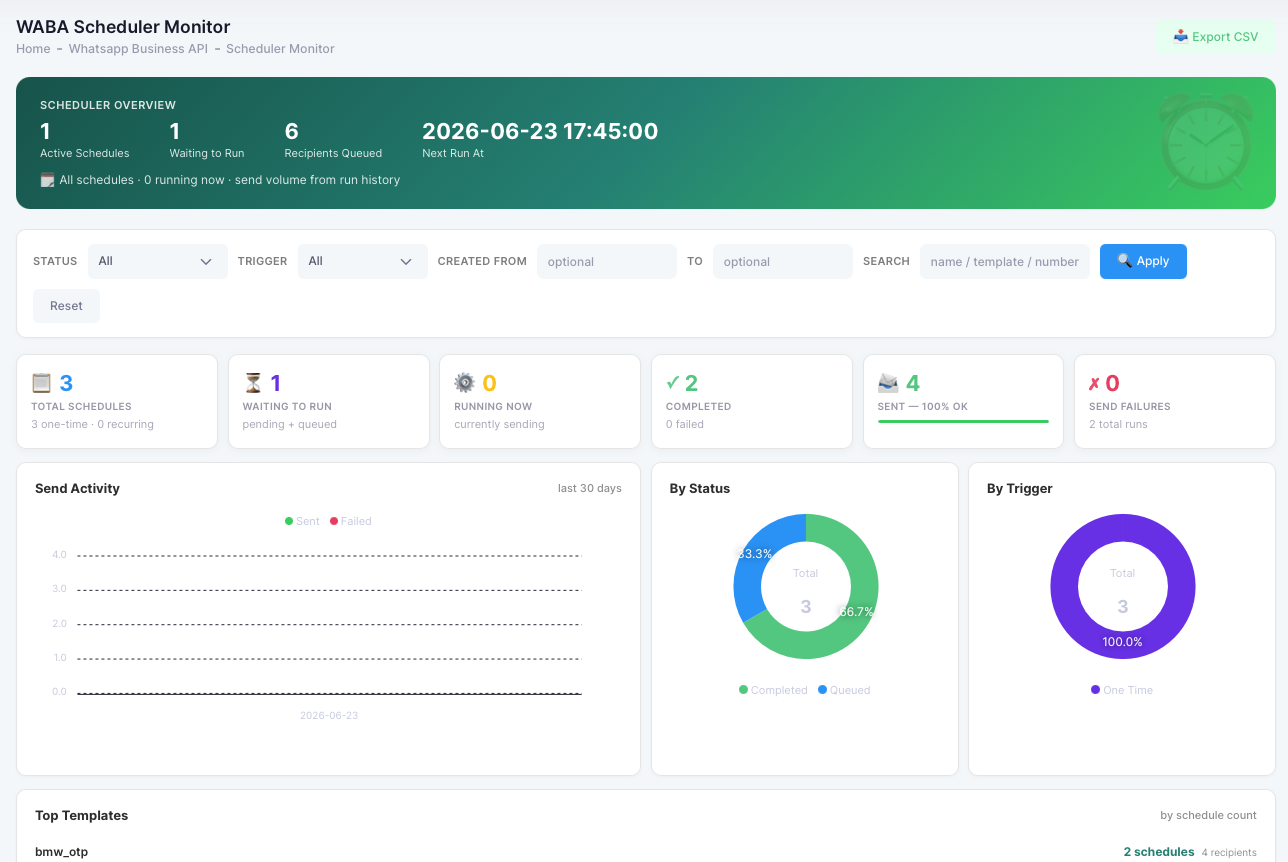
Below the KPI cards are quick charts — a Send Activity trend (sent vs failed over time), a By Status donut, a By Trigger donut, and Top Templates ranked by how many schedules use each. A filter bar (status, trigger, created-date range, and a name/template/number search) narrows the list, and the whole list can be exported to CSV.

The schedule table has one row per schedule — task, trigger, status, sender number, template, recipient count (and how many are processed), last run (with its sent/failed split), next run, and created date — plus a View action, and Edit and Delete while they’re still allowed.

The WABA Scheduler Monitor: an overview band, a filter bar, KPI cards (total schedules, waiting to run, running now, completed, sent, send failures), and charts for send activity, status, trigger, and top templates.
Fig. 2The Scheduler monitor — KPIs, charts, filters, and the schedule table, with Export CSV.

View a schedule’s detail

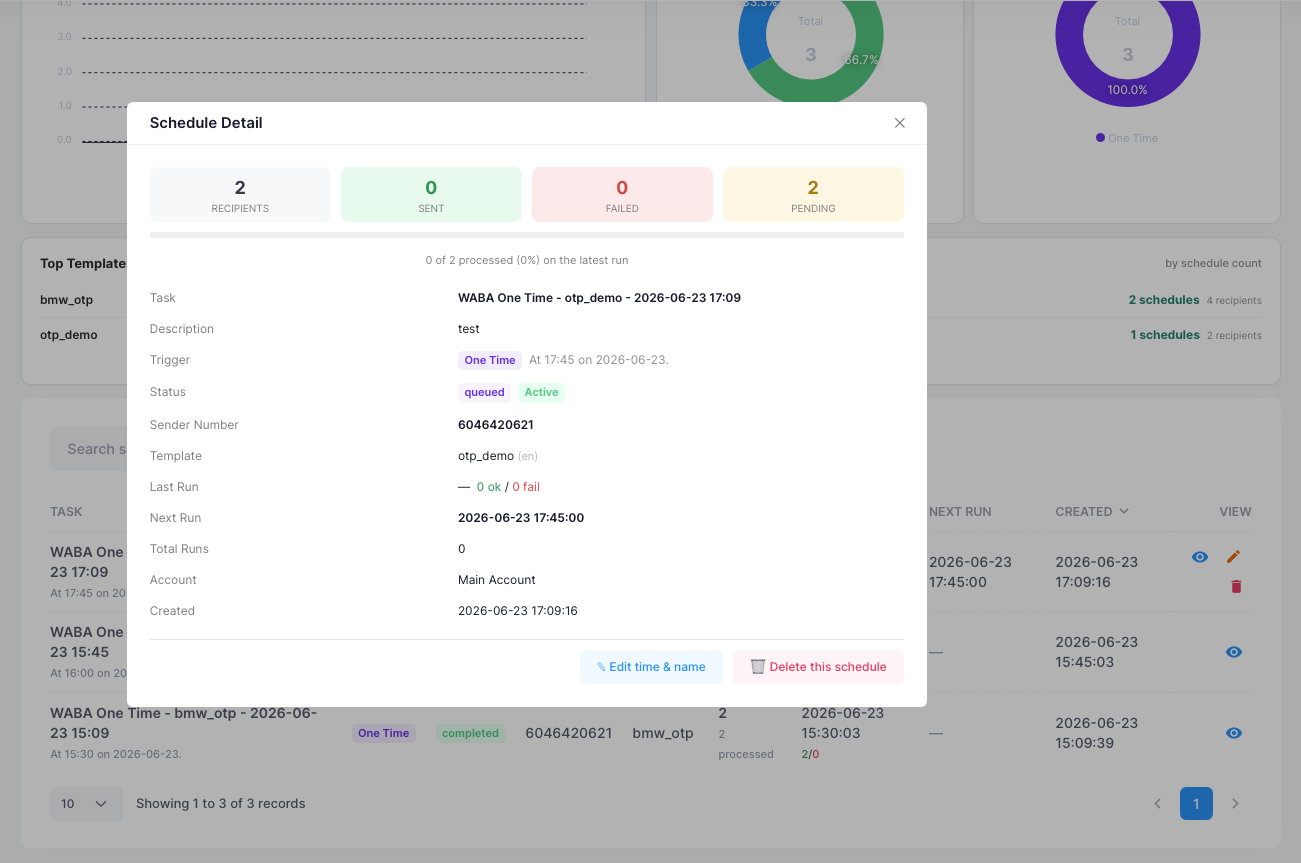
The View button opens a Schedule Detail panel for that schedule, showing:

  • Recipient breakdownTotal, Sent, Failed, and Pending, with a progress bar for the latest run.
  • Schedule infoTask and description, trigger and its timing, status and whether it’s active, sender number, template and language, last run (with sent/failed), next run, total runs, the owning account, and the created date.
  • Edit & DeleteShown only while the schedule can still be changed (see the rule below).
The Schedule Detail panel: recipient counts (Recipients, Sent, Failed, Pending) with a progress bar, full schedule information, and Edit time & name and Delete this schedule buttons.
Fig. 3Schedule Detail — live recipient counts and the full schedule information.

Edit or delete a schedule

Use the row or detail-panel buttons:

  • Edit — timing & naming onlyChange the task name, description, trigger, start date and time, and recurrence. The sender, template, and recipient list can’t be edited — to change those, delete the schedule and create a new one. The next run time is recalculated after you save.
  • Delete — removes everythingPermanently removes the schedule, its queued recipients, and its run history, after a confirmation prompt.
The “before it starts” rule. You can edit or delete a schedule only while it’s still queued, has never run, and its send time is still in the future. The moment the time arrives — or the send begins, or it has already run — Edit and Delete disappear. This protects a send that’s about to go out, is going out, or has already gone, and it’s enforced on the server even if a page was left open.

Schedule statuses

  • PendingBeing set up — recipients are still loading.
  • QueuedReady and waiting for its scheduled time.
  • ProcessingCurrently sending.
  • CompletedA One Time send that has finished.
  • FailedA run that did not succeed.
  • Cancelled / PausedNot currently scheduled to run.

Active vs Inactive: “Active” means the schedule is still set to run. Recurring schedules stay active between runs; a One Time schedule becomes inactive once it has completed.

Your account balance is checked when a schedule runs, not when you create it — so make sure there’s enough credit in place ahead of each scheduled send.

Chapter 31 · Part 4

WhatsApp Conversations

A live two-way inbox for WhatsApp. When a customer messages you, reply in real time — with text, a file, or a template — right inside iSMS. This feature is in BETA.

Opening the inbox

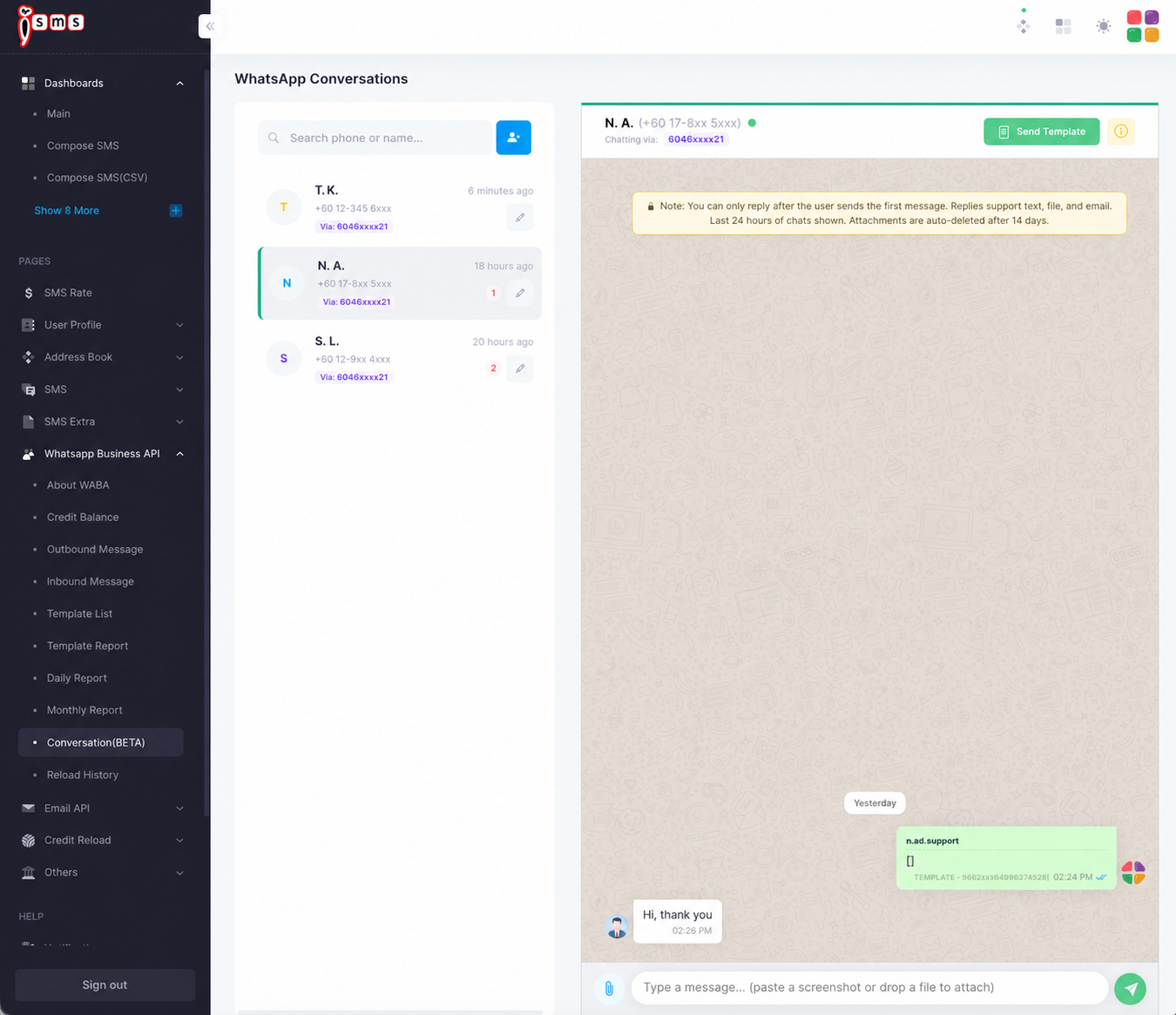
Go to WhatsApp Business API → Conversation (BETA). The left panel lists your conversations; click one to open the chat on the right.

  • Conversation listNewest first, with an unread count and the business number each chat came in through.
  • Chat threadThe selected conversation. Reply with text, a file, or email; or click Send Template to send an approved template into the chat.
  • SearchFind a conversation by phone number or name.
The iSMS WhatsApp Conversations inbox: a conversation list on the left and an open chat thread on the right with a Send Template button.
Fig. 1The Conversations inbox — list on the left, live chat on the right.

How the 24-hour window works

The service window

Customer messages

They send the first message

24h window opens

The clock starts

Reply freely

Text, file, or template

Window closes

Send a template to reopen

Free-form replies are only possible while the window is open. After 24 hours of silence, you need an approved template to start a new conversation.

The 24-hour rule: you can only reply after the customer sends the first message, and only the last 24 hours of chats are shown. This is WhatsApp’s free-form service window — once it closes, you’ll need a template to re-open contact.
You can paste a screenshot or drag a file straight into the message box. Note that attachments are auto-deleted after 14 days, so save anything important.

Chapter 32 · Part 4

WABA Outbound & Inbound Reports

Two reports track your WhatsApp traffic by direction — what you send (Outbound) and what customers send you (Inbound). Each can be filtered by date and exported.

Outbound Report

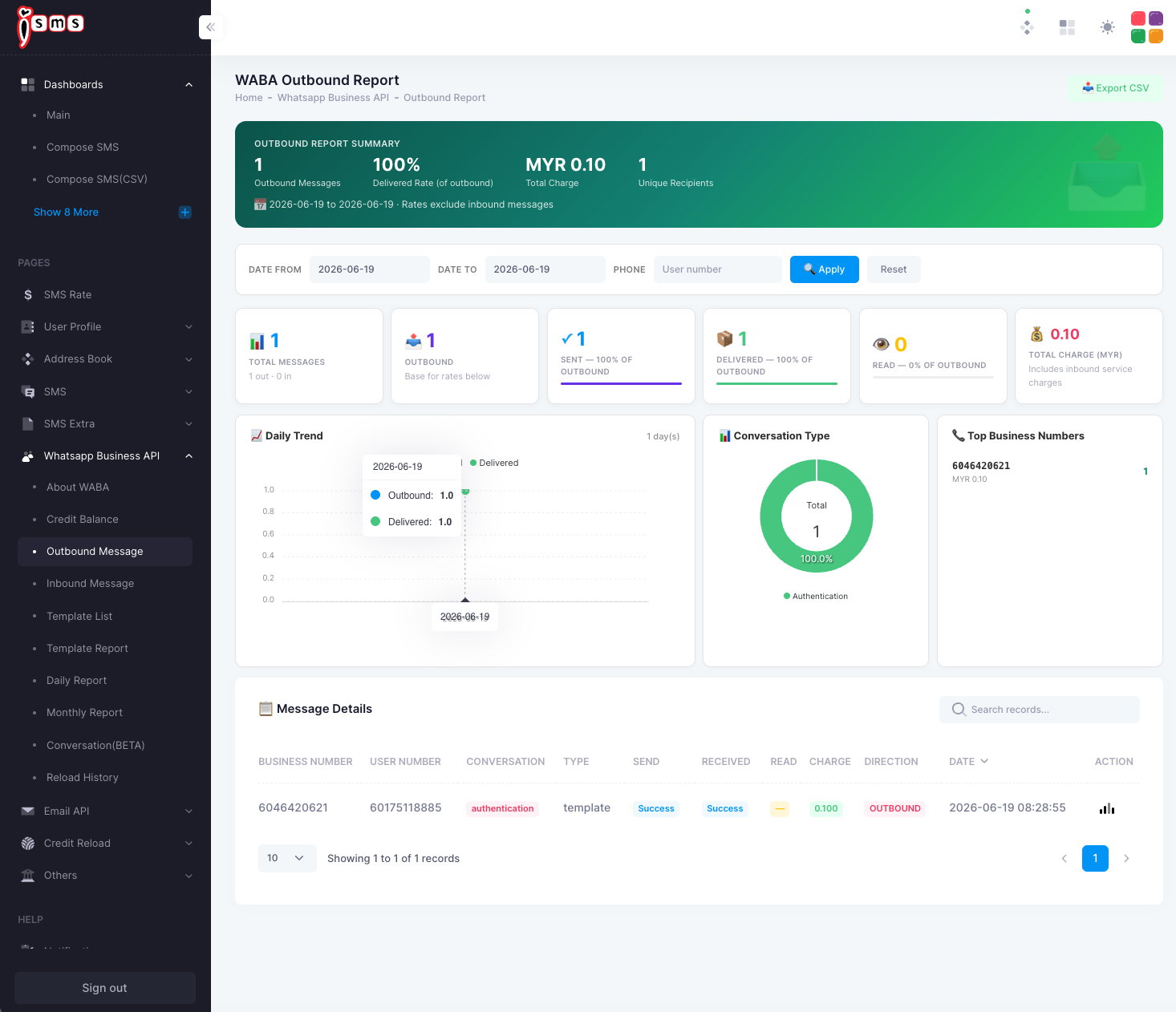
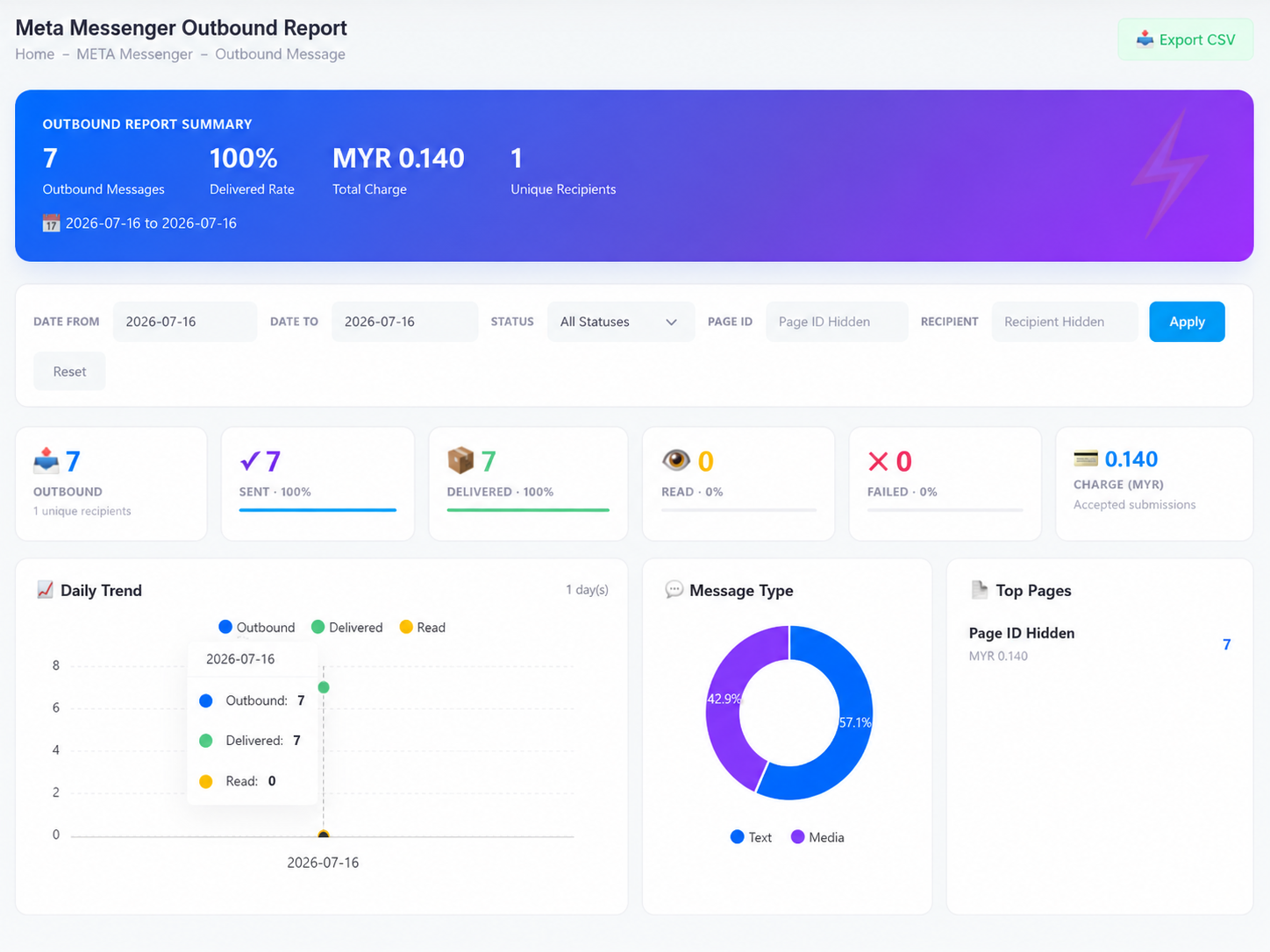
Under WhatsApp Business API → Outbound Message. It tracks messages you send through the delivery funnel and shows the charge. (Rates here exclude inbound messages.)

The outbound funnel

Sent

Left iSMS to WhatsApp

Delivered

Reached the handset

Read

Opened by the recipient

Each stage is shown as a percentage of outbound, alongside total charge, a daily trend, conversation type, and your top business numbers.

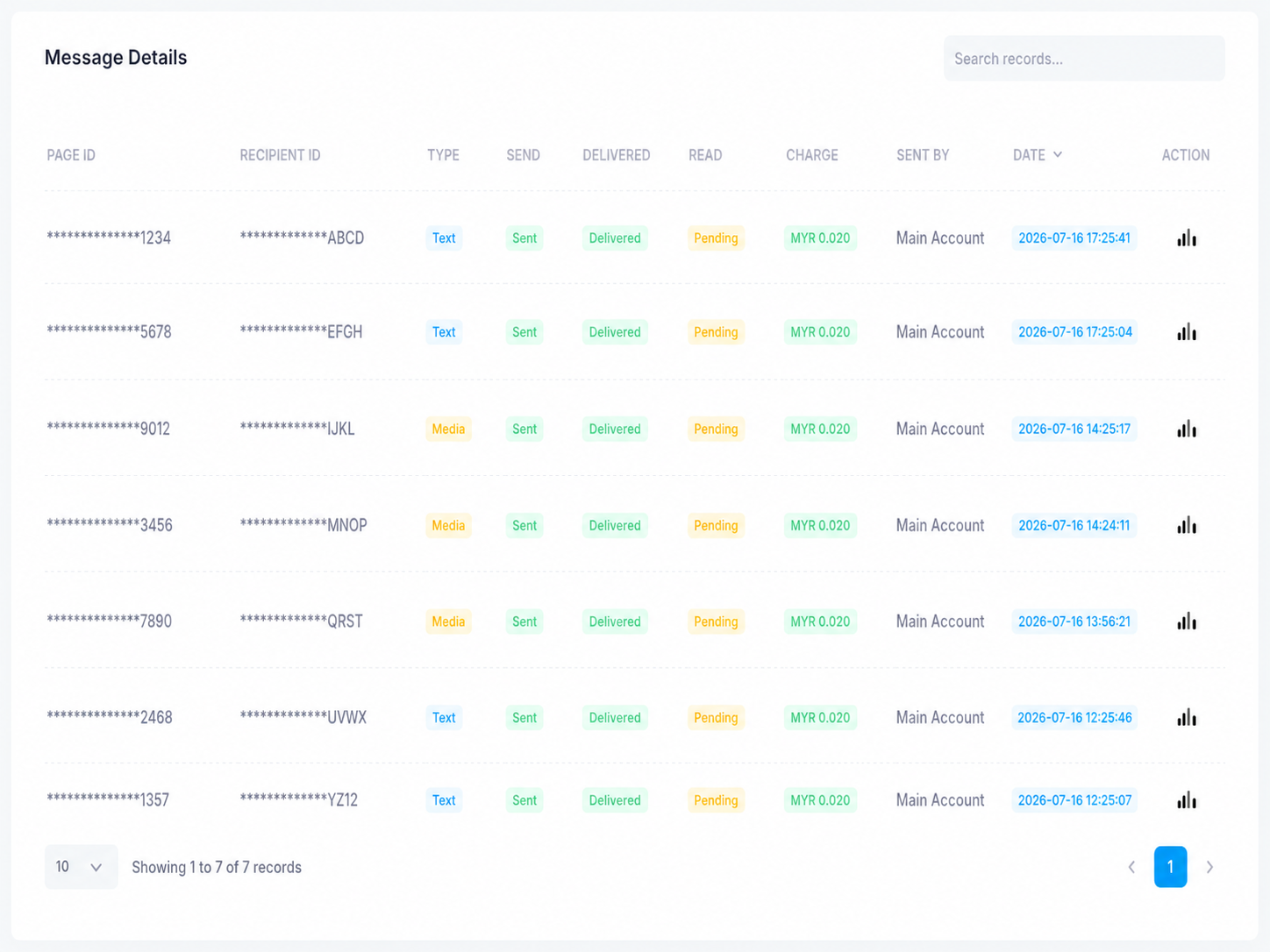
The message details table lists each message with its send / received / read status, charge, and direction.

The iSMS WABA Outbound Report: sent/delivered/read cards, daily trend, conversation type donut, top business numbers, and a message details table.
Fig. 1The Outbound Report — delivery funnel, charges, and per-message detail.

Inbound Report

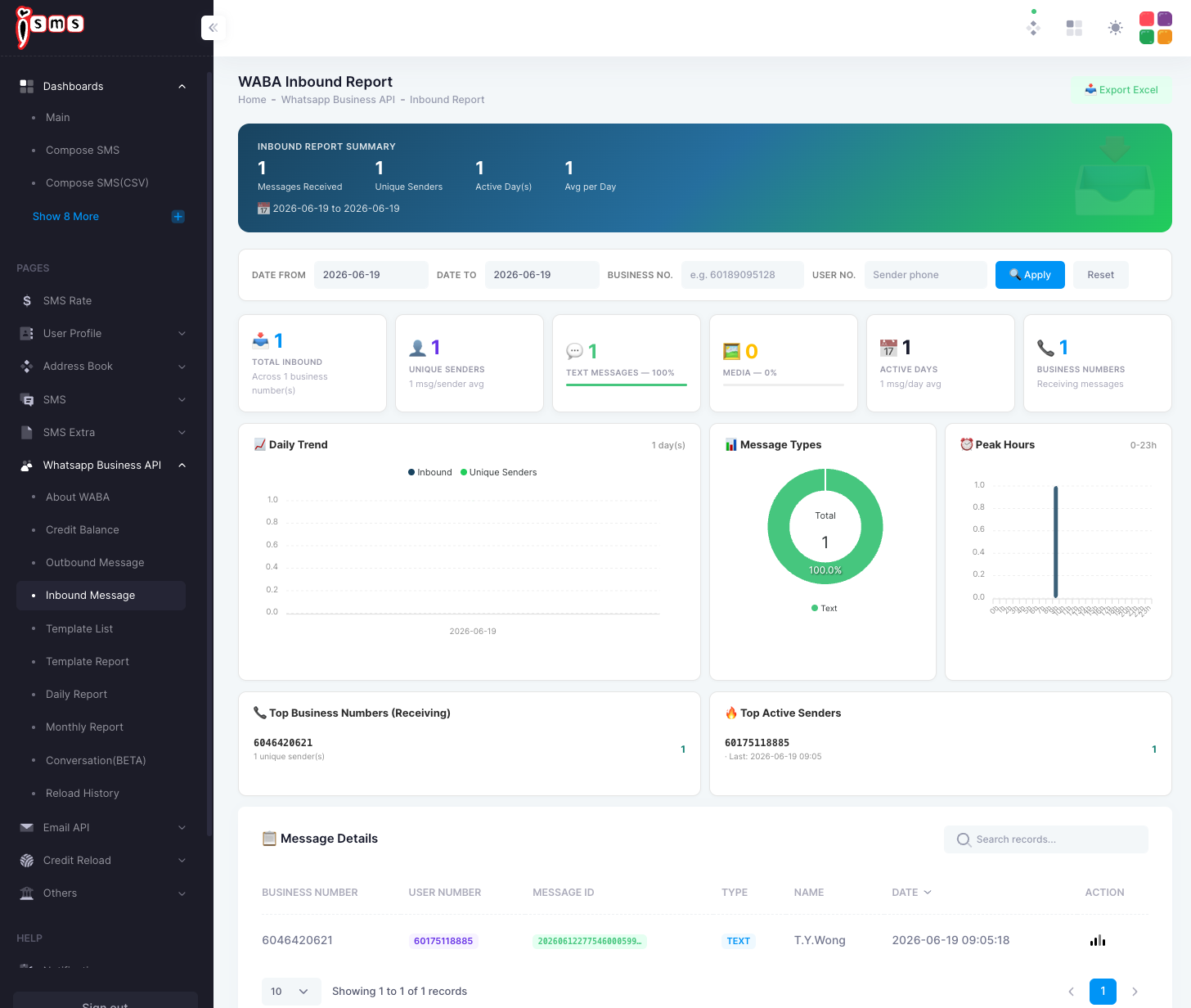
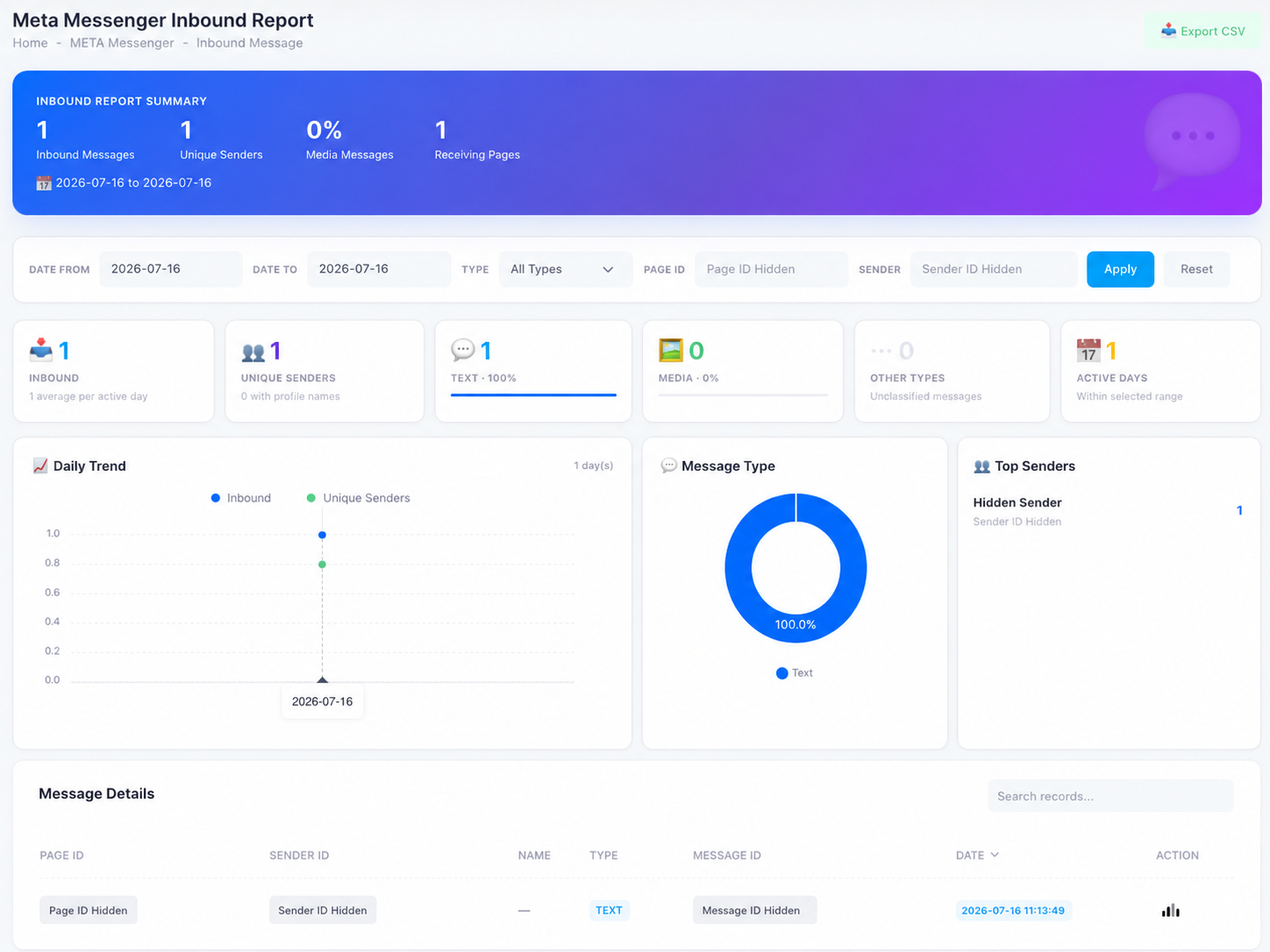
Under WhatsApp Business API → Inbound Message. It summarises what customers send you — messages received, unique senders, and the split between text and media.

  • Messages received & unique sendersVolume and how many distinct people messaged you.
  • Message typesText vs media share of inbound.
  • Active days & peak hoursWhen inbound activity happens.
  • Top numbers & sendersWhich business numbers received most, and your most active senders.
The iSMS WABA Inbound Report: messages received, unique senders, message types donut, peak hours, top business numbers and senders, and a details table.
Fig. 2The Inbound Report — what customers send you, and when.
Delivered and read rates only apply to outbound messages — inbound messages show as received only. For a combined day-by-day or calendar view, see Daily & Monthly Reports.

Chapter 33 · Part 4

WABA Daily & Monthly Reports

For trends over time, these two reports summarise your WhatsApp activity — outbound and inbound volume, delivered and read rates, and charges — day by day, or across a whole month at a glance.

Daily Report

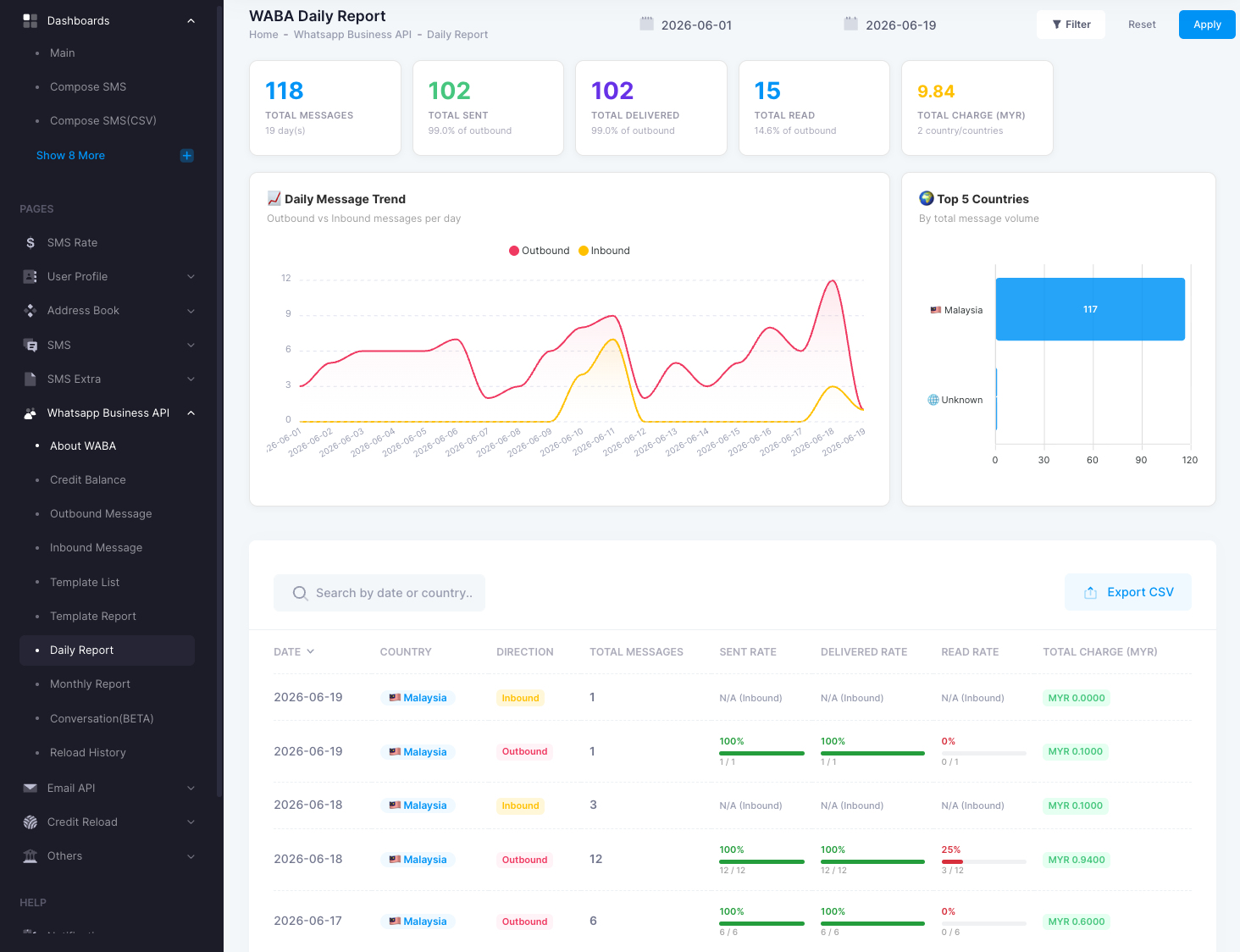
Under WhatsApp Business API → Daily Report. It charts outbound vs inbound messages per day, highlights your top countries, and lists each day’s rates and charge.

  • TotalsTotal messages, sent, delivered, read, and charge for the range.
  • Daily message trendOutbound vs inbound volume per day.
  • Per-row detailDate, country, direction, sent / delivered / read rate, and charge.
The iSMS WABA Daily Report: totals, a daily message trend chart, top countries, and a per-day table with rates and charge.
Fig. 1The Daily Report — day-by-day rates and trend.

Monthly Report

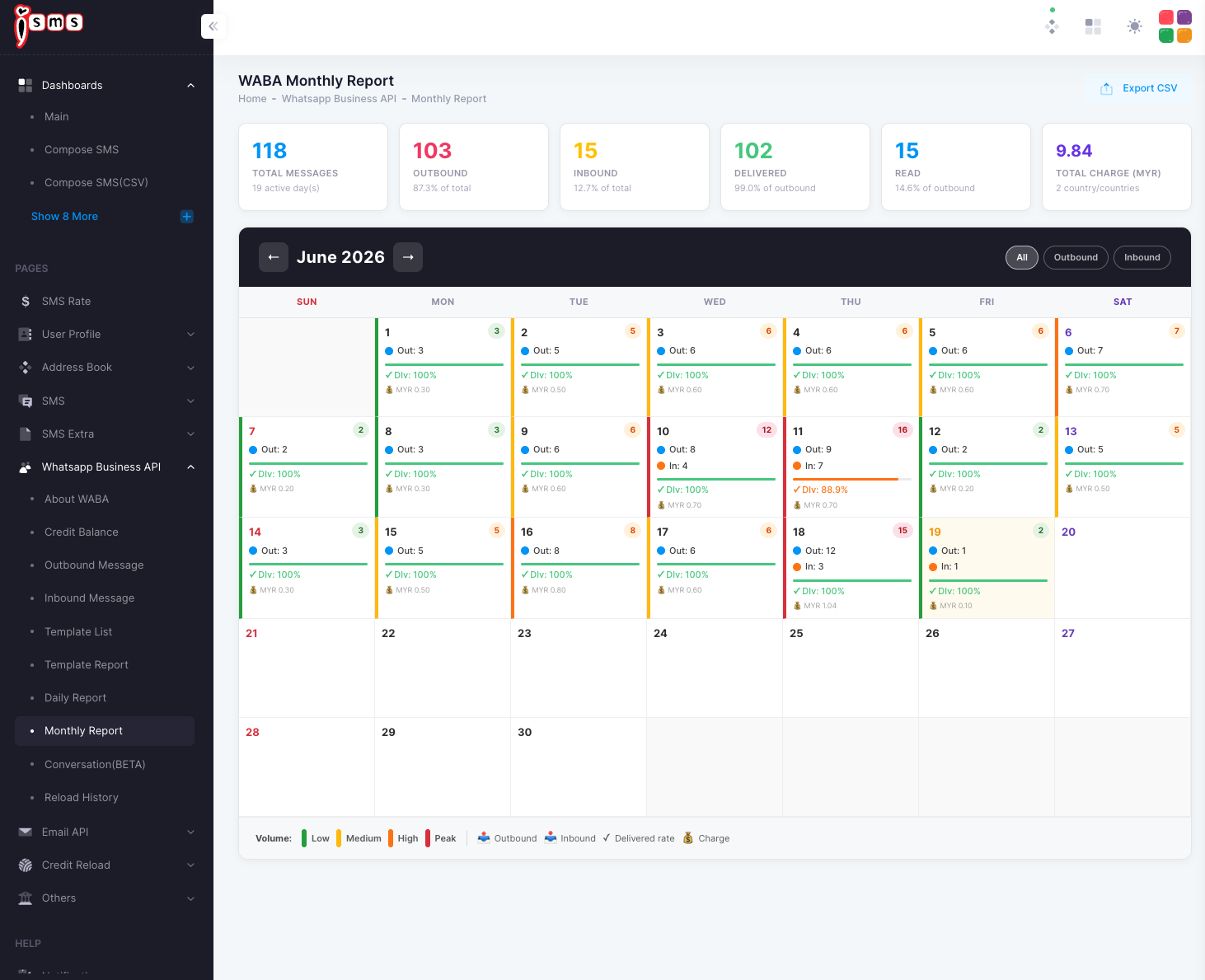
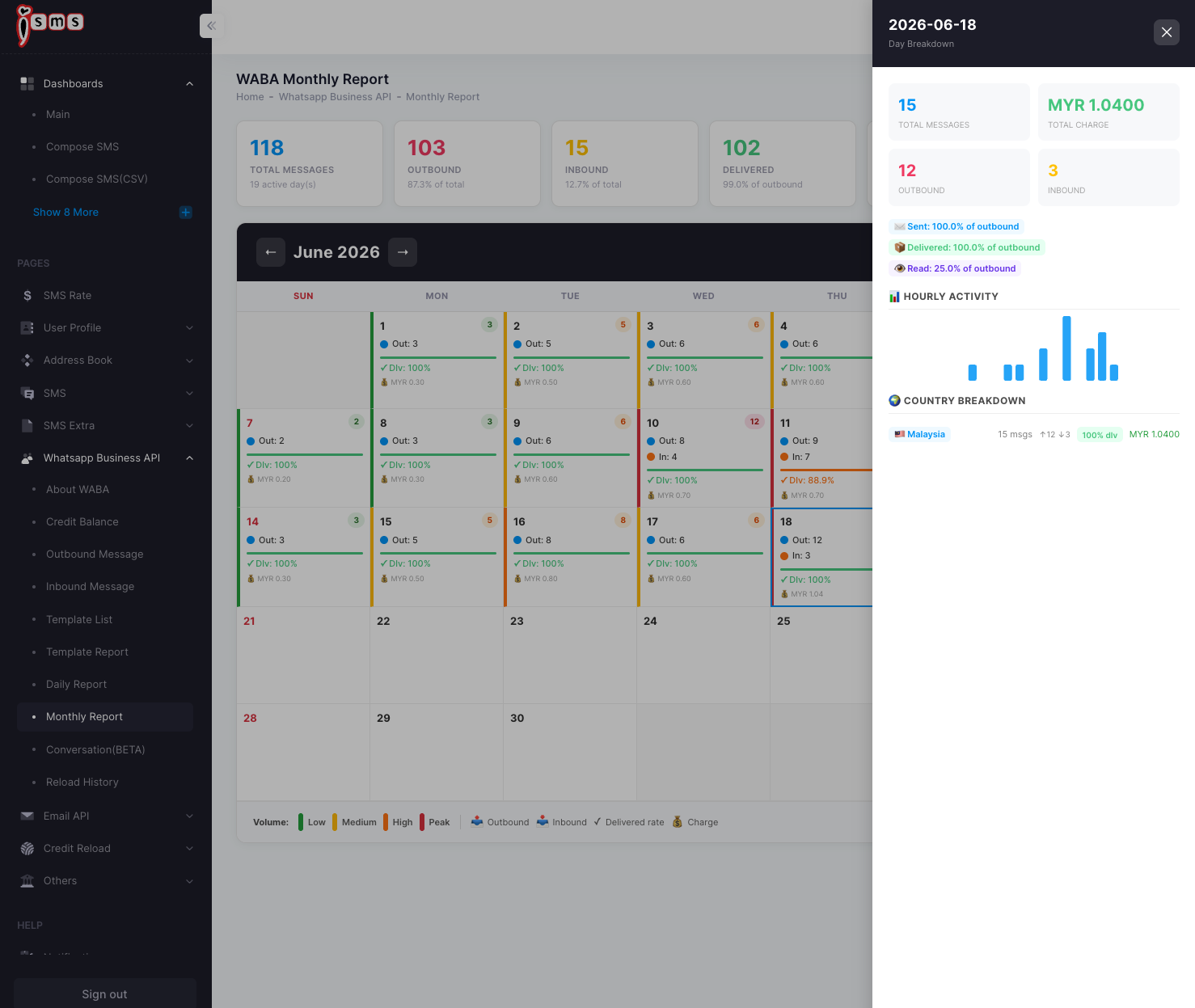
Under WhatsApp Business API → Monthly Report. It lays the month out as a calendar — each day shows outbound count, delivered rate, and charge. Filter by All, Outbound, or Inbound.

The iSMS WABA Monthly Report calendar for June 2026, each day showing outbound count, delivered rate, and charge.
Fig. 2The Monthly Report calendar — the whole month at a glance.

Click any day to open a side panel with that day’s full breakdown — total messages and charge, outbound/inbound split, sent / delivered / read percentages, hourly activity, and a country breakdown.

A single day selected in the WABA Monthly Report, showing total messages, charge, status percentages, hourly activity, and country breakdown.
Fig. 3Click a day for its status breakdown, hourly activity, and country split.
Data freshness: past days come from the overnight sync; today’s figures update live. Delivery and read statuses can take a little time to finalise, so the most recent day may still be settling. Both reports export to CSV.

Chapter 34 · Part 4

WABA Template Report

See which templates you’ve actually sent and what they cost — broken down by category. It’s the quickest way to understand your template mix and spend.

What it shows

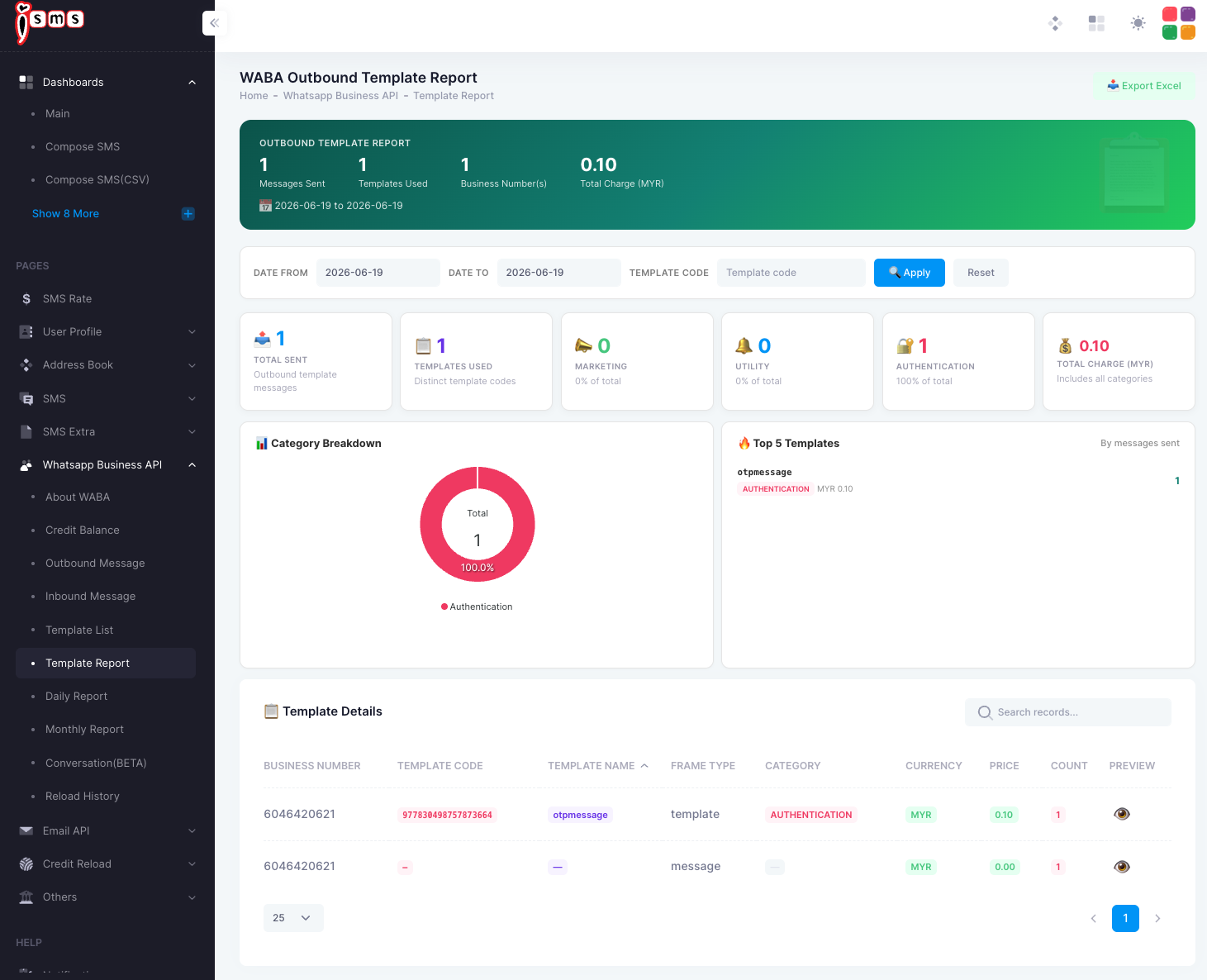
Open WhatsApp Business API → Template Report. Filter by date or a specific template code, then read your usage at a glance.

  • Total sent & templates usedHow many outbound template messages went out, and how many distinct templates.
  • Category breakdownThe split across Marketing, Utility, and Authentication, shown as a chart with each category’s share.
  • Top templatesYour most-sent templates, by message count.
  • Total chargeCombined cost across all categories.

The Template Details table lists each one by business number, template code, name, frame type, category, price, count, and a preview.

The iSMS WABA Outbound Template Report: totals, category cards, a category breakdown donut, top templates, and a template details table.
Fig. 1The Template Report — usage and cost by template and category.
Categories are billed differently — reviewing the mix here helps you understand spend. For what each category means, see About WABA; to browse the templates themselves, see WhatsApp Message Templates.

Chapter 35 · Part 4

WhatsApp Business API Documentation

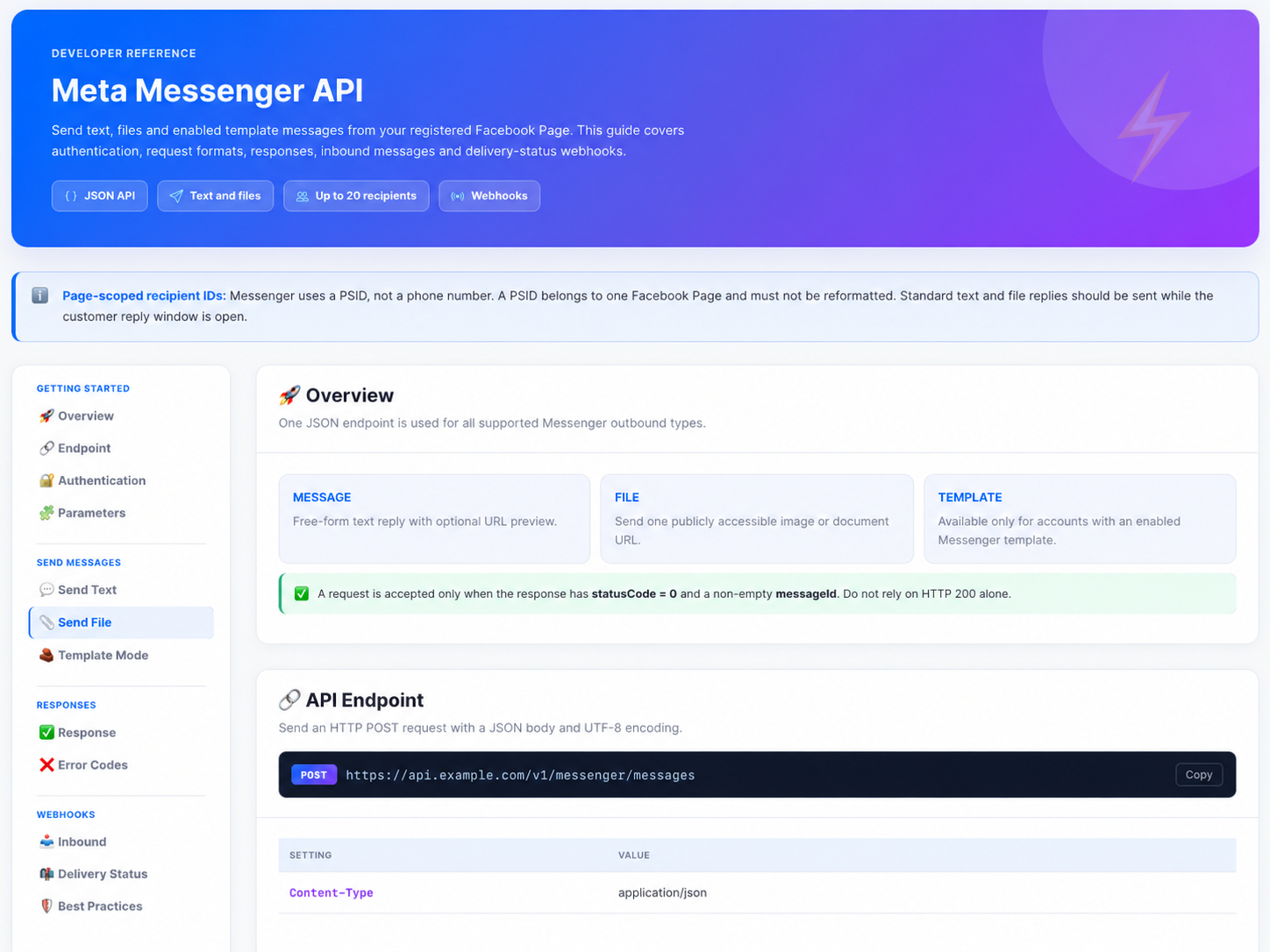
The full developer reference for this section — endpoints, parameters, response codes, and examples — is maintained as a live page.

The complete, always-current API reference — endpoints, parameters, response codes, and examples — is available on the online API documentation page.

Need a hand?

Our support team is happy to help with registration, your first campaign, or anything in this guide.

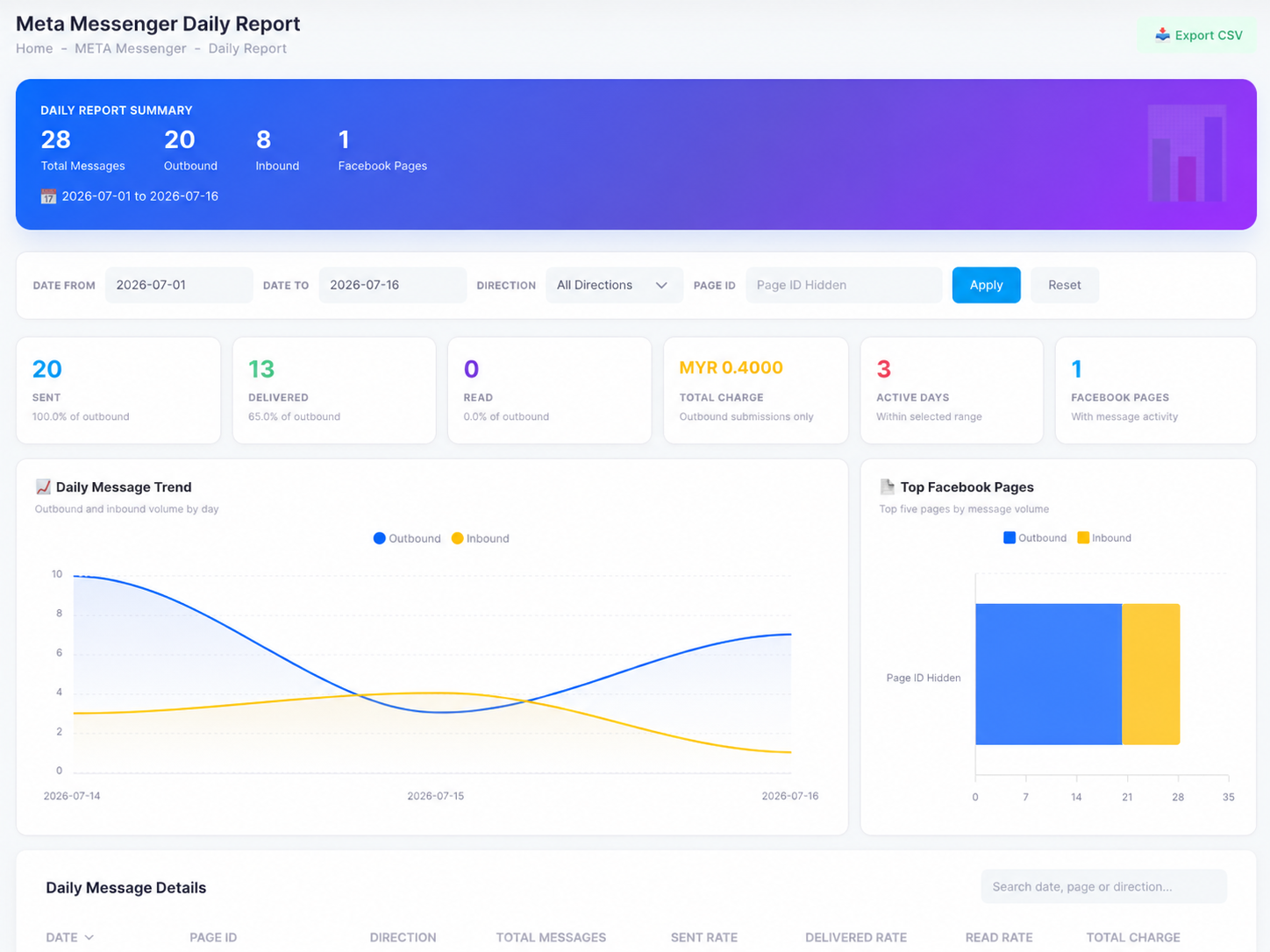
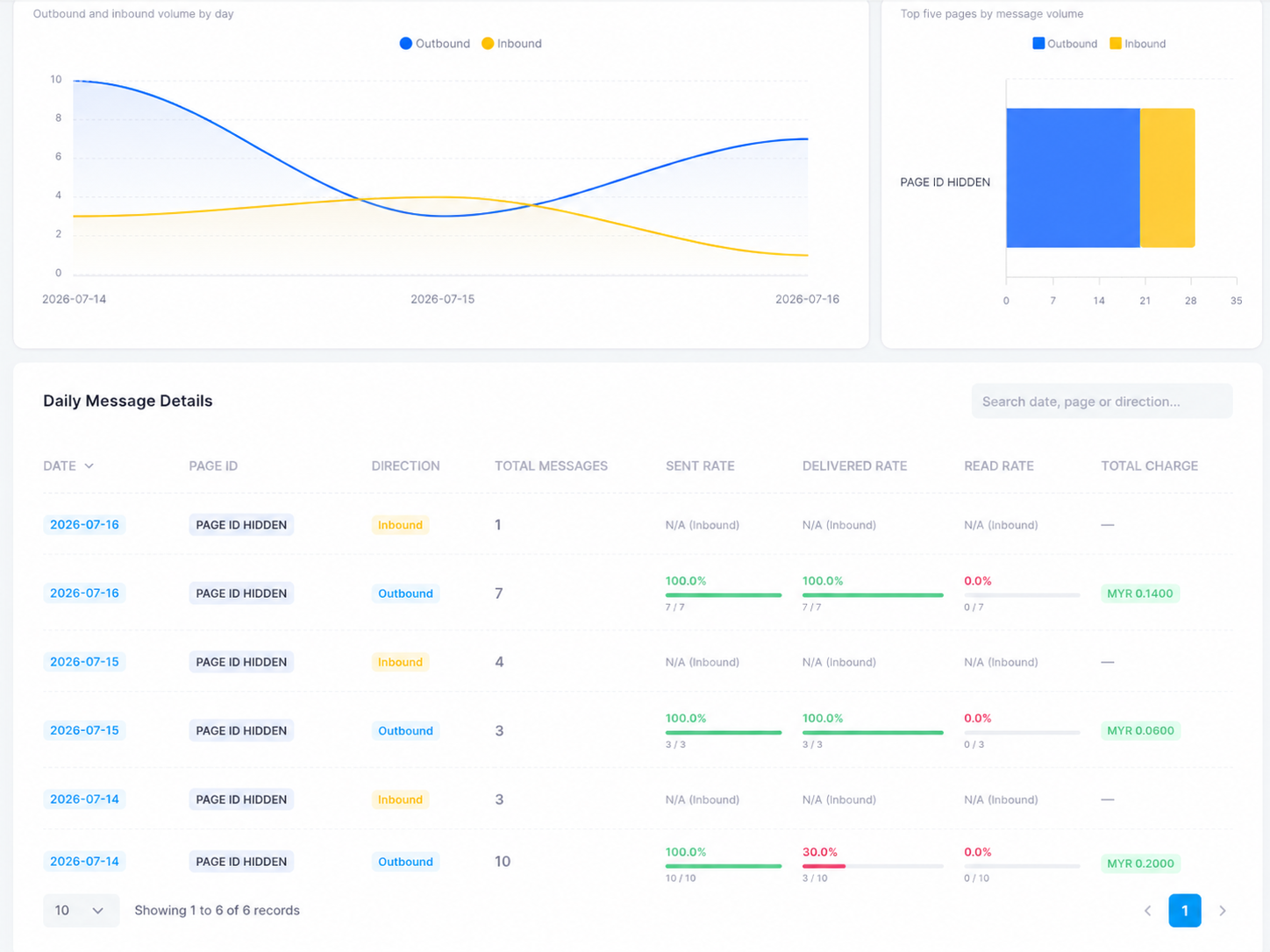
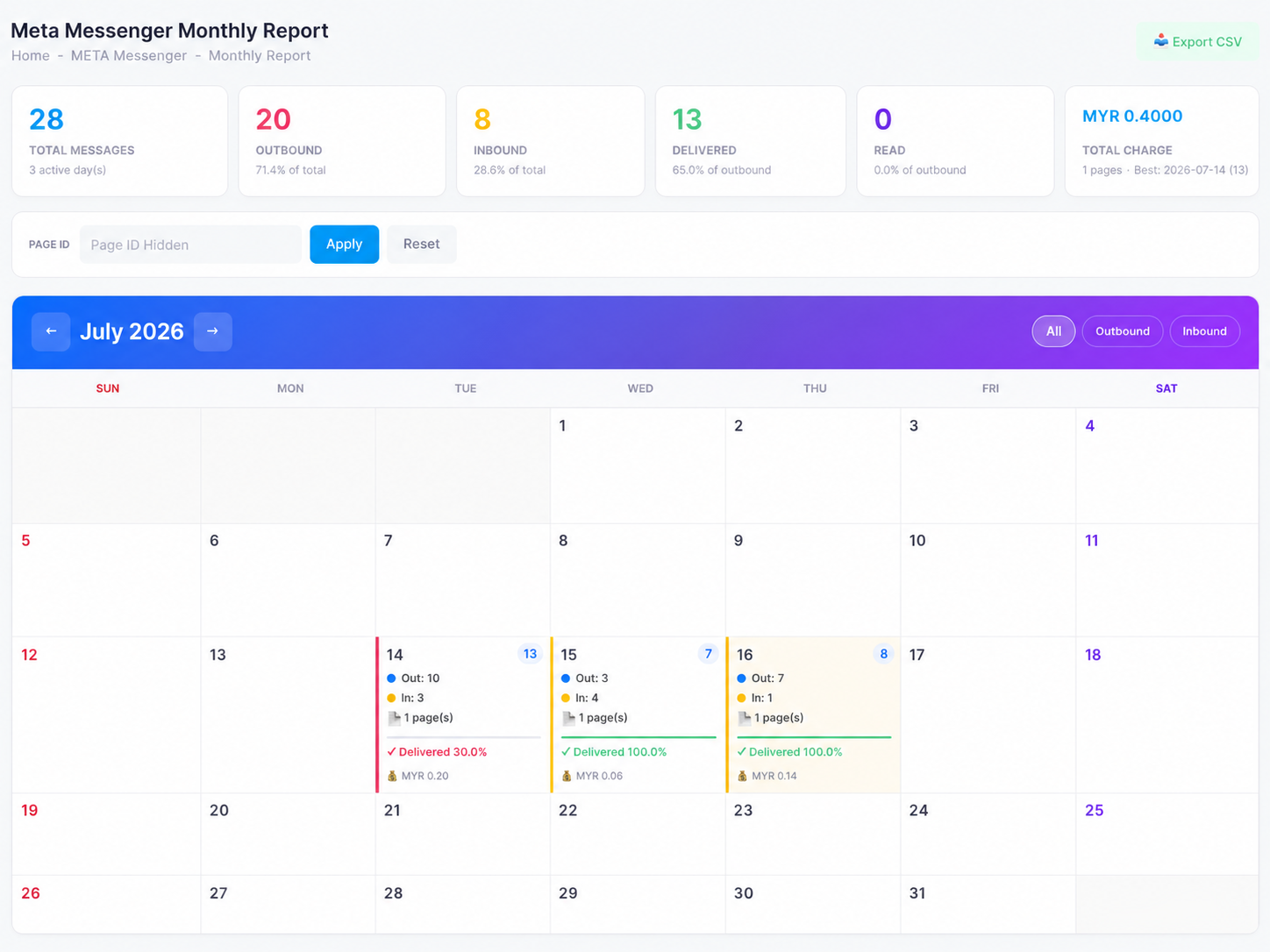
Contact us →